
Baseband is a general term used to describe the component of iPhone that handles calls and access to the Internet. If you update your iPhone baseband, you will not be able to restore it later. However, If you back up iPhone baseband now, you have the chance to restore your iPhone later. Read more…
How to Back Up iPhone Baseband
Baseband is a general term used to describe the component of iPhone that handles calls and access to the Internet. It is a small chip that mainly handles calls and access to the Internet while other components handle other features of the iPhone. You can think of baseband as a dialup modem that is used in home PC’s to connect to the Internet and sometimes even used to send faxes.
To make sure that your iPhone is always up-to-date, Apple frequently releases new firmware versions that might include OS or baseband updates. However, for jailbroken iPhones updating the baseband is not a good option.
Preserving iPhone baseband allows you to restore your iPhone later, in case; you accidentally jailbreak your iPhone to an incompatible firmware. In simple words, if you back up iPhone baseband now, you have the chance to restore your iPhone later.
For a guide on how to back up iPhone baseband, continue reading the steps below. If you are jailbreaking your iPhone using TinyUmbrella, make sure you follow Step 3. Without step 3 in action, you may accidentally update your iPhone baseband.
Step by Step Instructions
Step 1: As a first step, you need to download TinyUmbrella. To download TinyUmbrella V4.30, click the link below: Tiny Umbrella
Step 2: After you have downloaded TinyUmbrella, double click on it to execute the program. Once you launch TinyUmbrella, you should see a message that says, “TinyUmbrella: Fetching Libraries…”.
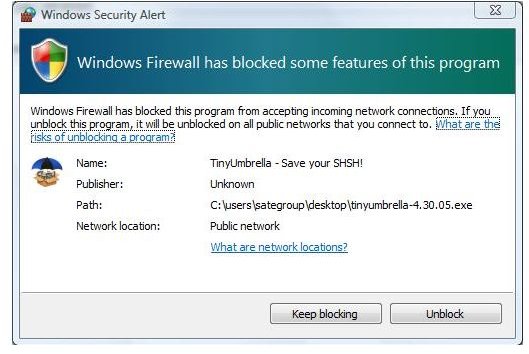
Once the application starts, you should notice a Windows Security Alert by Windows Firewall. Click Unblock to allow the application.
Get iPhone out of Recovery Mode
You can also use TinyUmbrella to get your iPhone out of recovery mode. To get your iPhone out of recovery mode, connect your iPhone and then press Fix Recovery button. This will get your iPhone out of recovery mode.
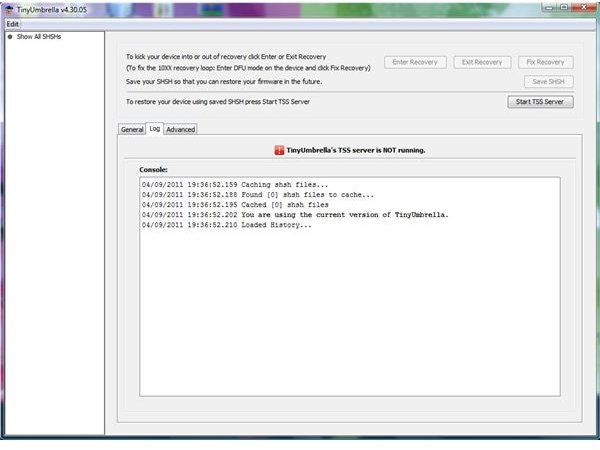
Step 3: You should now see the TinyUmbrella application screen. Click on Log tab. You will notice a message that says, “TinyUmbrella’s TSS Server is NOT running.”
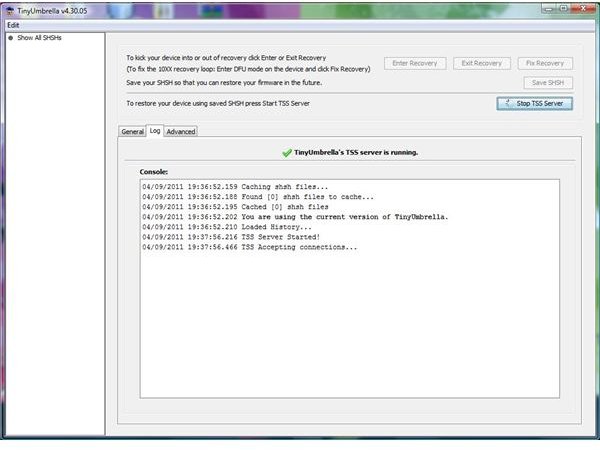
Click on the Start TSS Server button to start the TinyUmbrella TSS Server. Once the TSS Server is started, you should notice a message that says, “TinyUmbrella’s TSS Server is running.
Step 4: Now, click on “Advanced tab” and choose the directory where you would like to save your SHSH (baseband) files. By default, TinyUmbrella chooses the user directory in order to preserve iPhone baseband.
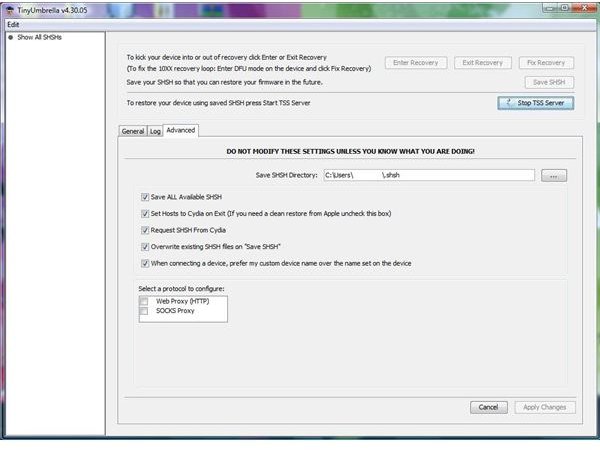
Click on “…” button to change the location.
Note: Please don’t change any other option, unless and until you are sure of what you are doing.
Step 5: Now, connect your iPhone to the computer and you should see the name of your iPhone on the left side of the TinyUmbrella application screen. Click on the General tab and select your iPhone to view the details.
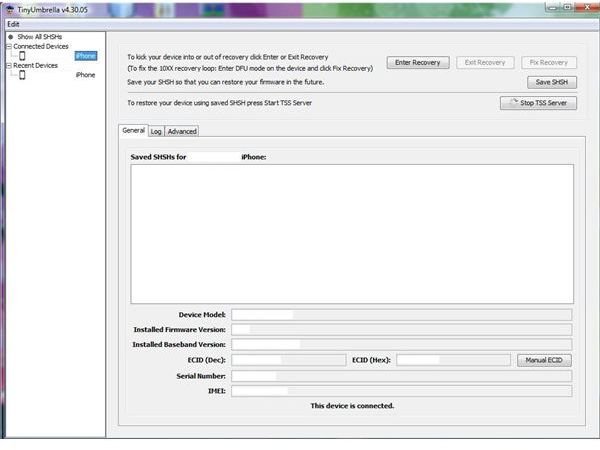
Step 6: Finally, click on the Save SHSH button to back up your iPhone baseband.
References
How to Get iPhone Out of Recovery Mode?, “PreciousJohnDoe”
Images Credit: Images provided by author


