iPhone DUN (Dial-Up Networking) is a process that allows you to tether your iPhone and use it as a dial-up modem instead to run the internet connection anytime using Bluetooth or any other gadget. Read more to find out how to use your iPhone as a modem…
iPhone tethering is a process that allows you to connect your iPhone via Bluetooth, wireless or by wire to a device connected to the internet and share the internet connection. This way you are always connected to the internet while you are in a car or a place where there is no Wi-Fi hotspot which is ideal if you need an internet connection on your laptop. This process is termed as iPhone DUN (dial-up networking). To use an iPhone as a dial-up modem, you need to have the latest version of iTunes installed on your computer, PdaNet desktop software installed and a Jailbroken iPhone with Cydia installed on it.
How to use iPhone as a modem
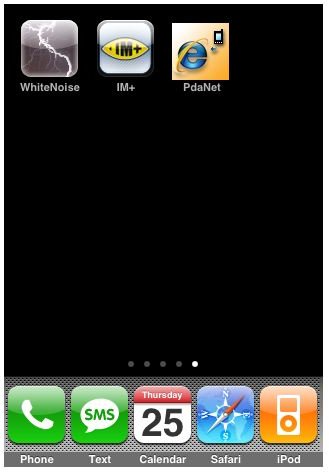
On your jailbroken iPhone, look for PDANet software on Cydia and install the same on your iPhone. Once installed, download the desktop version of the PDANet from here and install it on your computer.
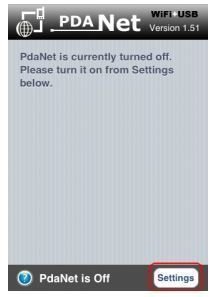
Step 1: Open PDANet on iPhone and press the Settings button located on the bottom right corner of the screen.
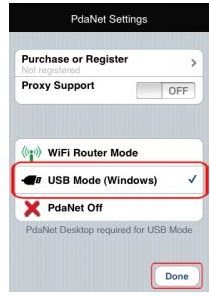
Step 2: Press on the USB Mode (Windows) label to enable this option. Finally, press the ‘Done’ button located on the bottom right corner of the screen. Don’t close the PDANet application on your iPhone.
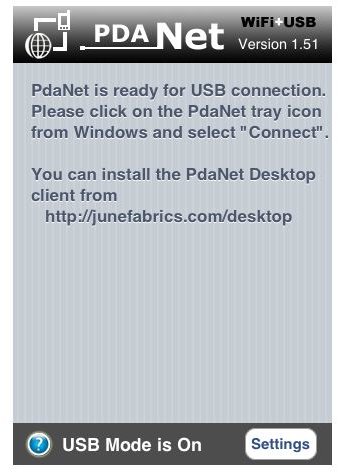
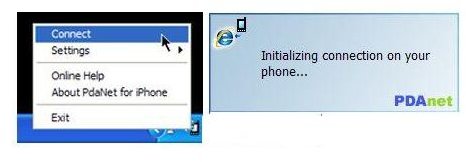
Step 3: Now, install the PDANet desktop software and when installed you will find an icon in the system tray. Right click on that icon and click Connect. You will see a message saying “Initializing connection on your iPhone…”
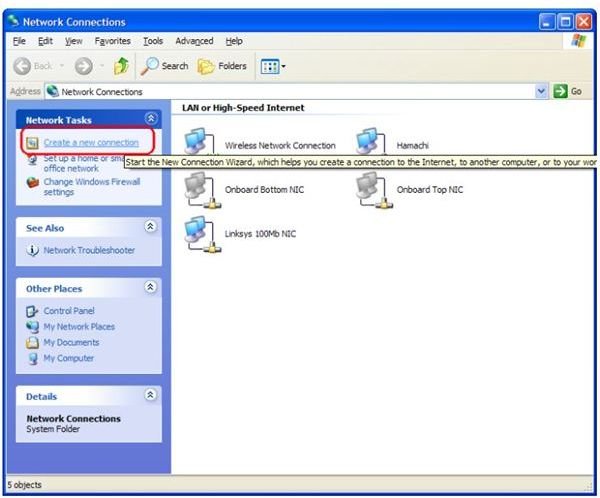
Step 4: Now, you need to add a fake connection to your computer so that PDANet can connect to it. Go to Start Menu, Select Settings and then select Network Connections. In the “Network Connections” window, find and click “Create New Connection” hyperlink.
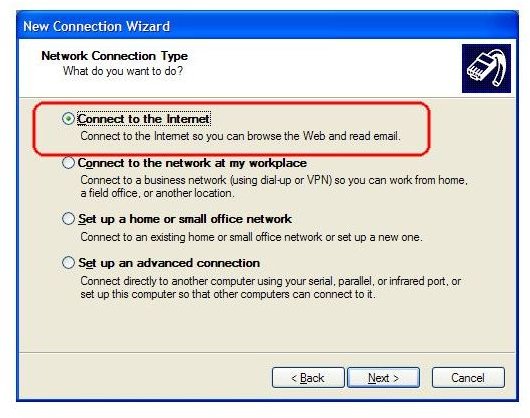
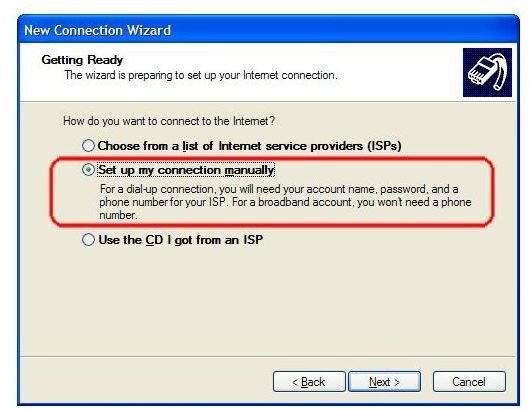
Step 5: Choose the first option “Connect to the Internet” and press the Next button. On the next screen, choose Set up connection manually & again press the Next button. Now, on the next screen, select the first option that says, “Connect using a dial-up modem”.
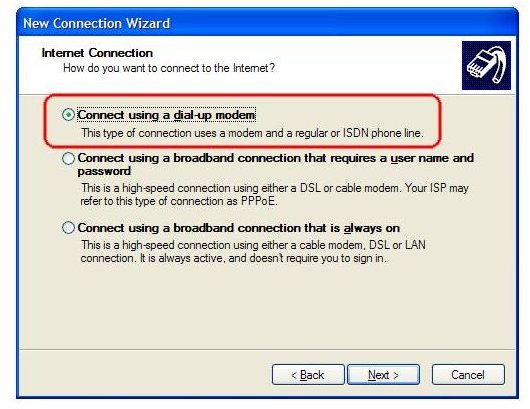
Step 6: Now, on the next screen give any name in the ISP field, press Next button and then assign any phone number and press the Next button. Finally, give any username and password on the next screen, and uncheck the two checkboxes present in the bottom of the application window.
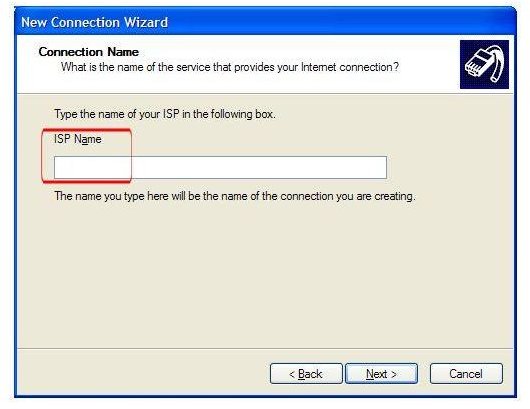
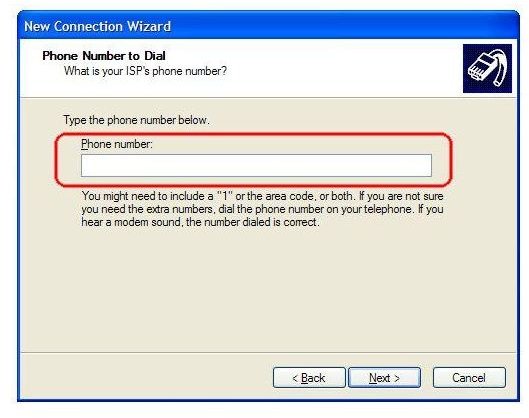
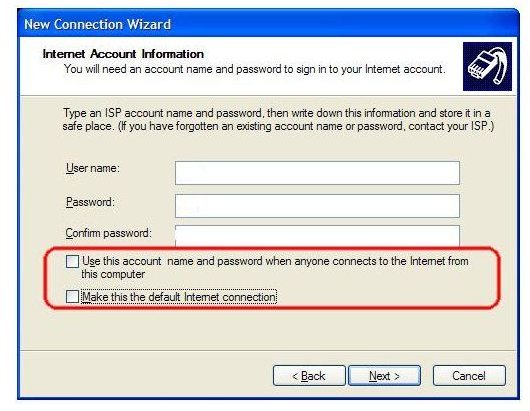
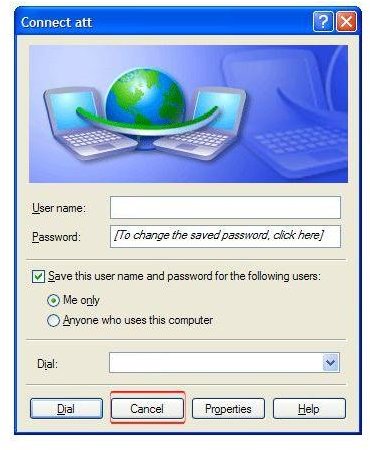
Step 7: Now, make sure that PDANet desktop software is running. Right click on the PDANet icon in system tray and click Connect. When your iPhone is connected to the computer, you will see a message “Connected at x-x-x Mbps speed”.
Finally, you know how to use an iPhone as a modem to connect your computer with the iPhone. You can also use the Wi-Fi option to connect to your computer. For a Wi-Fi guide check out iPhone 4 Wi-Fi Tethering Explained .
Image Credits
Windows application screenshots by Microsoft
Apple iPhone screenshots by Apple
PDANet screenshots by PDANet


