
In this tutorial you will learn how to create gradient leaf graphics using Adobe Illustrator CS3.
In part two of this Leaf Graphics Series, I will show you how to apply gradients to the leaf graphics. You can create many different leaf graphics using gradient styles and stroke colors. I will also show you how to create a stem for your leaf.
Creating a Leaf to Work With
Go ahead and create a leaf to work it and group it together. Please see part one of this series to see how to create the leaf and group it. After you have created your leaf, you will need to open a gradient panel.
Opening a Gradient Panel
Go to the top of your window and click Window > Swatch Libraries > Gradients > and select a gradient. The gradient panel will open in a new box.
Applying the Gradient to the Leaf
Click the leaf to select it. Then click the gradient that you want to apply to it. You can change the stroke color to make it a tad bit darker than the leaf. To do this, you will need to find out the darkest color of the leaf.
How to Find Out The Darkest Color of the Leaf
Click the leaf to select it. Then click the gradient tab in the tool box on the left. The gradient tab is in between Stroke and Transparency. When you click the tab, you will see the gradient color bar. Click that bar and you will see the color sliders below the bar. Double click the darkest slider. When you double click the slider, that color will appear in the Color box at the top of your program. Click the color box and drag the color to the stroke color box in the toolbar and let go of it. If you just got totally lost, see the image below to get a visual of what I just said. That’s how you change the stroke color of the leaf.
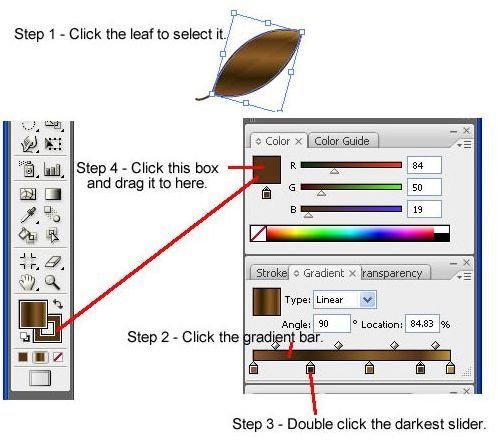
You can apply any gradient that you want to your leaf. There are many gradient swatches to choose from. If you can’t find one that you like, feel free to create your own, using the gradient panel.
Creating a Stem for your Leaf
Now I will show you how to create a stem for your leaf. The easiest way to create a stem is using the arc tool. Grab the arc tool and draw a small arc. Then drag it to the end of your leaf. If you have a steady hand, you can use the pencil tool to draw a stem.
Play around with the gradients and strokes to come up with some cool looking leaf graphics. Move on to part three of this series to learn how to do more with your leaf graphics.
This post is part of the series: Leaf Graphics in Adobe Illustrator CS3
This series will show you how to create leaf graphics in Adobe Illustrator CS3.


