This article will help you learn how to put songs in order on iPod. You have to put the songs in order within iTunes or create play lists first. The order of the songs in iTunes when synced with the iPod is the order in which they appear on the iPod.
Create a Play List
To learn how to put songs in order on iPod, you first have to create play lists in iTunes.
First, the latest version of iTunes needs to be installed on your computer. If you do not have this, navigate to the Apple website, download and install iTunes.
Open iTunes and click Music under Library on the left side. This reveals all of the songs you have on your computer. Click the plus sign (+) at the bottom left to create a play list. You are given the option to name the play list. Name it whatever you want.
Now that you have the play list, you need to add songs to it. Click on Music again and drag any of those songs into the play list using your mouse. If you want to select more than one song, hold down the CTRL key and click on the songs you want to add to the play list, and then drag them over. The songs that you move to the play list stay in your main library. You can put as many songs as you want in the play list. You can also add songs to your new play lists from other play lists you have already created.
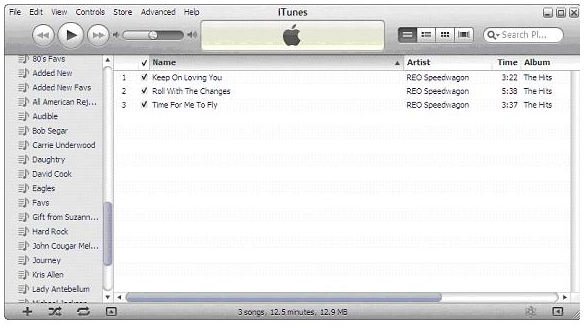
If you want to change the order of the songs in the play list, click the Name tab above the list of songs to rearrange them in alphabetical order, from A-Z or Z-A, the Artist tab to arrange them by artist, the Time tab to arrange them by time and the Album tab to arrange the songs by Album.
You can create as many play lists as you want to put the songs in order on your iPod device in each play list. You can arrange the songs in any play list and in the main library.
Sync Your iPod
Once you have all of the songs in order in iTunes, connect your iPod device to your computer via the USB cable. iTunes should automatically open, but if it does not, open it up. You iPod should automatically start syncing with iTunes if you have it set that way. If you don’t, select your iPod under Devices on the left side of the screen, and then click the Sync button on the bottom right. When it is finished syncing, the songs will be in the order in which you put them in iTunes on your iPod.
Note that the songs in iTunes have to have a check mark next to them in order to be synced with your iPod. If you want to make sure all songs are checked, click the check mark to the left of the Name tab. You can then uncheck individual songs if you do not want them to sync to your iPod device. If you download songs for your iPod in the future, you can add those songs to your current play lists, and organize them or create new play lists. Now that you have learned how to put the songs in order on iPod, you will have an easier time finding your favorite music.
References
Apple iTunes: https://www.apple.com/itunes/
Screenshots provided by the writer