Do you want to perform a “convert DVD to iPod movie” command without all the hassle generally associated with ripping and converting DVD’s? If so, then using the WinX DVD Ripper is the way to go. Just a few clicks, and you’ll have an iPod-ready movie in less than an hour.
What is WinX DVD Ripper?
WinX DVD Ripper is a convert-DVD-to-iPod-movie software that also gives you lots of options for converting to iPad, iPhone, Droid, Motorola and other devices.
WinX DVD takes the conversion step out of the ripping and converting process, as it takes your DVDs and rips them straight to iPod format. You’re left with an unprotected file that can go straight onto your iPod device.
Loading the DVD
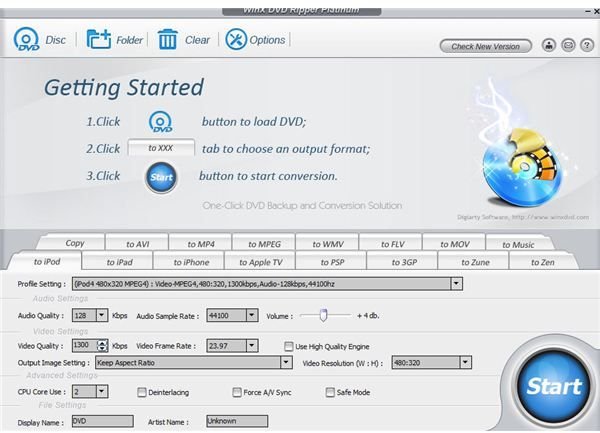
Open up the WinX DVD Ripping software. Insert the DVD of choice into the CD/DVD drive in your computer or laptop. Select the “DVD Disc” command from the top left of the WinX DVD Ripper menu. Wait a few seconds for the software to recognize the disc and load the titles.
Once loaded, WinX DVD Ripper should automatically select the movie portion of the title and leave out the commercials and other undesirables. If not, just manually click on the title with the longest time duration. This should be the feature film.
Selecting Your File Format
WinX DVD Ripper offers a variety of screen resolution and iPod type preferences under the output format tab. Click the “to iPod” tab and click the drop-down menu under “Profile Setting” to select the resolution of your iPod.
Each file type converts to MP4 format, although the codecs vary between H264 and MPEG-4 formats. Just remember, the higher the resolution you select, the larger the file size will turn out and the longer it will take to rip. However, you’ll also have a higher quality file.
Under “Audio quality” you can up the rate of Kbps for a louder audio file. Try to keep the aspect ratio and video quality settings the same, as changing them might distort the display.
You can make a custom Display Name and Artist Name under the profile fields with the same names. Under the Display Name you can place the title of the DVD. If you want to enter an author name, re-enter the DVD name or choose some of the movie stars in the DVD to serve as the author name.
Finishing the Preliminary Process
You can specify a hard drive location where you’d like to save the new file under the “Folder” option at the top of the menu. Just browse to the location of choice and select a folder.
You’re now ready to convert DVD to iPod movie in WinX DVD Ripper. Press the big blue “Start” button at the bottom right of the window. A dialog box will appear and keep you posted on the conversion progress.
When it’s finished, check the file to make sure it doesn’t skip, the audio remains in sync with the video, and that it transfers over to your iPod properly. If it does, you’re finished. If not, retry the process using different settings.
You can run other programs on the computer if you’d like; just don’t install any new software that would require a computer reboot.
Source:
My own experience with WinX DVD Ripper