A time may come when you want to play back a certain media file format over your Sansa Fuze and find that your player does not support it. Are you at a dead end? Not if you know how to upgrade your Sansa Fuze firmware following the steps below.
The truth is your Sansa Fuze may be able to play your desired format with a little `tweak’. This tweak has nothing to do with opening up your player and doing a `minor’ surgery.
All that’s involved is a firmware upgrade. You can easily perform a Sansa Fuze firmware upgrade by plugging your player into your computer and performing a few simple steps. Before we take a look at these steps, let’s first learn what a firmware upgrade is.
The term firmware upgrade may sound sophisticated or technical to a beginner. Actually, putting it simply, it’s the process of upgrading your player software with the latest version so that it could support better, newer features. For example, there was a time when the Fuze only supported MP3, WMA and PCM WAV audio formats. A firmware upgrade allowed it to support OGG Vorbis and FLAC audio formats.
So, if you want to increase the versatility of your Sansa Fuze player, you should always keep a lookout for firmware upgrades at the manufacturer’s website.
Now let’s take a look at the process of upgrading your Sansa Fuze firmware.
Sansa Fuze Firmware Upgrade Steps
First of all you would need to download and install the Sansa Firmware Updater .
The Updater works with Windows 2000 SP4/XP/Vista and 7.
Sansa Fuze Firmware Update Procedure
- Install the Updater. Make sure you don’t plug in your Sansa Fuze into the computer at this stage.
- Once the Updater is fully installed, you can now plug in your player.
- If a firmware upgrade is available for your Sansa Fuze player, a message to that effect will show on the taskbar of your computer, close to the clock. If no balloon message appears, it means an upgrade for your Sansa Player isn’t available.
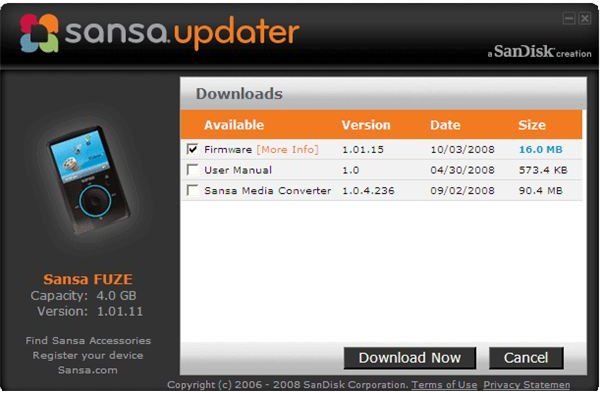
- If there’s an update, click on the icon on the taskbar and the Sansa Updater software program will pop up.
- Under Downloads you would be presented with options. Tick on the Firmware box. Then click Download Now button on the bottom half of the software.
- A `Downloading’ message would appear. You wait until downloading is complete.
- Click Finish after downloading is complete.
- A message will appear saying that your player is now up-to-date. It will then prompt you to unplug your player from the computer to finalize the firmware update process.
- After disconnecting your player from the computer, a `Firmware upgrade in progress’ message will appear on your player screen. The player will turn itself off after the firmware upgrade is complete. You can then switch it on and use the player as usual.
If you need additional guidance, you can watch this instructional video .
As is evident from the above, a Sansa Fuze firmware upgrade is essential to keep your player up-to-date and allow it to support media formats it was incapable of supporting when it was manufactured.
Visit the manufacturer’s site often or Sansa Fuze forums to learn of any firmware revisions that you should take note of.
Source: Sandisk.com
Image Credit : https://kb.sandisk.com