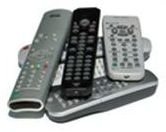
Learning how to use the Code Search feature of an RCA universal remote control takes much of the work out of programming your new remote. Follow these steps and you’ll be changing channels in no time.
Overview
RCA universal remotes can be used to operate between three and eight different devices, depending on which remote you use. This means you no longer need an entire end table to hold the remote controls for everything from your television to your cable or satellite receiver to your DVD player and other devices. Instead, you can simply hang on to one sleek, compact, wonderful little remote control.
Getting Started
If you have a code list, you can use it to program the RCA universal remote control in a few, simple steps. Press and hold the Code Search button. While holding this button down, press and then release the button for the device you want to program. After the device button flashes, continue holding the Code Search button and enter the three-digit code for the device. Release the Code Search button to complete the programming.
If you don’t have the code list, you can use the Code Search feature to program the RCA universal remote control.You will need to program each device separately, so begin by turning the power off to all of the devices you want to program with your RCA universal remote control. Then, manually turn on only the first device that you want to program. For best results, start with the television, as most other devices will require the use of the TV to work as well.
photo credit:sxc.hu/lusi
Using Code Search
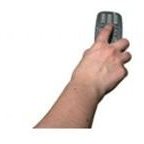
Press and hold the Code Search button on the RCA universal remote control. While continuing to hold this button down, press and then release the button on the remote control that corresponds with the device you are trying to program. For example, if you are programming the television using Code Search on your RCA universal remote control, hold down the Code Search button and then press and release the button marked TV.
photo credit:sxc.hu/lusi
The light for the device (such as the TV) should illuminate and then turn off. Once the light has flashed on and off, release the Code Search button. Press the On/Off button on the RCA universal remote control. If the television (or other device you are programming) does not turn off, keep pressing the On/Off button. Continue to do so at a rate of one press per second. What this does is searches through all of the codes on the RCA universal remote until it finds the right one for the device you are programming. Be patient, as this may take up to 100 clicks of the On/Off button to be successful.
Once the television (or other device) powers off following a click, press the Enter button on the universal remote control to save this code for the device. Test it out by turning the device back on and trying other buttons such as the volume or changing a channel. If it works, which it should,you are all set. If not, go back through the steps until it finds the right code.
Repeat the same steps for each device you want to program to use with your RCA universal remote control.
Curious about how a universal remote control is able to work with so many different devices? Check out How does a Universal Remote Control Work?