Are you trying to view Keynote files in Microsoft PowerPoint? They only way to do this is to first convert them into PowerPoint format, as Microsoft’s presentation software doesn’t support this file format.
Same Purpose, Different File Type
Creating presentations is often something done at the last minute, or with insufficient time to get it right. Mac users will usually use Keynote to compile and display their presentations, while Windows users almost always use the Microsoft Office application PowerPoint.
Keynote is part of the iWork 09 suite of productivity applications , and is the Apple equivalent of Microsoft PowerPoint. While serving the same purpose of its Microsoft rival, Keynote also features a selection of interesting features such as the Magic Move animation.
While Mac users can run both Keynote and PowerPoint on the same computer, the same privilege isn’t available to Windows users. This evidently limits the opportunities available in both touring with a presentation and when emailing a presentation – you never know what software is going to be available for playing it.
The best way around this is to import your Mac Keynote file into Microsoft PowerPoint. This requires just a few simple steps, although be aware that certain Keynote features cannot be used in PowerPoint.
How to Import Mac Keynote Files into Microsoft PowerPoint
Users of Keynote may already know that they can open PowerPoint files in the iWork application. Sadly, the reverse is not true.
Importing a Mac Keynote file into Microsoft PowerPoint means that you must first prepare the Keynote presentation file. This is easily done – begin by opening the file on your Mac in Keynote.
To convert in Keynote ‘08, go to File > Export.
On this screen, you can convert the file to PowerPoint – choose the PPT tab (PPT is the file extension for PowerPoint documents) and then Next. Following this, select your intended file location to save the converted document and click Export.
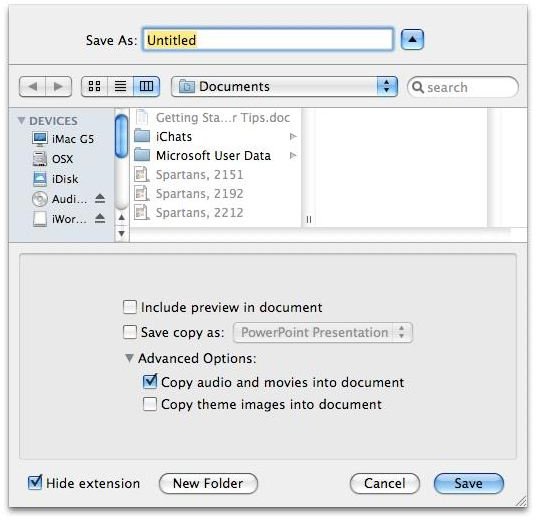
In Keynote ‘09, open File > Save As… give your file a name and expand the box with the down arrow. Next tick the Save copy as: box, and select PowerPoint Presentation. Click Save to complete.
Your export is now complete, and you can now open your Mac Keynote presentation in Microsoft PowerPoint. However, you might notice some differences.
Feature Compatibility
After importing a Mac keynote file into Microsoft PowerPoint, you might expect the presentation to play back as originally intended.
However, unless you have used the bare minimum of visual enhancements in the original slideshow, you will notice a few differences.
A key difference is with the Magic Move function, described above. In Keynote a couple of slides can feature the same graphical enhancement positioned separately which can then be animated using the Magic Move function; however, the same presentation when viewed in PowerPoint will not have this animation.
In fact all that will be displayed will be the slide with the animated element in its original and end positions. This doesn’t mean that animations aren’t possible in PowerPoint - they are, but you will need to add these manually .
Unfortunately, there is little consistent about which features can be retained when importing Mac Keynote files into Microsoft PowerPoint – the best way to proceed is to only convert basic, stripped down and static presentation slides. You can then enhance these using PowerPoint’s own built in features.


