Word has many brochure templates from which to choose. It is easy to learn how to make a brochure in Microsoft Word 2003 from these templates. They are a great way to promote services, business or even a sports team. In this article, you will learn how to make a brochure exactly the way you want it
Create a Brochure with a Template
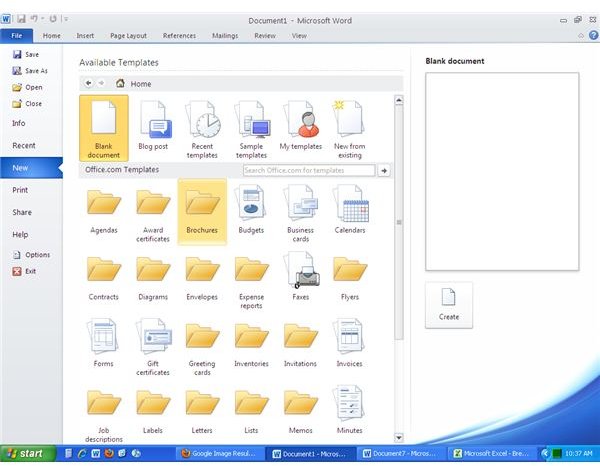
To make a brochure in Microsoft Word 2003 open Word and click File and New. Click the Brochure folder on the right side in the Office.com Templates section. Double click on the brochure you like. The template will download into a Word document.
The brochure template is made of many text boxes. Click on a text box and select the information and hit the delete key to remove the information. Simply, click in the text box again and type the information you want.
You can change the font, bold, add pictures, etc. There are many ways you can customize your brochure.
To insert a picture, for example, simply click the area in the brochure where you want to insert the picture. Click Insert, select the picture you want and click Insert again.
You can also choose to insert Clip Art, Smart Art, etc. in the same way.
Make the needed changes to your brochure then click File and Save and name the document and print.
Create a Brochure Manually
To make a brochure in Mirosoft Word manually, you first need to decide on the layout. The most common are bi-fold and tri-fold layouts. The bi-fold has one fold that creates four panels, front, and back. The tri-fold has two folds that create six panels, front, and back.
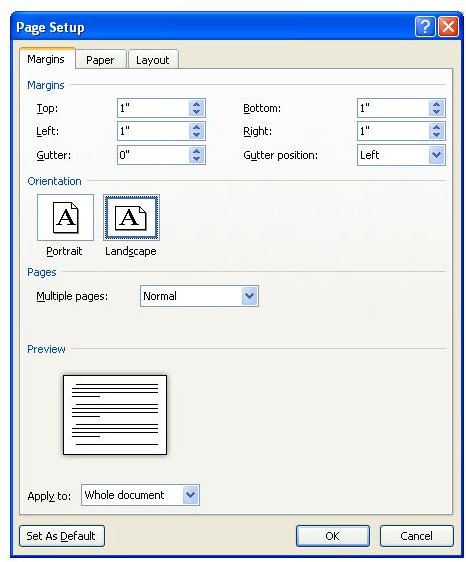
Open Microsoft Word and click File, New, and Blank Document. Click File and Print and select Page Setup that is shown at the bottom of the screen to set the margins. It is best to have a 1/8-inch margin around all sides. Set the paper to print Landscape. All brochures are printed on 8.5 x 11-inch paper.
For a tri-fold brochure, you need three columns on one page and three columns on the next page. This is the back of the brochure. If you want a bi-fold brochure, add two columns on each page.
Tri-Fold – Open the template document. Click the Page Layout tab and click on Columns and More Columns. Click on Three at the top and change the spacing to 1.
Bi-Fold – Open template document. Click Page Layout tab and click on Columns and More Columns. Click on Two at the top and change the spacing to 1.
Add breaks between each column. This will make the columns hold separate paragraphs. To do this click anywhere in the first column and click the Page Layout tab, click Breaks and select Column from the drop down menu. Add more page breaks as needed.
You also need to add a page break for the back of the brochure. Click anywhere in the right-hand column and click the Page Layout tab, click Breaks and select Column from the drop down menu. You can add more page breaks as needed.
Now it is time to add text and graphics to your template. Click in the area that you want the graphic/picture, click the Insert tab, and choose the picture/graphic you want. Change fonts, colors, text, graphics, etc.
When you are finished click File, Save, and name your template.


