Having problems with Windows 7 describing your local wireless network as “unidentified”? This is a common problem that can easily be fixed by following these simple steps!
Windows 7 Unidentified Network Explained
Windows 7 is sold by Microsoft as an out of the box operating system that is ready to go as soon as it is installed. With a streamlined, quick setup process and thousands of device drivers, Microsoft has designed Windows 7 to give the end user the minimum of fuss and the maximum of pleasure.
However in some cases, there can be the odd problem. One of these is the error message “Windows has detected an unidentified network” which can appear on computers with wireless networking enabled.
Users with awareness of computer security know that it isn’t necessarily wise to connect to a network described as “unidentified”; however with Windows 7, the “unidentified network” is probably your own wireless network!
Disable/Enable your Network Connection
This issue usually occurs after a successful connection to the wireless network has been established and the PC has either rebooted or gone into sleep or hibernate mode. It can be frustrating but there are simple ways to get rid of the error message and reconnect to your network.
One way in which you can quickly resolve the issue is to disable and re-enable your wireless connection.
To do this, go to Start > enter network connections in the search box and click the Network Connections item in the search results.
Next, identify your wireless network connection (in reality your wireless network card) and right-click the icon. In the context menu, select Disable. Wait a few moments for the card to be disabled, and then repeat the process, this time selecting Enable.
(Alternatively you can select the icon and choose Disable this network device from the toolbar, and use Enable this network device to re-enable it)
The wireless card should now be able to effortlessly connect to your intended wireless network.
Update the Driver
Another reason that the “Windows has detected an unidentified network” message might appear is related to your device drivers. This can be particularly true if the message is a regular occurrence.
Updating the driver is a good way of fixing this – to begin, go to Start > enter devmgmt.msc in the Search box.
(Alternatively, right-click Computer > Properties > Device Manager)
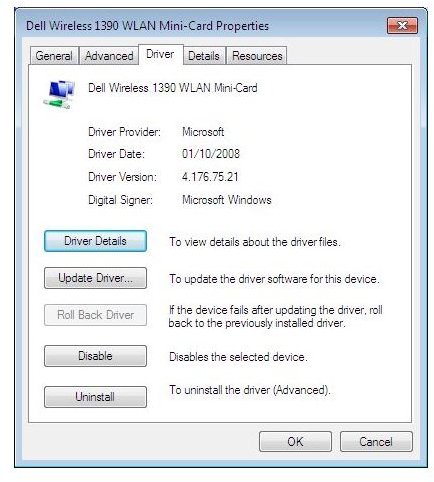
Browse through the list of devices to find the network card – you’ll need to expand the Network adaptors to find it, and once you have, right-click the card and select Properties.
Next, select the Driver tab and choose the Update Driver button. Follow the onscreen instructions, and after installing the driver update restart the computer.
Further problems connecting might indicate that the issue is with your router – if this is the case you will need to upgrade your wireless router firmware (see How to Establish a Wifi Connection with Windows 7 ).


