Read on to learn how to use the Windows 7 background stretch setting so that your wallpaper will fit the entire screen, you can use. If your background is stretched and you are unable change it, you may find a solution here as well.
About Backgrounds
A desktop background is also known as wallpaper. Simply put, it is the image in the background of your desktop, behind your icons and shortcuts. In Windows 7, you can download specially designed wallpaper, create your own from any image and even use the Windows 7 Background Changer to rotate through a variety of backgrounds.
If a background does not fit the screen properly, you can use the Windows 7 background stretch setting or other settings to change its appearance. If you stretched a background image and want to change it but the Windows 7 background stretch setting seems to be stuck and you are using an HP or Compaq computer, you may need to download a special application to fix the problem.
Customizing Your Windows 7 Background
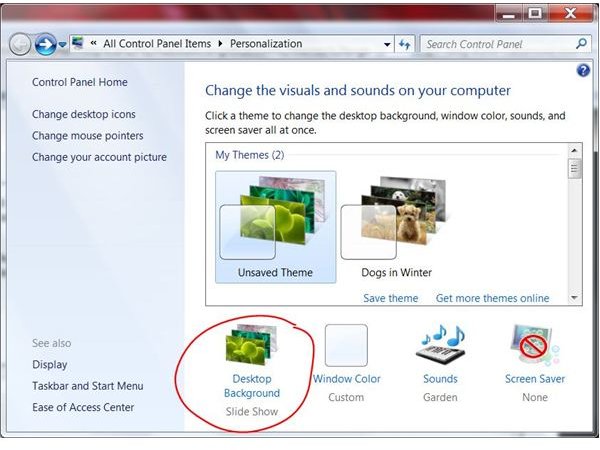
Changing your desktop background in Windows 7 is simple. Right-click a blank area of the desktop and select Personalize. Click the Desktop Background link near the bottom of the Personalization window to open the Desktop Background window.
Choose a location from which to select a background picture in the Picture Location box, such as Windows Desktop Backgrounds or your Pictures library. If the location you want to use is not listed in the Picture Location list, click the Browse button to navigate to the correct folder.
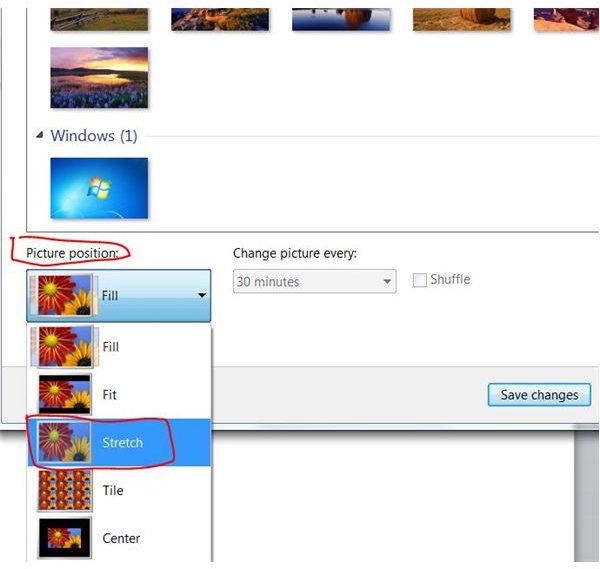
Once you have found and selected an image to use as your Windows 7 background, stretch it by clicking the arrow under Picture Position and selecting Stretch, which will stretch the image to fit your screen. Other options include Fill, which also stretches the image to fit the screen but may crop the picture if the ratio is not the same as your screen; Fit, which fits the image to your screen using a dark border if the ratio is different; Tile, which uses smaller versions of the same image repeatedly, like tiles on a floor; and Center, which centers the image in the middle of the desktop with a border surrounding it.
After you have selected an image and setting for your Windows 7 background, click the Save Changes button to apply it.
Fixing a Background Stuck on “Stretch”
If you are trying to change your Windows 7 background stretch setting to a different setting, yet it seems to be stuck, there are a few solutions to try. The first and most promising solution is to download the Wallpaper Picture Position Enabler. A stuck Windows 7 background stretch setting is a known issue for HP/Compaq users with Windows 7. If this applies to you, log onto your computer with an administrator user name and password. Download the Wallpaper Picture Position Enabler from the HP website . Follow the steps to install the software and restart your computer as directed. The Windows 7 background stretch issue should be resolved.
If you are still experiencing problems with Windows 7 background stretch, try changing your screen resolution , as some monitor resolutions may not be supported and could cause problems with your desktop background. Finally, you can try creating a new user account on the computer to see whether the Windows 7 background stretch issue is limited to the current user account. If the problem does seem to be with one user account, you can try troubleshooting Windows 7 .


