Are you upgrading from Windows XP to Windows 7? Learn how to export your Outlook Express address book so you don’t lose your contacts and addresses.
If you are like so many other people, you skipped over Windows Vista and are just now upgrading from Windows XP to Windows 7. This upgrade represents quite a jump from a new operating system from one that Microsoft released nearly 10 years ago.
Outlook Express (OE) is not a part of Windows 7 but you can still export your address book and use it in your new e-mail client. Learn how to find and export your OE address book for use in Windows 7.
Outlook Express Address Book
As stated above, OE is not an application found in Windows 7. Although Windows Mail, OE’s replacement, shipped with Windows Vista, Windows 7 doesn’t ship with an e-mail client. Many people opt to use Windows Live Mail if they want to stick with Microsoft or use a third-party e-mail client such as Mozilla Thunderbird . Whatever e-mail client you intend to use in Windows 7, you can export your OE address book and avoid losing your contacts.
The easiest way to export your Outlook Express address book is to simply locate the file and back it up so you can bring it over to Windows 7. However, finding it can be difficult because it resides in a hidden folder.
Truthfully, the Windows Address Book is a separate application that Outlook Express simply uses. Therefore, your address book does not reside in the Outlook Express folder in Program Files as you might expect.
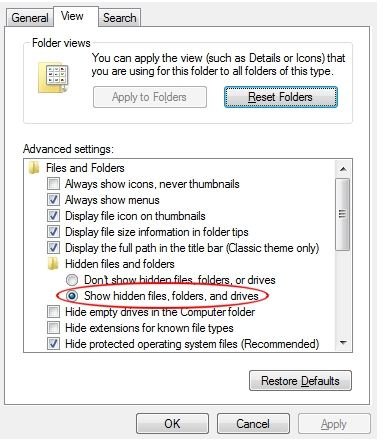
To find your address book, log in with an administrator account and click on Start>Control Panel and open up Folder Options. Click on the View tab and locate the section titled Hidden Files and Folder. Check the option titled Show Hidden Files, Folders, and Drive and then click OK.
Now click on Start and then My Computer. Now click on the drive where you have Windows XP installed. For most people, this is the C drive. Navigate to this folder:
C:\Documents and Settings\
where
Locate the WAB file in that folder. This is your actual address book that Outlook Express uses to store and retrieve your e-mail contacts and addresses. Although you are not technically exporting this WAB file, this method is much easier than actually using the export feature in Outlook Express. It also ensures that the address book is in its native format so your new e-mail client in Windows 7 can read its contents.
Remember, that Windows 7 does not ship with an e-mail client. You can, however, use a free one like Windows Live Mail or Mozilla Thunderbird. If you really like Outlook Express, you can buy Outlook from Microsoft. It has far more features than OE and it is definitely more complicated. However, it is the one e-mail client that bears the closest resemblance to good old Outlook Express that served us well for many years.


