Although making a program launch when Windows 7 starts up is easy, you should know about one complication. Learn all you need to know about adding programs to the Windows 7 Startup folder.
It is convenient to have programs you always use launch when Windows 7 starts up to save you the trouble of opening them manually. You can do this by adding shortcuts to programs to the Startup folder found on the Start menu
However, if your account has administrative privileges , you can also make programs launch at startup for all users of the computer. These two ways to make programs launch when Windows 7 starts up require a slightly different procedure. Read on to learn how to make programs launch when Windows 7 starts up for all users or just for you by adding them to the Startup folder.
Make Programs Launch at Startup Just for You
To add a program shortcut to the startup folder so the program only starts up up for you, begin by adding a shortcut to a program to the desktop. Do this by clicking on Start and locating the program in All Programs.
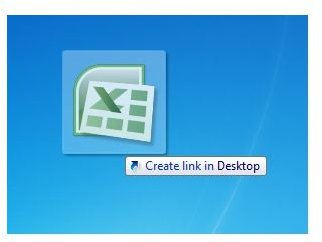
For our example here, we will use Excel. Right click and drag the Excel shortcut to the desktop and select Create Shortcut Here when you let go of the right mouse button.
Now, click on Start>All Programs and locate the Startup folder. Right click on the Startup Folder and choose Open.
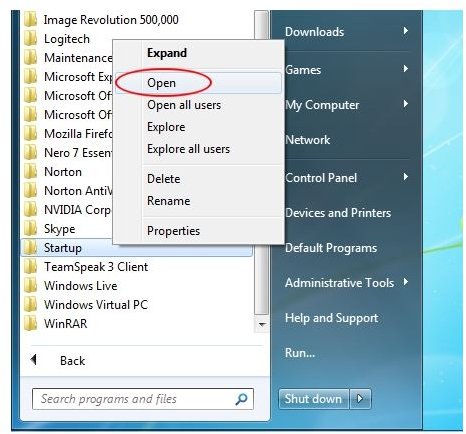
The window that opens is the location of your account’s private Startup folder location. Notice that the location of your private startup folder is:
C:\Users\
The
Make Programs Launch at Startup for All Users
To make a program launch for all users of the computer, follow the same procedure to add a shortcut to a program on the Start menu to your desktop. Again click on Start>All Programs and locate the startup folder. Right click on it but this time choose Open All Users.
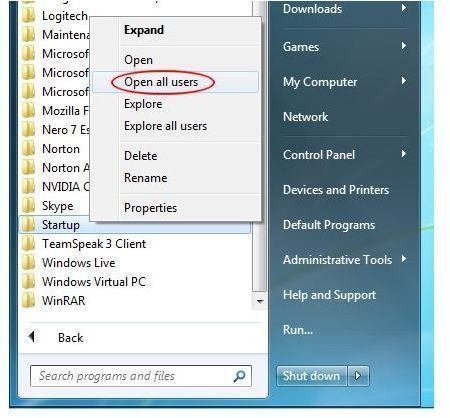
The window that opens is the public Startup folder. Notice that the location of the public Startup folder is:
C:\ProgramData\Microsoft\Windows\Start Menu\Programs\Startup
Any shortcut you place in this folder will force Windows 7 to launch the program associated with the shortcut at startup for all users of the computer. Drag the Excel shortcut you created on the desktop a moment ago to this folder and close the window. The next time Windows 7 starts up, Excel will launch for every user.
Conclusion
Making a program launch when Windows 7 starts up saves you time if you find yourself starting up the same programs and applications each time you log in to Windows. Adding a shortcut to the Startup folder is a simple procedure. However, you must decide whether you want the program to open just for you or for all users. Using the two methods above, you can easily make any application launch when Windows 7 starts up for you and all users of the computer.


