Can I upgrade to Windows 7? Can I do it without uninstalling the version of Windows that I have now? Deciding if one can upgrade to Windows 7 without a fresh wipe and new install can be complicated. Here we look at the considerations involved for upgrading Vista and previous versions to Windows 7.
Windows 7 Upgrade Advisor
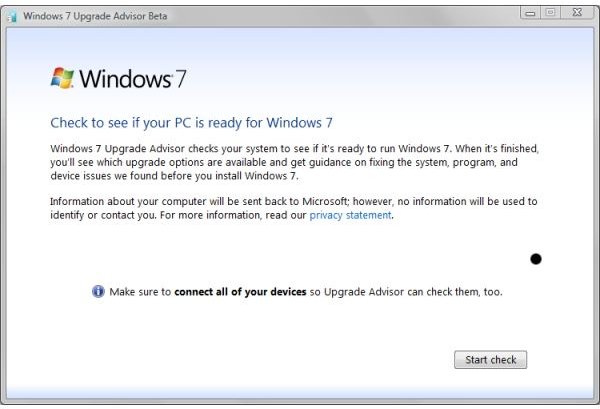
Thinking about upgrading to Windows 7? If your PC is running Windows XP SP 2 or later or any version of Vista, you might want first download and try the (currently beta version) Windows 7 Upgrade Advisor . When you run it, it scans your system for a few minutes and then prepares a report about the machine’s suitability to upgrade.
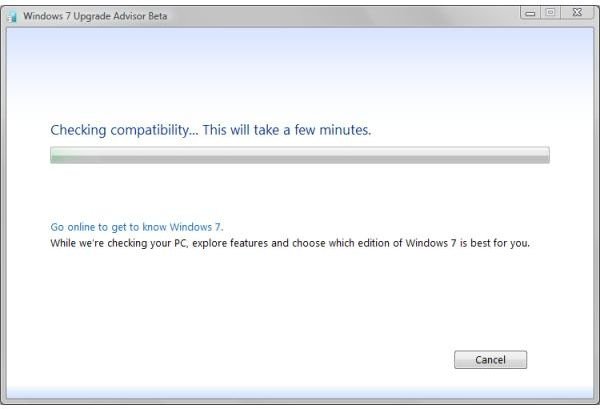
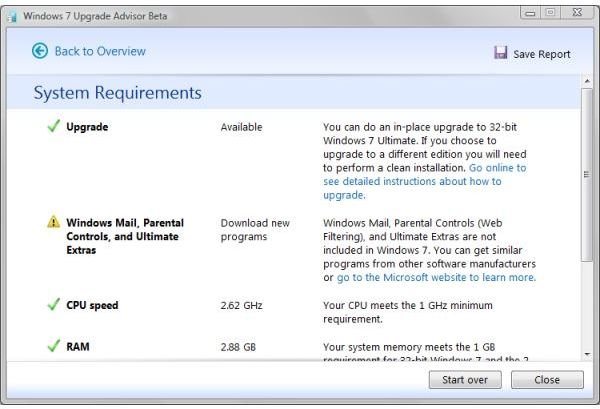
After running the program on my Windows Vista Ultimate machine, the Advisor told me that I could do an “in-place upgrade to 32-bit Windows 7 Ultimate.” It also advised that Windows Mail, Parental Control, and Ultimate Extras were not included in Windows 7. No hardware devices were flagged for incompatibility.
32-bit vs 64-bit
Many computer users have run 32-bit versions of Windows, perhaps for a few years now, on 64-bit-capable hardware. Microsoft has said that both versions - 32 and 64-bit - will be provided on new DVDs. However, there is not a direct in-line upgrade from any 32-bit version of Windows, including Windows XP and Vista, to a 64-bit version of Windows 7. In other words, switching from a 32-bit previous version of Windows to Windows 7 64-bit version requires backing up your data and settings, as much a possible, and reinstalling your applications.
How to tell if Your Windows Vista PC is 64-bit Capable
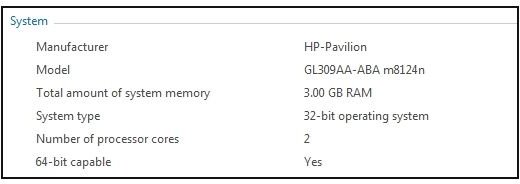
In Vista, go to the Control Panel and open “Performance Information and Tools.” Click on “View and print details.” Under “System” you should see “System Type.” If it says, “32-bit operating system,” look for a line that says, “64-bit capable.” It will not appear if you’re already running a 64-bit version of Windows, but it will say “Yes” or “No” if you’re running 32-bit Windows.
Why You Might or Might Not Want to Upgrade to a 64-bit Version of Windows 7
Who really needs a 64-bit operating system? Basically, those who wish to install and use more than three to four gigabytes of memory.
Usually, this is a person wishing to run virtualizations or somebody that wants to have many application windows open at one time and frequently switch between them.
The easiest upgrades, as shown below, are from like-to-like: 32-bit to 32-bit or 64-bit to 64-bit.
Why You Might Want to Do a Fresh Install Instead of an In-line Upgrade
If you’ve been running Vista for some time and have installed and removed many programs, it’s likely that a program settings area called the System Registry has become large and unwieldy. Some programs are not good at removing all traces of themselves at uninstall, so, over time, a lot of detritus accumulates in the Registry. This also contributes to the lack of “spunk” that Windows users notice in their PC after a while because applications as well as the operating system make frequent searches in the Registry.
The Registry becomes less efficient through the normal usage of Windows. As Microsoft has retained the Registry in Windows 7, this type of problem can be expected to continue. If your PC is performing poorly, it is likely that having too many parasitic applications and processes running at start-up, as well as Registry congestion, are to blame. Wiping everything and starting over is the solution. (And then you can think about upgrading to a 64-bit version, too.)
Windows XP to Windows 7
Windows XP or XP Professional to any version of Windows 7 requires a fresh install.
Update: Microsoft’s Scott Hanselman has written an excellent tutorial about how to use the “Windows Easy Transfer” application on the Windows 7 installation DVD and an external USB hard drive to back up user accounts, email, documents, pictures, music, videos, and browser bookmarks before uninstalling Windows XP.
This same technique will work with Windows Vista versions as well. One caveat, however, is that it does not transfer applications. Still, it’s a big convenience compared to doing the same thing “by hand.”
Vista Home Basic
Vista Home Basic can be upgraded directly to Windows 7 Home Premium or Windows 7 Ultimate in-line. Windows 7 Professional can be obtained by upgrading to Windows 7 Home Basic and then doing a Windows Anytime upgrade atop Windows 7 Home Basic.
Confusing? We’ll try to unravel what is involved in combined direct upgrades and Anytime upgrades (and how much it costs in comparison) in part two of this article .
Vista Home Premium
Windows Vista Home Premium can be upgraded directly to Windows 7 Home Premium or Windows 7 Ultimate. Windows 7 Professional can be obtained by upgrading to Windows 7 Home Premium and then doing a Windows Anytime upgrade atop Windows 7 Home Premium.
Vista Business
Windows Vista Business can be upgraded directly to Windows 7 Professional or Windows 7 Ultimate.
Vista Ultimate
Windows Vista Ultimate can be upgraded directly to Windows 7 Ultimate.


