In this Microsoft Excel tutorial, we’ll cover how to use the CONCATENATE function to merge multiple cells and text strings into one cell.
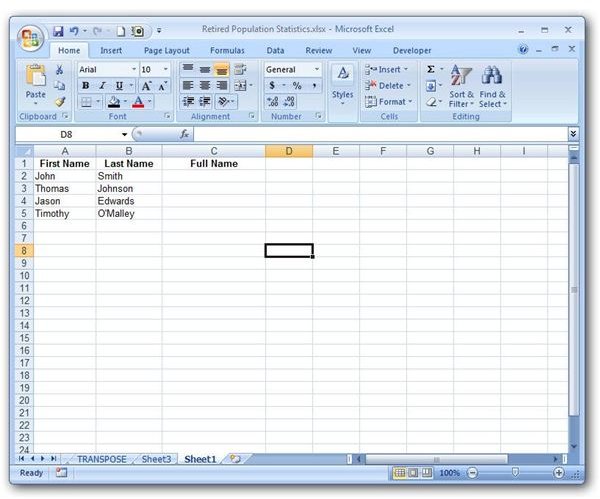
In Microsoft Excel, the CONCATENATE function can be used to combine information contained in multiple cells and text strings. For example, we have a spreadsheet containing columns for both the first name and last name of a person as shown in the screenshot below. (Click any image for a larger view.)
Basics of the CONCATENATE Function
With the CONCATENATE function, we can create a formula that will merge the information from these two cells so that the full name of each individual will be contained in one cell.
Syntax of the CONCATENATE Function
The basic syntax for the CONCATENATE function is
CONCATENATE(text1, text2, …)
where each text argument represents a cell, value, or text string to be joined together. In addition, the & symbol can be used as an alternative way to concatenate items in Excel. That is, the formula above can also be evaluated with the following syntax.
text1 & text2 & …
I tend to use the latter whenever possible, because it involves less typing. If you’re using Excel 2007, you can concatenate up to 255 items. Prior versions of the software will only allow you to concatenate a total of 30 cells and text strings.
Example Using the CONCATENATE Function
To illustrate the usage of this function, we’ll return to the sample table from the first section of this article. Those who are using the CONCATENATE function for the first time may try to use one of the following formulas to join the information contained in cells A2 and B2.
CONCATENATE(A2, B2)
or
A2 & B2
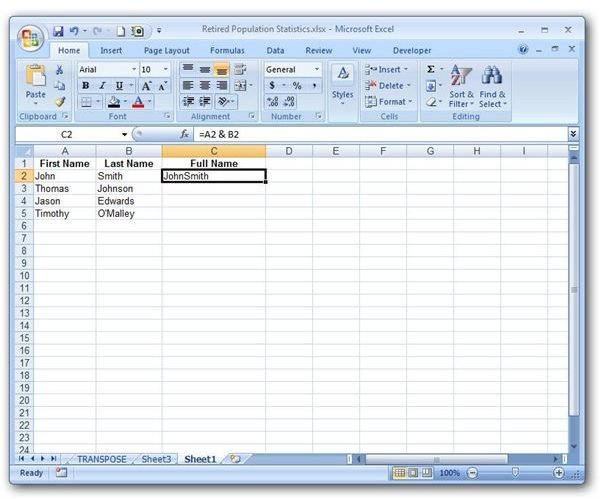
However, this type of construction will cause the first and last names to be joined without a space between, as shown in the screenshot below.
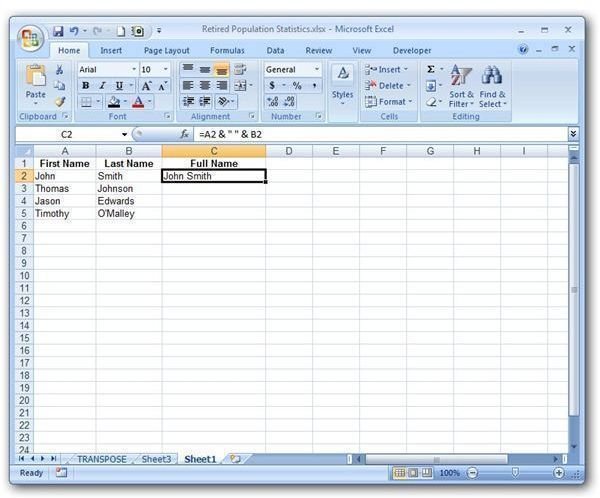
Instead, we need to specifically instruct the function to insert a space between the two fields using “ “ as an additional text string. That is, our formula would appear as one of the following.
CONCATENATE(A2, “ “, B2)
or
A2 & “ “ & B2
This revised correction of the formula is shown below.
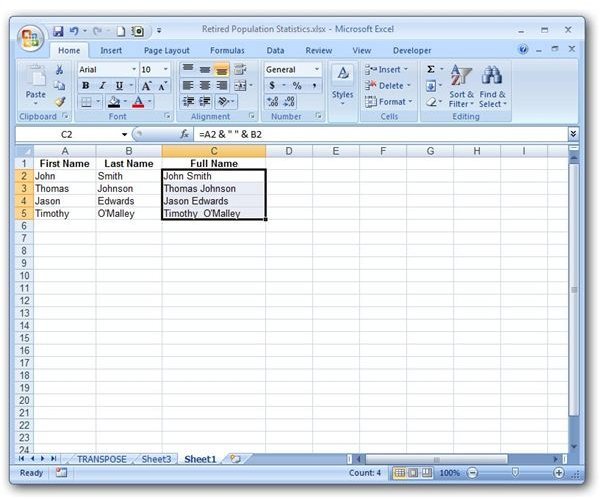
Now, to apply this function to the other rows in the table, you can either copy and paste the formula into all other cells in the new column, or you can use Excel’s column fill feature.
Additional Resources: For more tips and tricks, be sure to take a look at the other Microsoft Excel tutorials that can be found here on Bright Hub’s Windows Channel. Learn more about various charts and graphs , how to protect your shared files with a Creative Commons License , and how to save an Excel object as a picture . More articles are being added on a regular basis so check back often!


