it is simple enough to change the font while you are creating or replying to an Outlook email. However, if you consistently find yourself changing the fonts in your Outlook messages, these steps will show you how you can make the changes once and have them stay put.
Personalizing Your Font
When you create a new email message in Outlook 2007, the default font is 11-point Calibri. In Outlook 2003, the font defaults to 10-point Arial. There is certainly nothing wrong with either of those fonts. In addition, it is simple enough to change the font while you are creating or replying to an Outlook email. However, if you consistently find yourself changing the fonts in your Outlook messages, you can make the changes once and have them stay put. Simply change the default font, and its settings, for all of your future Outlook messages. These steps will show you how.
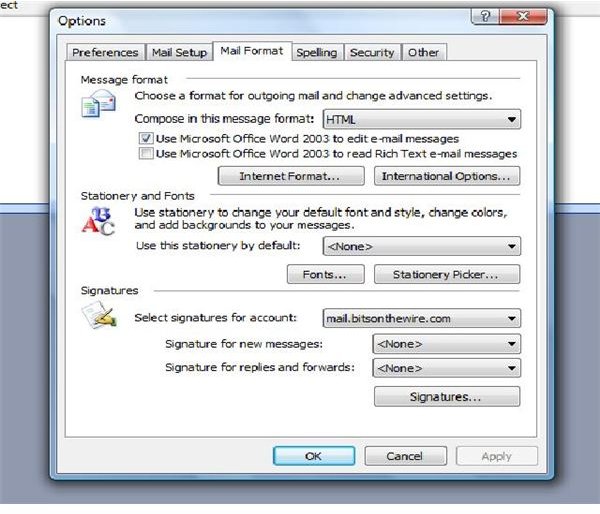
Start in the main Outlook window. The first few steps are the same for all versions of Outlook. Go to the Tools menu and select Options. Go to the Mail Format tab. If you are using Outlook 2003 or earlier, click the Fonts button on the Format tab. If you are using Outlook 2007, click Stationery and Fonts.
You have a few different options to choose from when deciding which default font you want to change. You can change the
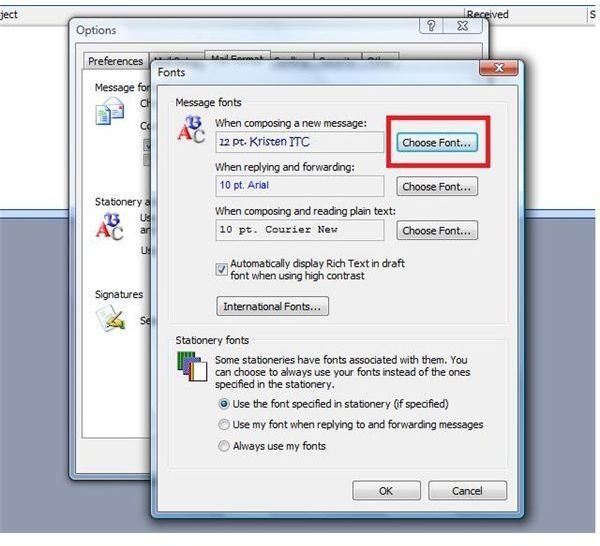
default font for new messages, replies and forwarded messages, and plain text email messages. Start by clicking the Font or Choose Font button for new mail messages.
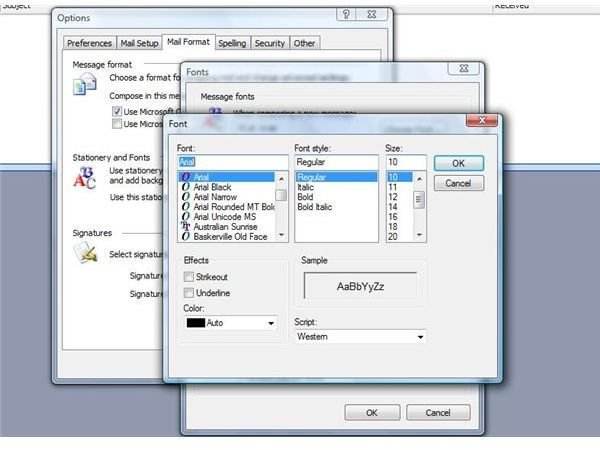
In the Font dialog box that opens, you have several options from which to choose. You can change Outlook’s default font, the style, the size, the color and even add effects such as Strikethrough or Underline. After you have made all of your desired choices, click OK.
Click the button to change the default font for forwards and replies. You can choose the same settings you chose for the new mail message default, or get a little crazy and use completely different options. When you are finished, click OK.
You can also choose to change the plain text email default font. One point to remember if you decide to change this font is that if you use a special font you installed, or if the recipient does not have that font installed, they will not be able to see the font you set.
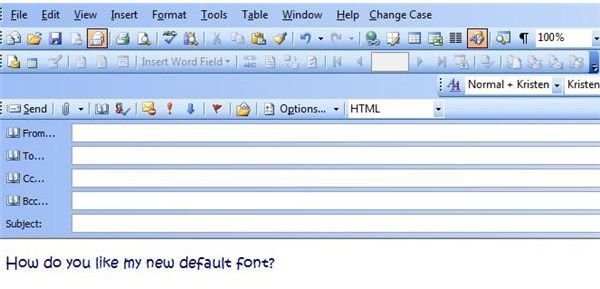
After you have made all of your changes, click OK and Apply, and close all of the open dialog boxes. The next time you create, reply to or forward an email message, your very own, personalized default font will appear.
For more Outlook tips, read Configure Outlook Autosave Settings and How to Change the Appearance of Outlook Notes .


