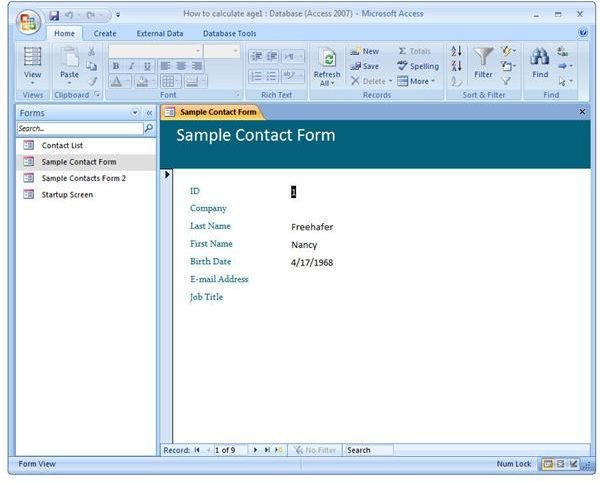
The Design View in Access 2007 makes it easy to add fields or change any other features in an existing form. In this tutorial, we’ll describe the needed steps and walk you through the process of modifying a form.
Customizing Access 2007 Forms
In the first two parts of this series, we showed two different ways to create new forms in Access 2007. But, what if you don’t want to create a brand new form and simply want to make changes to one that already exists? Instead of starting from scratch, you can add or delete fields and make any other changes to an existing form within Design View. This can save a lot of time, especially if all you want to do is add another field or two.
This method of form editing can be used for any form, no matter how it was created. You can even download form templates created by others and modify them to fit your own projects. The process for making these changes is described in the steps below. We’ll use the form created in Part 1 of this series as a working example when walking through these steps.
Adding a Field to an Existing Form
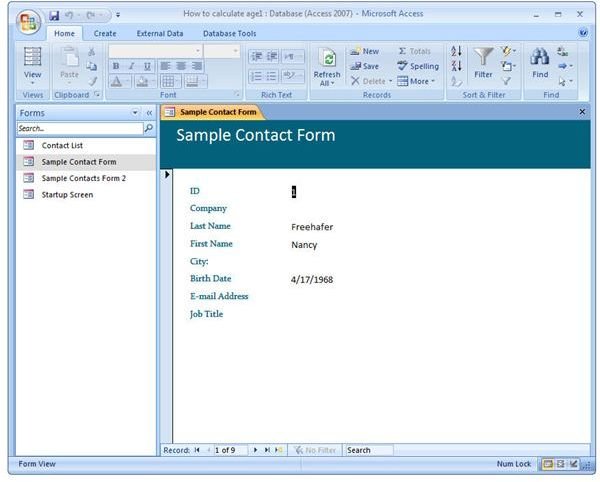
Step 1: Open the form you wish to modify. As an example, we’ll open the Sample Contact List created in Part 1 of this series. (Click any image for a larger view.)
Step 2: On the Home tab of the Access ribbon, click on the View icon and then choose Design View.
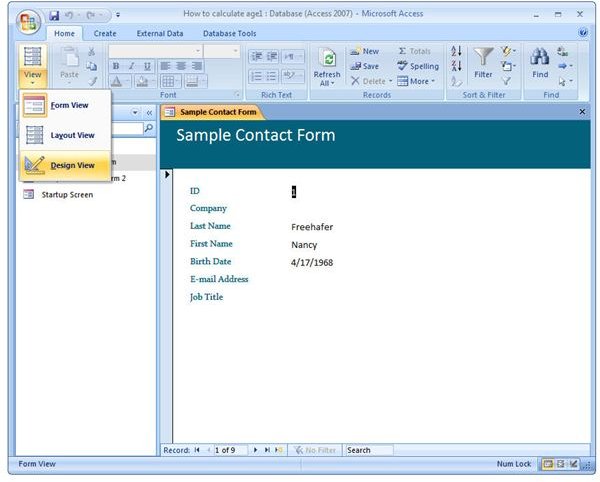
Step 3: If the Field List panel is not visible, click on the Add Existing Fields icon in the Design tab under Form Design Tools. You can skip this step if the Field List already appears.
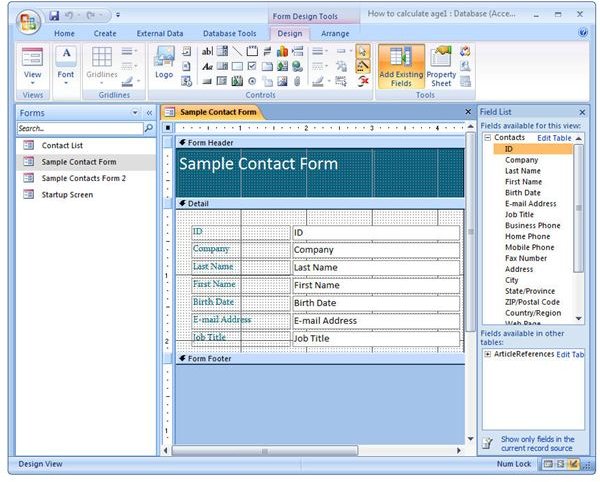
Step 4: From the Field List, click on the field that you want to add and drag it to the position on the form where you would like it to be located. Just as in Part 2 of this series, you can resize and move the field once you place it on the form.
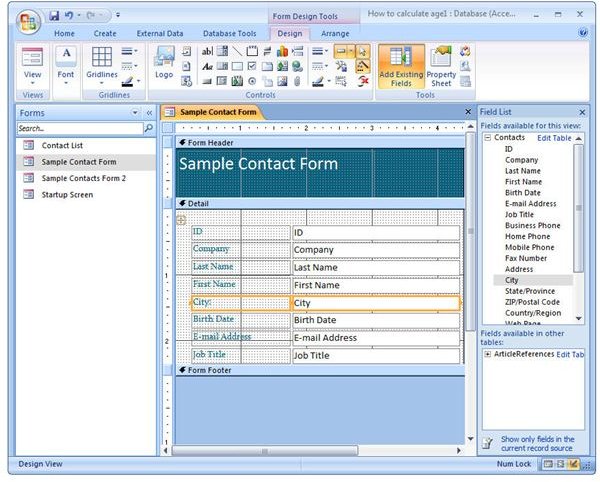
Step 5: Repeat Step 4 for each field that you would like to add.
Step 6: When done, save the form. To see the new form with the recent additions, click on the View icon in the Home tab and select Form View.
In our next series of Access tutorials, we’ll turn our attention to queries and how they can be used to search tables for records that meet certain conditions.
This post is part of the series: Working with Forms in Microsoft Access 2007
In this series, we’ll take a look at the different ways you can create new forms and modify existing ones in Access 2007.


