In this article we’ll look at a way to copy a DVD movie to the hard drive for backup, storage, and to be opened and watched in an application like PowerDVD. A similar technique can also be used to “mount” and play an audio CD in your PC. We’ll look at using DVD Shrink first.
The first thing we need to consider is that most movies today are distributed on approximately 7.5 GB DVDs. A one-terabyte hard drive can handle about 931 GB of usable data. That’s room for only about 124 standard-definition movies.
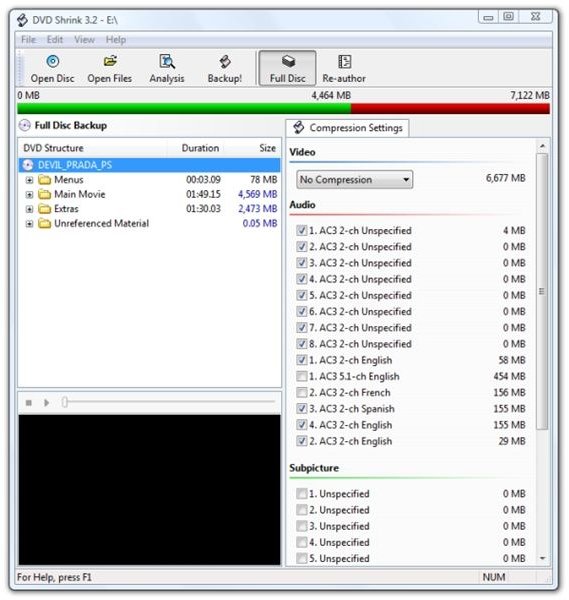
DVDs also include things that you may not need that take up space. For example, the image below shows a movie open in DVD Shrink 3.2 .
(Please click the image to enlarge.)
This was done by clicking the open button in DVD Shrink and selecting the DVD drive.
DVD Shrink’s claim to fame is that it can shrink a 7.5 GB movie to fit on a 4.7 GB DVD-R. The program is of interest because it can do two things that we need – it can open the files of a DVD and create an ISO image file on the hard drive, and it can resize the image file by approximately 50% without a serious reduction in quality. In fact, if you’ve been watching video over the Internet, 50% of the quality of a DVD still looks great on a PC.
This particular movie is showing as 6,677 MB.
As an experiment, we’ll run DVD Shrink twice – once with no compression, which will get us a full-sized ISO image file, and once with compression. This image file can’t be opened directly in a viewing application like PowerDVD, but we can use a utility program to mount the ISO file so that Windows Vista sees it as an inserted DVD. When we select to mount it, we want PowerDVD to auto-start.
The program used to mount the ISO file and make it appear as a DVD to the operating system is Virtual Clone Drive by SlySoft . The program is freeware, and it is simple to use.
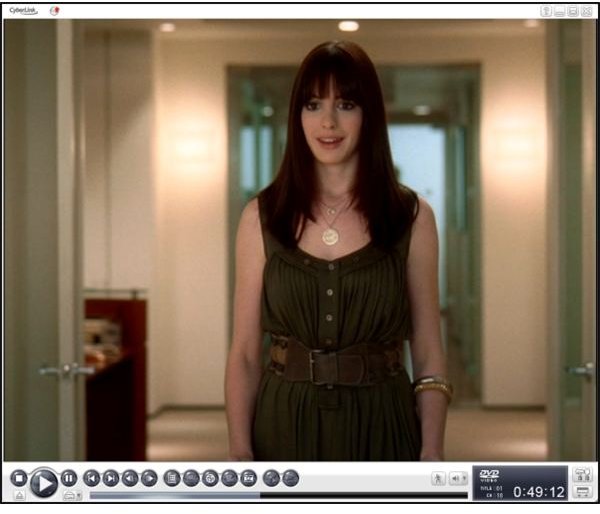
The images below are screen captures from PowerDVD. The first one is playing the 4GB version, and the second is playing the 7 GB version. Can you tell much difference?
Images

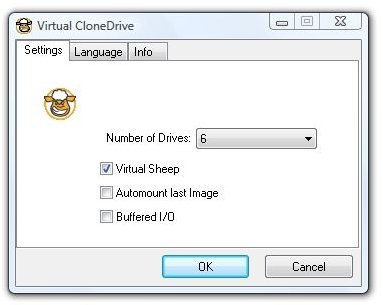
Now let’s look at mounting the ISO image files for viewing in Vista. There are only a few options in Virtual Clone Drive. “Virtual Sheep” means to show an icon to indicate that a drive shown in “Computer” (Vista) or “My Computer” (Windows XP) is a virtual drive. It’s the only option I selected.
Since I don’t find a critical difference between playing the ISO files in the full size or the compressed size, I would be able to place 214 of the shrunken files on a 1 TB hard drive rather than 124 for the full sized files.
PowerDVD can also play DVD video files directly from the hard drive, even before they are converted into an ISO file. If storage space is not at a premium, this is easier than mounting and opening an ISO file.
Note that Virtual CloneDrive can also be used to mount a CD audio disk as a virtual drive, so it’s flexible.
I’m not fully happy with the amount of work involved here, but it does provide one solution that allows a DVD movie to be copied to the hard drive, optionally shrunk, mounted as a virtual DVD, and played back in PowerDVD.
I’ll keep looking for a simpler, more automated solution to the problem. If you’re interested in all the things I’ve tried so far involving getting my collection of ancient media (8-track tapes, cassette tapes, CDs, VCR tapes, and DVDs) organized in some manner for quick retrieval and safe storage on my PC, I’ve written about my adventures in “Mixed Media – Lamar’s Windows Media and Entertainment Articles on Bright Hub .”
Update: If you have a version of Vista that includes Media Center or a Windows XP Media Center 2005 PC, I’ve found a way to turn Media Center into a DVD jukebox. Please click here for the article.
And, as always, thank you for reading this, and thank you for coming to the new Bright Hub.


