
If you’re experiencing problems using the RealPlayer download manager, you’re not alone…
Downloading Videos with RealPlayer
One of the world’s most popular media players is RealPlayer , a third party music and movie playing application that can be used as an alternative to Windows Media Player (although it is best used as a complementary application rather than as a replacement).
Available from www.real.com , the player features the ability to stream music online, play your MP3s and videos and even stream downloaded movies to your mobile device. While basic functionality is free, it comes with the option to purchase an enhanced version.
Should you find that the RealPlayer download manager keeps crashing, there are a couple of things you can try to resolve the problem.
The Scenario so Far
What you should have found at this stage is that any attempt to download videos to RealPlayer via the download manager results in failure, thanks to the download manager crashing.
This is a result of some poor programming by the RealPlayer developers. The point of employing a download manager is to manage any interruptions in the local operating system and the target website – a download manager is used to ensure that the data downloads successfully whether there are interruptions or not. One thing it shouldn’t do is cause the interruptions!
So with the download manager hanging and/or crashing, you will be unable to access the media that you have downloaded without restarting the application.
Restarting RealPlayer
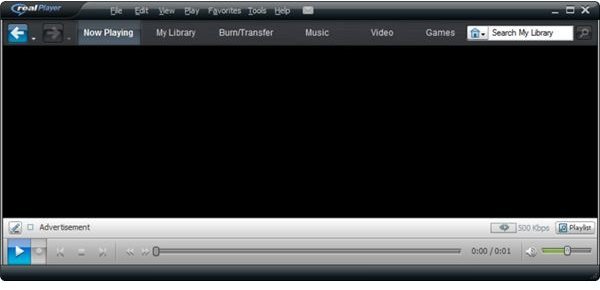
With RealPlayer hanging or crashing out with each download, there is little you can do other than restart to view the application or reinstall it (see below). However if the program is just hanging, you can force it to exit.
Do this via Task Manager , accessed either by right-clicking the Windows Taskbar or by pressing CTRL+ALT+DEL. Check the applications tab for RealPlayer. If you don’t find it, instead look for realplay.exe on the Processes tab. Once you have found it, select it and click End Process.
This action will close the software, which should enable you to continue viewing videos and other content that you have in the RealPlayer library.
Realplayer Download Manager Keep Crashing? Uninstall and Reinstall!
Sadly the only other reliable solution is to uninstall RealPlayer and then reinstall it. This is best done via Start > Control Panel > Programs > Uninstall a Program.
Ignore any options to repair the installation, opting instead for the full uninstall. This will take several minutes to run through, but once complete you should restart your computer and then reinstall RealPlayer using the same installer file that you initially used.
While RealPlayer remains a big name in the media applications sector, it has become increasingly less popular following the release of other more usable apps, such as VLC media player and improvements to Windows Media Player and iTunes. As such, you might find that unless you’re specifically using the application to download videos from YouTube you will get better results from other media players.
References
Source: Author Experience
Image Credit: https://upload.wikimedia.org/wikipedia/en/thumb/2/20/RealPlayer.png/800px-RealPlayer.png


