Want to use RealPlayer but don’t know how? In this guide, I will show you how to download, install and use RealPlayer Basic for your daily multimedia needs
RealPlayer was a very popular multimedia player when it was first launched. It has since lost ground to newer players like VLC, Winamp and the KM Player, but it is still one of the best audio/video player options out there.
Downloading and Installing
There are quite a few flavors of RealPlayer available online, but the one we want is RealPlayer Basic. It is the free version of RealPlayer which allows you to play your videos, download videos and manage your multimedia files by creating playlists. It also has simple editing capabilities. You can also convert your audio and video files to a few popular formats.
First, Download RealPlayer Basic
Click on the Download Now button to download the online installer, with which you can install RealPlayer Basic on your computer.
After downloading the online installer, just open it.
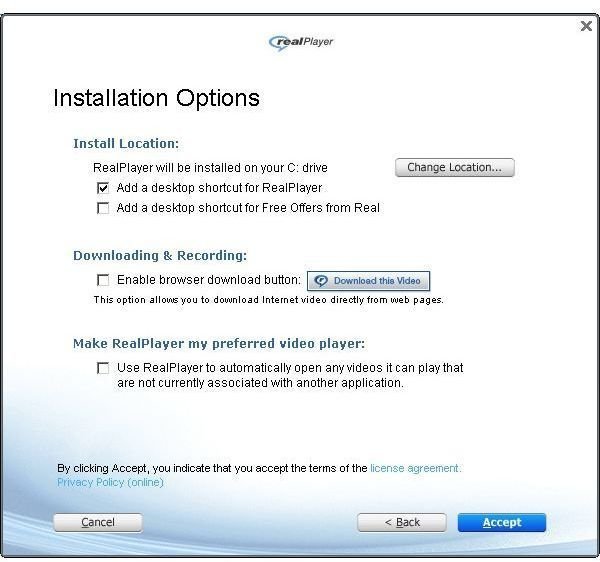
In the Installation Options, just select the options as you want to and accept the license agreement. Click on Accept and the installer will download the RealPlayer files from the internet.
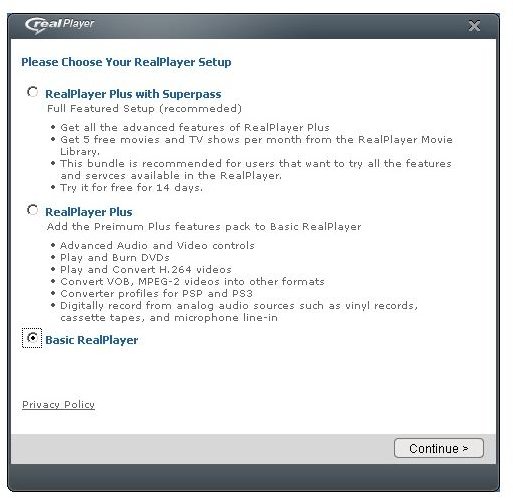
The installation should take about 5 minutes. After the installation is complete, you will get an option to choose your RealPlayer setup. Choose the third option, RealPlayer Basic, and click Continue.
Press Cancel when the email address dialog box opens. Your RealPlayer installation is now complete.
Using RealPlayer Basic
Now that your RealPlayer Basic installation is done, you can start using it.
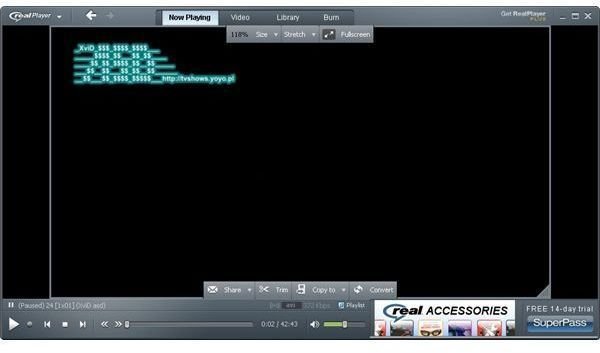
To play any video in RealPlayer, just start RealPlayer from the Start Menu or the desktop shortcut and drag the video file into the RealPlayer window.
Alternatively, you could also just right click on the video file and select Open With > Real Player.
You can do the same with your music files.
To access all your multimedia files in your RealPlayer library, just go to the library tab in RealPlayer and click on Scan Disk for Media to search for your files.
Choose the drive which you want to scan and the file types. Click OK and all your multimedia files should now be visible in your RealPlayer Library after the scan completes. The time it takes will depend on your hard drive size.
You can view the files in the Music, Videos, Pictures and Playlists option on the left tab.
To create your own playlists, just click on the Playlists option and then select New Playlist. Select the files in the library that you want to add to the playlist and name it.
You have now successfully installed and set up RealPlayer Basic on your computer. Also check out this list of the Best MP3 and Media Players to get the most out of your files.
References
Real: Getting the free RealPlayer, https://real.custhelp.com/app/answers/detail/a _id/8579/kw/realplayer%20basic/p/9%2C
Real: Scan Disk for Media, https://i.real.com/product/help/rp11/en/Content/Scan _Disk_for_Media.htm


