In Part 1, we discussed the need for building a regular expression to help us filter spam. I showed how to install and build a regular expression using Regulazy. In this article, we’ll cover testing the regular expression as well as how to add a regular expression to a spam filter.
A Quick Recap
Sticking with what we built in part one (which can be found here ), we’ve found a common theme in the spam we receive with variations on the following subject line – “Viagra is sold here for cheap”.
- V1@gra is sold here for ch3ap
- V!agra 1s sold h3r3 for cheap
- V!@gra sold here for cheap
The final regular expression we built was “^v.{2}gra\ .*?\ sold\ h\w{1}r\w{1}\ for\ ch\w{1}ap$”.
RegexBuilder
After you’ve got a regular expression, you’ll want to test it against possible variations in the spam you receive. You’ll want to grab RegexBuilder. This tool allows you to enter a regular expression and some test text and it will very clearly tell you if your test text would match the expression. RegexBuilder can be found here .
In order to use RegexBuilder, you’ll need to have the Microsoft .NET Framework 2.0 installed – available here .
Testing Regular Expressions using RegexBuilder
-
Fire up RegexBuilder
-
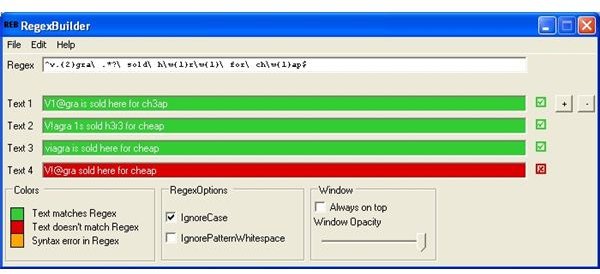
Copy the regular expression we created into the Regex text field
Advertisement
-
Copy each of the tests into the “Text 1” and “Text 2” fields. Click the “+” button to add a “Text 3” field.
-
As you type each in, the first three should turn green noting that these three tests match our regular expression. Note that “V!@gra sold here for cheap” doesn’t match out regular expression though. See Figure 1.
Advertisement -
You can keep adding test text to see if other spam variations will match the regular expression.
-
In order to fix the expression for the failed test, we can go back to Regulazy or modify the expression in RegexBuilder itself.
Advertisement
Adding the Regular Expression to your Filter
Each Anti-SPAM application will be different, but most advanced consumer and Enterprise filters will allow for the use of Regular Expressions. One of my top FREE Anti-SPAM tools for home use – Spamihilator (discussed here ) supports Regular Expressions. This section will give you a quick rundown of how to add your newly created RegEx into Spamihilator. Refer to your tool’s user manual to determine if it supports Regex.
-
Start Spamihilator. Right click on the Spamihilator icon in your taskbar and select Settings.
Advertisement -
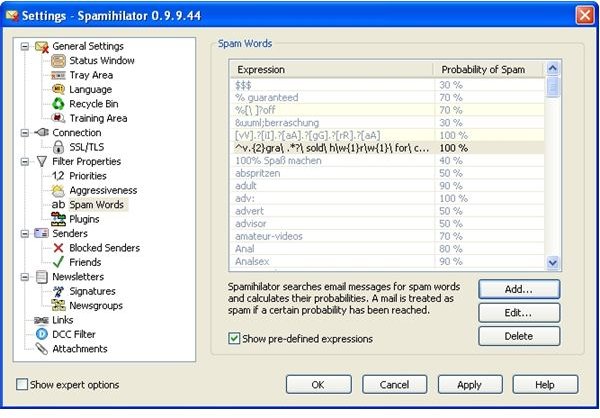
Click on Spam Words
-
Click Add…
Advertisement -
Copy your regular expression into the text field and be sure to check the “Regular Expression” checkbox. See Figure 2.
-
Click Ok and then Apply.
Advertisement
That’s it – Spamihilator (or your filter of choosing) will now block our example text.
Images
This post is part of the series: Free SPAM Filtering using Regular Expressions
This series will walk you through creating a regular expression to filter SPAM as well as walking you through testing the expression and implementing it into a popular FREE Spam filter - Spamihilator.


