We’ve learned what ActiveX controls are. We’ve discovered the risks to installing them. So, what do you do if you already have ActiveX controls installed on your computer and you want to either disable or remove them entirely?
How do I disable or remove ActiveX controls?
If you already have ActiveX controls installed on your computer and you’d like to disable them, follow these simple steps:
Step 1: Open Internet Explorer (IE)
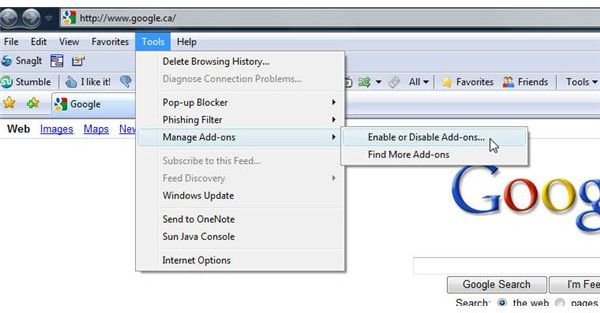
Step 2: From the menu bar, click Tools>Manage Add-ons>Enable or Disable Add-ons…
(Click on any image to enlarge)
A window will open called Manage Add-ons.
Step 3: Under the Show: drop-down menu, select Add-ons that run without requiring permission or Add-ons that have been used by Internet Explorer.
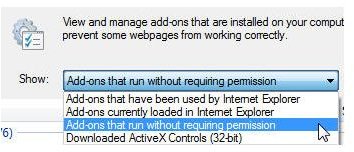
You’ll now be presented with the following add-on information: name, publisher, status, type and file.
Step 4: Click on the ActiveX control you wish you disable, and then select the Disable option. You’ll notice the selected ActiveX control’s status changes immediately to Disabled.
To delete an ActiveX control, follow the steps outlined above but click the Delete button instead of the Disable button. This will, effectively, uninstall the control.
Note that if you disable an ActiveX control, it can easily be re-enabled by following the steps outlined below. However, deleting a control is similar to uninstalling a program - in other words, there’s no easy way to get it back. To get the control back, you’ll probably find that you’ll need to uninstall and then reinstall whatever program loaded it in the first place (Adode Reader, Adobe Flash or whatever).
Note too that not all controls can be deleted - in some cases, the delete option will be dimmed out and not available. This is because you can only uninstall controls that you installed yourself - you cannot delete the ones that came loaded with Windows.
You’ll notice the selected ActiveX control’s status changes immediately to Disabled.
How to Enable ActiveX Controls: If you find that a trustworthy website isn’t working after you’ve disabled an add-on, simply repeat the steps above to enable the add-on.
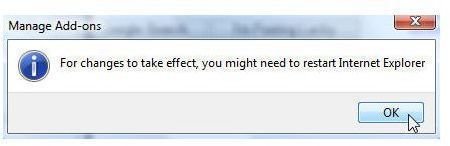
Step 5: Click OK and you’re done! Note that a box may open that tells you that you may need to restart Internet Explorer for the changes to take effect. Clicking on OK will not automatically close IE, you’ll need to do this yourself.
This post is part of the series: ActiveX Controls
What are ActiveX controls? Are they safe to install? How do you disable or enable ActiveX controls? How do you know if a website is safe? Find answers to these questions and more by reading this Computer Security article series.


