Firewall configuration can be modified by user with administrative account. In some cases, another program can corrupt or damage firewall settings. Find out the available options to reset or repair Windows firewall.
Windows Firewall and Reset Option
The Windows firewall in Windows 7 and earlier operating system includes an option to reset or restore to the default firewall settings. The option to reset will remove all settings for all network locations that the system has recognized or the end-user have configured. The Windows 7 firewall repair option is the same as resetting Windows firewall. And it’s quite easy to restore Windows firewall to its default policy setting and below is the different methods to use the option.
Reset Windows Firewall Using the Control Panel
The control panel of Windows Firewall can be opened by typing firewall.cpl in the run box. The other method to open the basic user-interface of Windows firewall is to use the desktop search function in Vista and Windows 7 by typing the keyword “Firewall”. Also, you can bring up Windows firewall from Windows Security Center/Action Center.
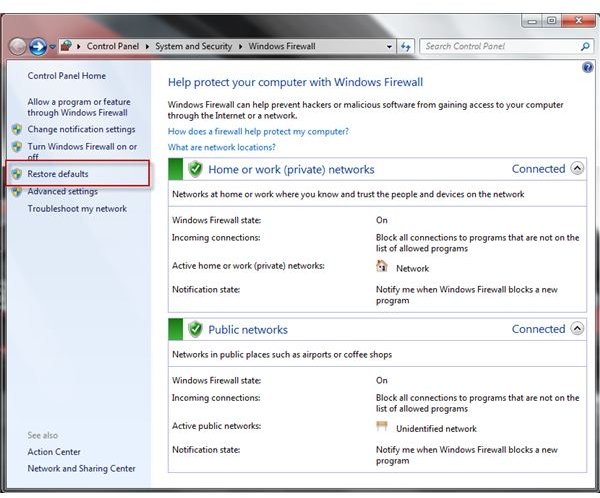
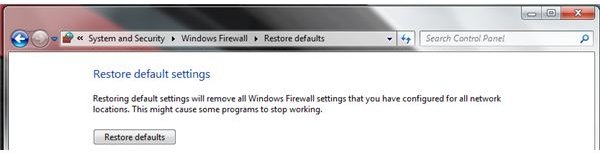
To restore Windows firewall to its default settings, click the Advanced tab and then click “restore to defaults” button in Windows XP and Vista users. Windows 7 users should click “Restore defaults” in the left pane, and then click “restore defaults” button:
Restore Firewall Default Settings Using Advanced UI
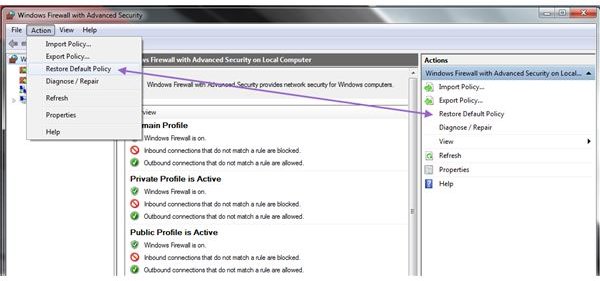
Windows users may also adjust, reset or restore firewall settings using the Windows Firewall with Advanced Security user-interface by typing wf.msc in the run box. You can reset the firewall setting to default by clicking the Restore Default Policy in the right pane or from the Action menu:
Reset Windows Firewall Using GPE
Group Policy Editor (GPE) is available to Windows except Home editions, including Home Premium. You can use the group policy editor console to reset Windows firewall to its default settings. Navigate to the following branch and then change the group policy object setting for standard profile to “Not Configured”: Computer Configuration > Administrative Templates > Network > Network Connections > Windows Firewall > Standard Profile.
Restoring Windows Firewall Settings Using Import Policy Option
Some people often keep a copy of the configuration for firewall. This is useful if you want to create backup of the firewall settings so you can always restore to it when unexpected changes occur in the system and the firewall protection. Windows firewall provides the option to export and import firewall policy or when you need to restore the backup firewall setting, you will only need to use the import option. As you can see from the above screenshot, the option to import and export firewall policy is just above the restore policy option.
Note that importing the configuration for firewall will overwrite the current Windows firewall with advanced security setting policy. Ensure that you’ve exported the current setting, if you are only testing.
Other method to restore the backup firewall configuration is by using the command line for Netsh advfirewall command line. This method is only available for Vista and newer operating systems. An example of command to use is import c:\temporary backup folder\wfas.wfw.
End-users can also use netsh advfirewall to reset Windows firewall to its default policy. Simply use the syntax reset instead of import to reset Windows firewall. This option should help end-users that could not even bring-up the graphical user interface of Windows firewall due to malware infection or another program is blocking access to the user-interface of Windows firewall. If you cannot turn on Windows firewall, check out the available options to enabling the built-in firewall .


