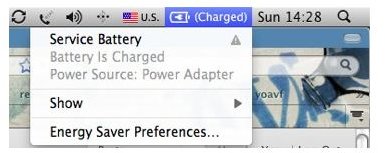
The service battery message is used by Mac OS X to let MacBook Pro users that the operating system believes the battery no longer holds a charge. However, before going out to the Apple store and buying a replacement there are a few things worth trying to resolve the service battery message.
Checking your MacBook Pro’s Battery Cycles
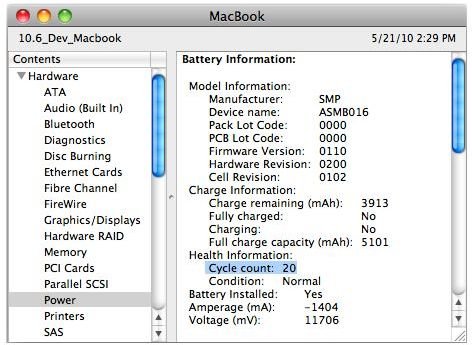
The first step to take after seeing this message is to check your MacBook Pro’s battery cycles. This will give you an idea of how old the battery is and whether Apple will cover it under AppleCare. To access this click on the Apple logo on the top left of your computer and select About This Mac from the options. In the pop up window select “More info”. In this window select “Power” and you’ll see detailed information about your MacBook Pro’s battery. The cycle count shown is the number of times your computer has been fully drained and recharged.
If your MacBook Pro’s battery cycles are under 300 and your battery is under less than a year old, Apple will repair or replace your battery at no charge. Simply visit your local Apple Store or give Apple Care Support a call and explain that you’re seeing a service battery message. Note that if your battery is removable you will have to pay a deposit if you chose to do this via mail, but the deposit will be refunded once Apple receives your faulty battery. If your MacBook Pro is one of the newer unibody designs, you will have to mail your MacBook Pro in.
Calibrating your Battery
In the unfortunate scenario that your MacBook Pro’s battery is beyond 300 cycles or over a year old there’s still a few things worth trying before going out and buying a replacement. The first of these is to calibrate your battery. This is done simply by charging your battery fully and then letting the MacBook Pro run unplugged until no charge is left. Your MacBook Pro will go into sleep mode, but your battery still maintains a charge so you should allow the MacBook Pro to sleep for at least 5 hours. Afterwards connect the power adaptor and allow the battery to recharge fully. Your battery is now calibrated and hopefully the service battery message has now disappeared.
Resetting SMC
The final option if calibrating your battery has not worked is to reset the MacBook Pro’s SMC (Systems Management Controller). This process depends on whether your MacBook Pro’s battery is removable. Apple has made step-by-step instructions available here . After resetting your SMC, the service battery message should have been cleared. If this final measure has not cleared the message the battery needs to be replaced.
Finding a Replacement Battery for your MacBook Pro
If calibrating your battery and resetting your SMC have not removed the service battery message from your MacBook Pro then the only course of action that remains is to obtain a replacement battery. While the obvious step would be to visit the Apple Store and buy a replacement battery or to turn in your unibody MacBook Pro so the battery can be replaced, there are a few suggestions worth reading before you replace your 15 inch or 17 inch MacBook Pro ’s battery.
Sources and Further Reading
Apple Knowledge Base - About the Battery Menu bar
Apple Knowledge Base - Calibrating your computer’s battery


