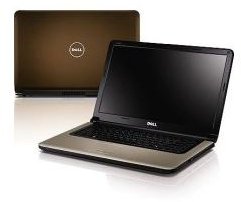
If you have a Dell laptop and found yourself running into keyboard troubles, read this guide for some descriptions of common problems and their quick fixes to make sure you don’t stay frozen for long.
First off, let’s make something clear: Laptop keyboards aren’t bad, per se, but they are cheap and they are built to be small and portable. Keys are flimsy and thin, buttons are easy to push, and everything is built to complement the mobile lifestyle of someone who would need a laptop. That being said, if you look at your laptop keyboard you’ll notice something: There is a lot of space in between keys where things can fall, they keys themselves don’t look all that sturdy, and (if you happen to know about the innards of a laptop) the receptors really aren’t all that impressive.
This leaves a lot that could go wrong. Thankfully, however, when it’s easy to get into a problem, it’s usually just as easy to get out of said problem. Laptop keyboard problems are one such problem. If you are having Dell laptop keyboard issues, here are some things you can try to make it work better.
Problem #1: Individual Keys Aren’t Working
Let’s say you turn on your laptop on day and notice that a specific key isn’t working. Any idea which on it is?
For me, my “E” key wasn’t functioning properly one day and I fell into a panic. “E” is the most used letter of the alphabet after all, and I make money writing. It was quite the situation, but thankfully I knew enough about computers to fix it quickly and quietly. If you find yourself in a similar situation, whether it’s with the “E” key or the “F” key, you need to know how to deal with it accordingly.
When dirt or grime gets underneath the keys on your keyboard, things can go pretty crazy. From keys randomly spouting out letters without being touched, to keys breaking completely, this is something you do want to avoid. As such, the best fix is prevention - don’t eat around your laptop, don’t let animals near your laptop, and definitely don’t dump the contents of your vacuum cleaner on your laptop “because you wanted to see what would happen”. It’s just not a good idea.
In all seriousness, sometimes this just happens, so how can you fix it? The first and easier way is to get a can of compressed air with a nozzle for blasting away dust. Blow the air directly at the keyboard, under the keyboard, and around they keyboard to try to knock any loose crumbs free. After you think you’ve done a sufficient job, check to see if your key is working.
Another thing you can try is removing the keyboard entirely and cleaning it with rubbing alcohol. If this still doesn’t suffice, you can easily buy replacement keys online and swap out keys without much trouble.
Problem #2: My Keyboard Randomly Stopped Working Entirely
Sometimes you’ll start up your computer and your keyboard won’t work at all. On some computers, like a Mac, this can spell disaster, but on a Dell machine it’s usually not too big of a deal. Just don’t freak out or you might actually break your keyboard.
The first thing you’ll always want to try when a piece of computer hardware stops working all of a sudden is simply shutting down your computer, waiting a few moments, and then restarting it. Often times it’s a one-time software glitch that can be fixed simply by jogging the whole device back into start mode. This won’t tell you why something went wrong, but it will most likely fix the problem.
If that doesn’t help you, you’re going to have to get into the annoying business of removing your laptop’s keyboard (which believe you me, isn’t that fun unless you have a backwards brain) and buying a new one, only to risk that the problem wasn’t on a hardware end, but rather on a software end. If this sounds really confusing, it’s because it is. You’d be better off taking it into the shop to ensure that things get fixed rather than doing it yourself and risking failure.
Problem #3: I Did A System Update and My Keyboard Stopped Working
If you recently did a system update, bought a new laptop, or traded out an essential piece of hardware from your old laptop (like a hard drive, for instance) and your keyboard stopped working when you did it, you should celebrate. Why? Not because your keyboard broke, but because you shouldn’t have to spend a single penny to get it fixed! It’s by far the easiest Dell laptop keyboard issue to deal with.
Drivers are little pieces of code that tell your computer how to handle certain devices, like keyboards. In this case, the update/replacement you did to your computer wiped it free of the required drivers, so you’ll need to find some new ones . It’s simple and free though:
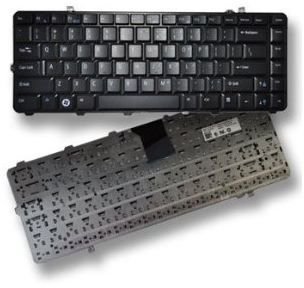
- Go to Dell’s website and find the “Drivers and Downloads” section.
- Follow the on-screen instructions to locate the driver you need
- Double click the downloaded file and follow the on-screen instructions
See, wasn’t that easy?
References
[Image] Product Page, https://www.amazon.com/Keyboard-Dell-Studio-Notebook-Laptop/dp/B0032GO2LW
[Information] Author Knowledge


