Some USB hubs struggle to cope with all the powered gadgets like communication devices, cameras, flash drives and headphones, and this sometimes creates a “USB device has exceeded the power limits of its hub port.” error. This situation can damage the USB port or worse - your laptop.
USB Power
Some USB Hubs can’t handle the numerous devices being placed on them, and fail with a power surge. The first time you know about this even occurring is when you get a message something like:
“A USB device has exceeded the power limits of its hub port.”
The you click on the message and this is followed up with:
“Power Surge on Hub Port.”
This can occur for devices already installed or for something you are trying to use for the first time. The recognition of the device is not the issue, it is the fact that the device is drawing more power away from the hub than it is able to handle. It is fortunate that the message appears as it is provided for our own safety. If the computer did not let us know about the possible power problems it may damage the main hub port on the computer or even the computer itself. Take heed of such warnings and protect your computer.
Simply plugging and unplugging the device would not work, because the same device will still cause the problem, as would simply resetting the USB hub if there is a reset button present.
Identify The Problem Device
By a process of elimination, simply remove the USB devices until the message disappears. The opposite could also be true trying one USB device at a time, but this may not work if the other devices are not plugged in and also extracting power as normal.
This should help you to identify the problem device and for now, do not use the device until you have obtained a more powerful USB hub.
Powered Hubs
Modern USB hubs can work quite happily with laptops and PCs without needing a power supply. However, if you are using several USB ports (some devices can have up to 30 or more), then you will need to have a powered device.
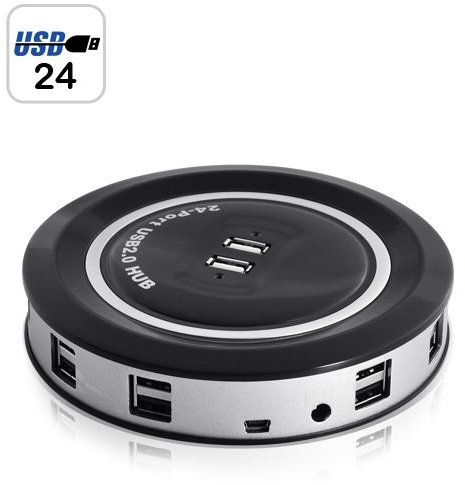
An example of a powered device with 24 ports is illustrated to the right:
This is a 2.0 Hub and can transfer data up to 480Mbps. Although the hub can be powered directly from the PC it would not be advisable as the number of devices would cause problems as they are added. It is also capable of charging other devices such as cameras and MP3 players.
One key feature worth noting is the safety features built into the device. If the hub becomes overloaded, this is indicated and the PC or laptop is protected from any such occurrence.
(Image credit: https://www.ankaka.com )
Prevent Power Overload
One way to prevent a laptop USB hub power surge is to limit the number of devices on the hub that are extracting only power. An example of these are USB lava lamps, USB toys, USB chargers for other devices and batteries and a whole host of other USB items that are not actually used for communicating with the laptop. While some of these devices can be fun, don’t overdo using them on your device as it can easily become overloaded. In other words, don’t recharge your iPod, smartphone, and digital camera all at the same time.
Daisy Chaining
It is possible to place USB hubs onto other USB hubs to increase the number of ports available and have them all in a convenient place. Remember that when you do this the communications tasks for the single USB port plugged into your laptop or PC will increase, and therefore lag may occur. This also adds to the power load and powered devices are advised in these cases. However, if you can avoid daisy chaining USB hubs then do so, as different hubs will perform better on separate ports on your laptop as opposed to being daisy-chained together.
References
- Askville.com, What is a powered USB? What is a non-powered USB?


