
Tired of visiting YouTube every time you want to watch your favorite silly video? This tutorial will explain how to save YouTube video files to your computer for viewing any time!
How to Save YouTube Video Files
YouTube videos are streamed directly to your machine; and because some content may or may not be under copyright protection YouTube has disabled video download features.
However, users interested in downloading YouTube videos to their computer may do so using third party software, or online URL link websites which provide a specific download link.
Collecting The Specific Video Address
Everything on the internet has a specific address, this enables a universal method for locating files and locations. An internet address has a purpose similar to a home residential or commercial address; and without a proper address, files can’t be taken from or sent to other locations.
For example, you can’t send a letter to someone and expect a reply without a return address; but in order to label a return address users first need to identify what it is.
We are going to find a specific URL, or address, to a YouTube video for use in the download methods which are listed below. Without this unique URL we cannot download the video.
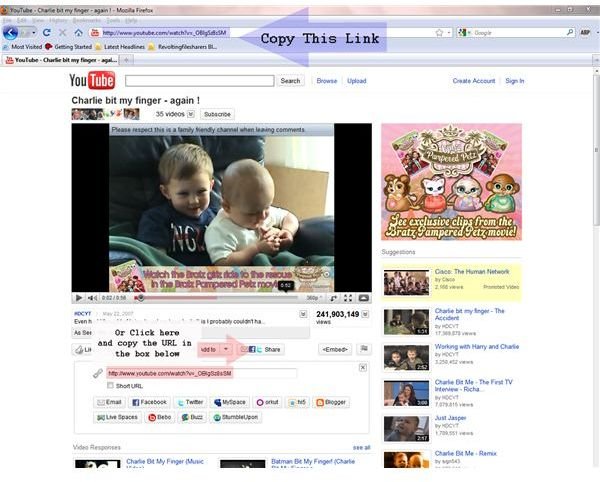
For the purpose of this short tutorial we are going to use the funny “Charlie” video which can be found here .
Once the video has been opened in a browser window we can do one of two things to locate the specific URL.
1.) Copy and paste the entire link provided in the address bar of the browser window.
or
2.) Click the “Share” button below the video. The URL listed in the box that appears is the specific video URL.
In this case the URL is as follows; “https://www.youtube.com/watch?v= _OBlgSz8sSM”. This URL that we have collected is going to be used later on in the article so remember it; you can always come back if you forget, after all it’s just a page away.
YouTube Downloader
There is a unique program called YouTube Downloader, which is specifically for users interested in downloading YouTube videos directly to a PC.
The software is completely free, and can be found on the official site here .
YouTube Downloader allows users to input the video URL of a YouTube video and download the file to a specific location on their computer. Users can then leave the file “as-is” or convert the file to several supported formats for use on a variety of additional devices (PSP, Mobile Phone, MP3 Players ).
Just download the software from the link provided and collect the video URL using the method mentioned above; and you’re good to go!
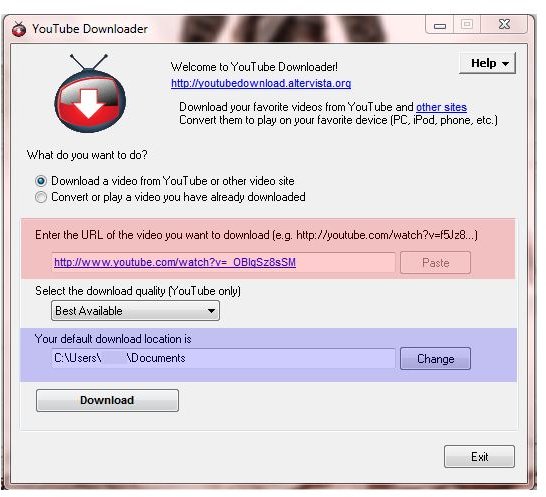
For more specific help on inputting the video URL refer to the picture on the right. The location outlined in red is where the video URL needs to be pasted.
The area below the URL (outlined in blue) provides the user with the download directory. If you want the video to be placed in a specific file or directory you may enter it here.
Once both fields have been entered, the “download” button just simply needs to be selected and off you go!
How Do I Save YouTube Videos on My Computer without Installing Software?
If you are not particularly keen on installing obscure software on your PC, there are several web-pages available that simply require the YouTube video URL; once input, the site will then provide a series of download links and mirrors.
It is also worth noting that this method works cross-platform; meaning it will work on any type of computer or OS (Mac, Windows, Linux, etc.).
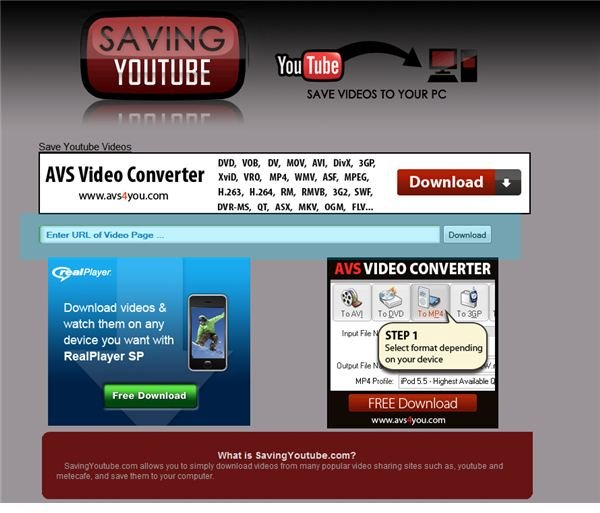
The first website is called “Saving YouTube” and can be accessed here .
In order to download a YouTube video, you just need to paste the video URL into the URL box (highlighted in blue in the image on the left) at the top of the page and then select “Download”. The site will then provide a list of video formats available for download, select one and click on the corresponding link. The video should begin downloading automatically and voilà!
Several other websites that follow the same method are listed below; the procedure is simple and will be similar to the one mentioned for SavingYouTube.com.
There are many similar sites out there, so if you don’t like what is listed here; do a quick web search!
Watch Your New Video
Now that you know how to save YouTube video files to your computer, you may watch them with your favorite media player; stream them to any home media device or even convert the video for use on other devices.
The YouTube Downloader program mentioned above will allow you to convert to several preselected formats; but for anything else you will need additional video conversion software .
Viva la YouTube!


