10 Best Paint.NET Effect Plugins to Download and Install
Paint.NET was created as an alternative to the basic Microsoft Paint (integrated with Windows) but it became a much more complex and versatile graphics application. With a user-friendly interface, unsophisticated and free, Paint.NET nevertheless has some very advanced features that bring it more into the Photoshop and GIMP league.
Like any good graphics program, Paint.NET is constantly improving with new features and tools. A convenient way to do that is to develop new plugins and let the users make up their own mind whether they want to install them or not.
How to Install a Plugin in Paint.NET
Plugins usually come in a zip file that contains a .dll and a text file. The .dll is the actual plugin and the text file tells you how to install and implement it. Plugins need to be saved in a specific folder (usually Program Files/Paint.net/Effects if not specified otherwise in the readme file). Plugins enable you to add new effects, file types, fonts, etc.
Top 10 Plugins
1. Icons and Cursors is a plugin that enables you to create your own icons and cursors in Paint.NET. To install the plugin, save the .dll file to Program Files/Paint.net/FileTypes folder. Next time you want to save a file you will find that three new extensions have been added to your Save As list (.ico, .cur and.ani).
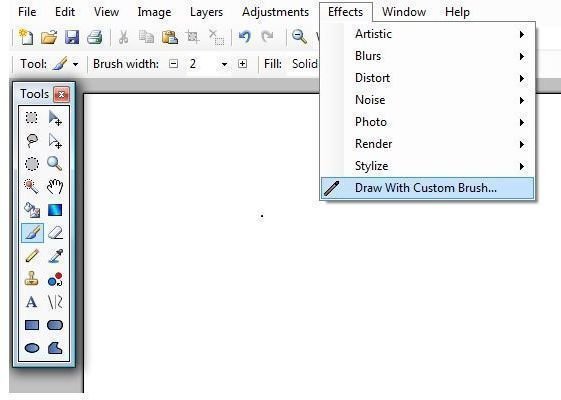
2. Custom Brushes is a plugin that enables you to create and work with custom brushes. Open the zip file and extract CustomBrushes.dll to your Program Files/Paint.net/Effects folder. You will find the command Draw with Custom Brushes under the Effects menu. Click to open it. To create your own brush, click Add Brush and open an image file from your computer.
3. CustomTextures is exactly what it says it is: a plugin that enables you to create and use custom textures. It works in a similar way to Custom Brushes. Save Textures.dll in your Effects folder. Look for the tool under Effects < Stylize < Add Custom Texture. To add a new texture to the list, save any image file into Documents < Paint.net User Files. The folder will be created automatically.
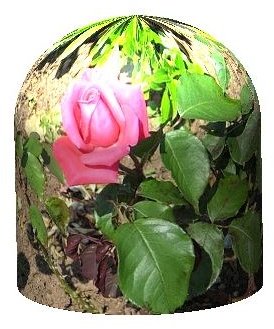
4. Shape3D is a tool that enables you to embed your photos in 3D shapes. Save the .dll in the Effects file. To apply the effect, look for it under Effects < Render < Shape3D.
5. Background Preview is a plugin that helps you see what an image looks like as a desktop background. After installing, go to Effects<Image Application<Preview Desktop Backgrounds. The current image will be stretched to fit your screen resolution. You won’t be able to see your desktop icons in the preview.
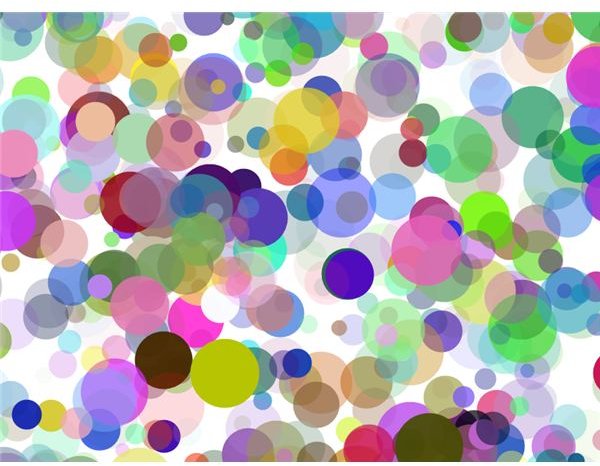
6. Random Shape Filling is a little function that allows you to choose from a large range of shapes of various sizes and use them to create nice looking efects. Download and open the zip file, choose Random Shape Fill.dll from the list and extract it to your Effects folder. You’ll find it under Effects < Render < Random Shape Fill.
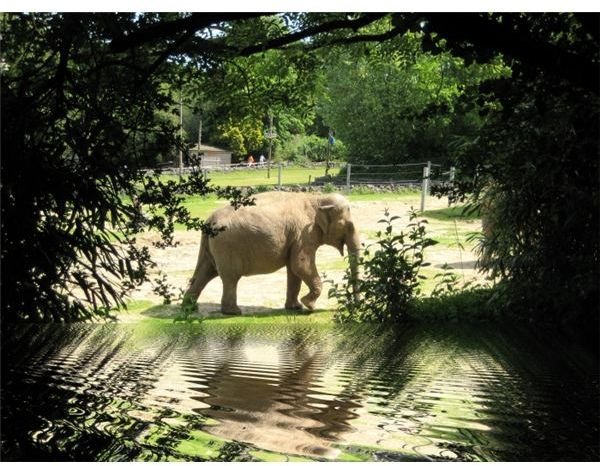
7. Water Reflection enables you to create an effect similar to a reflection in the water of your photograph. It will be added to Effects < Distortion.
8. Photoshop File Plugin - Open and edit Photoshop files in Paint.NET without having to change the extension.
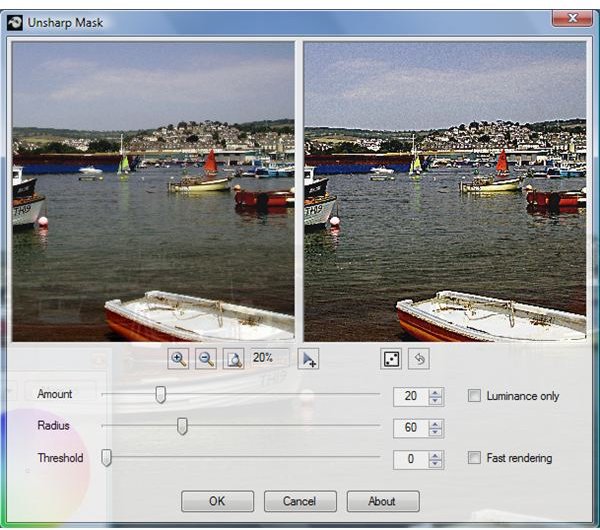
9. Unsharp Mask is a classical method to increase edge contrast. You can use it for sharpening your photos. After installing, you’ll find it under Effects < Photo < Unsharp Mask.
10. Color Replace is part of a plugin pack that contains several other effects such as Soften Edges, Focal Point, Stencil, Varicose, Bricks.
For more Paint.NET plugins…
Visit Paint.NET Forums - Plugins for more plugins to customize your photo editing experience. Also, read about how to use blending modes in Paint.NET to blend different layers together.