Setting up a local email client or even accessing Gmail from a mobile device such as a cell phone or tablet computer can often be accomplished by entering the correct POP3 setting configuration. Fortunately, Google’s POP mail settings are consistent and easy to use in most clients.
Enable POP on Gmail Google Account Settings
There is one very important action to complete before attempting to configure the POP email settings for Google Gmail or the POP3 email configuration will fail no matter what settings you enter into your email client software .
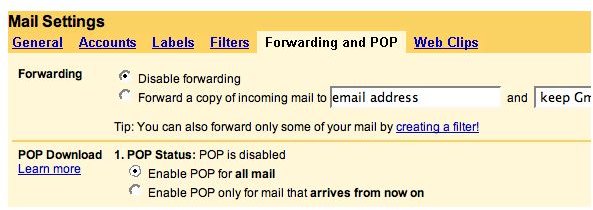
By default, POP mail access is not enabled on Gmail accounts. If POP is not enabled on your Google account, the server will reject all requests made via the POP3 protocol, even if all of the proper settings are used. Think of it as “turning Gmail POP on.” If it is not turned on, it won’t work, even if you are using it right.
To enable POP access in Gmail, log into your Gmail account and click Settings. Look for the Forwarding and POP tab and select it. Then, click the button that says, “Enable POP for all mail,” if you want your email client to be able to download all the email stored on Google servers, or “Enable POP only for mail that arrives from now on,” if you don’t want to get any email that has already been received downloaded by your POP client.
Gmail POP 3 Server Settings
Once you have enabled POP3 on Gmail in your Google account, you can begin configuring your POP mail client program .
The first Gmail POP settings to configure are the POP servers IP addresses used by Google to handle remote POP3 requests from locally installed email clients and other email or messaging systems. Two POP sever names must be configured in order to both send and receive email via the Google POP mail system. The first server to configure is the Incoming Mail Server for POP. Sometimes, this server is referred to as the POP3 server. For Google Gmail, the incoming mail server is pop.gmail.com. The second server to configure is the Outgoing Mail Server, which is also called the SMTP Server. The correct Gmail SMTP server setting is smtp.gmail.com.
For security purposes, Google’s Gmail platform used encrypted mail protocols. In some email programs, this may require additional settings to be change. For the POP3 Server, the email client needs to be set to use SSL and configured to use Port 995.
The SMTP server also requires encrypted email protocols. You can use either SSL on Port 465, or TLS/STARTTLS on Port 587, depending upon which methods your email program supports.
Google Mail Pop User Settings
Finally, in order for the program to connect to Gmail, the username and password for the Gmail account must be either entered manually by the user each time Google’s email servers are accessed, or entered into the email software configuration. In the latter case, the email program will automatically provide the username and password whenever it is required without additional input from the user.
The username setting to be used for Google mail access is the full email address of the account, including the Gmail.com part. In other words, if your email address is superman@gmail.com , then you need to configure your email client to use superman@gmail.com as the username. Just using superman will NOT be sufficient and will cause the login process to fail. (Note: For users using their own domain name, that domain name, and not gmail.com is the correct email configuration.)
The email password is the same as the password entered by the user when accessing Gmail online via the traditional web form.
Now, the client will be configured to use Gmail POP3 access.


