Project Management with Google Docs
Google Spreadsheets is the perfect tool for Project Managers, Team Leaders, Programmers, or anyone who needs to manage a project or a team. Google Spreadsheets offers several different options for project and task management. And, since it’s Google Spreadsheets, there’s no need to send copies and reminders to your project crew. Just invite them to collaborate on the planning and task spreadsheets, and they’ll have access to all the information they need.
Project Management
To access the Spreadsheet project management tools, log into your Google Docs account. Select New - > From template… from the menu bar.
In the menu to the right, select Calendars & Schedules, and then type “projects” into the search box at the top. Click Search Templates.
You’ll be given three templates to choose from. Select the one that best fits the needs of your project, and your team. Preview lets you see a sample of the template. To select the template you’d like to use click Use this template.
The Project Timeline template most resembles the familiar Gantt chart. For our demonstration purposes, that’s the one we’ll use.
Double click in the box which holds the project name. Highlight the sample name, and type the name of your project.
Double click in the Planning Phase box, and rename this phase as suits your project.
Double click Task 1 to define that task by name, then Tab over to the owner column and assign a person responsible for this task. Finally, Tab to the Duration column and designate a time expectation for the task. Repeat this procedure for each Task in the Phase. Now, repeat for each phase of your project.
To add additional tasks, click the last task in your list and select Insert - > Row below from the tool menu.
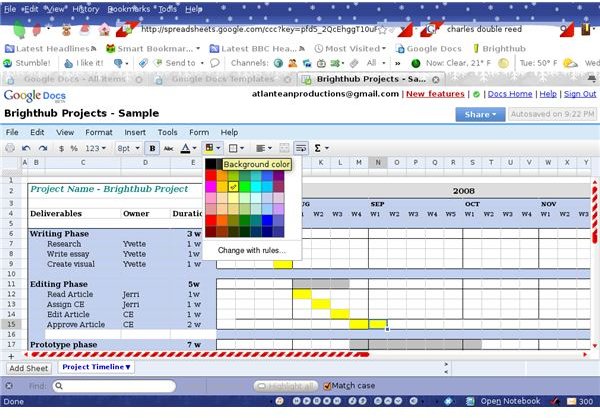
Next, create your Gantt Chart. Click on the square you want filled in based on your time data. Click the background color tool from the tool bar. Select your desired chart color. Repeat this process for each square you want filled in.
Mark dependencies and other notes by placing a number or letter code in the chart square that corresponds to the task and date. Create a code key in the gray box at the bottom, marked Annotations.
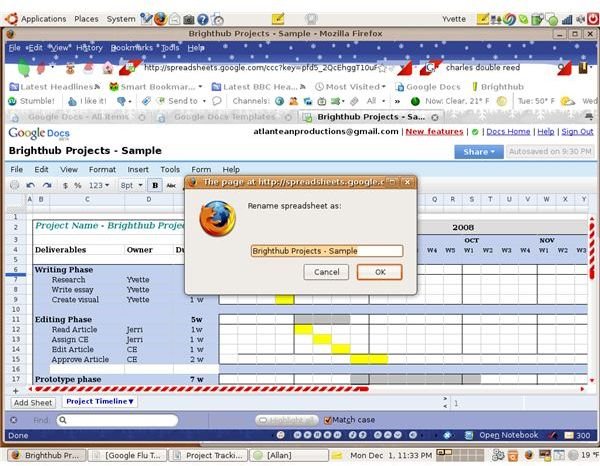
Save the chart under a new name by clicking on the file name at the top of the page. Type the new chart name in the text box which pops up. Click OK.
Share the Gantt Chart with you team members.
Related Reading
Google Docs: Sharing in Spreadsheets