The Microsoft Word Calendar Wizard is a convenient way to create printable calendars that you can use for reference and planning. The Calendar Wizard is a free component of Microsoft Word that will download automatically within Word if not installed already. Here is how to use the Calendar Wizard.
Creating a Calendar with the Word Calendar Wizard
When you need to print monthly calendars, you don’t have to hire a printing service to make them: You can create attractive custom calendars for free using the calendar wizard Microsoft Word has built into it. In just a few short steps, the wizard lets you create fantastic calendars quickly without much effort. To begin, open up Microsoft Word. For the purposes of this Microsoft Word tutorial , we will be using Word 2007, although other versions should produce similar results.
Create a New Document for Your Calendar
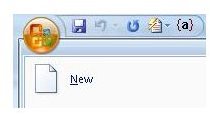
To create a new document in Microsoft Word, click the Office button and then click New.
In the New Document window, click Calendars in the left hand pane. Scroll the center pane down until you see the icon labeled Calendar Wizard.
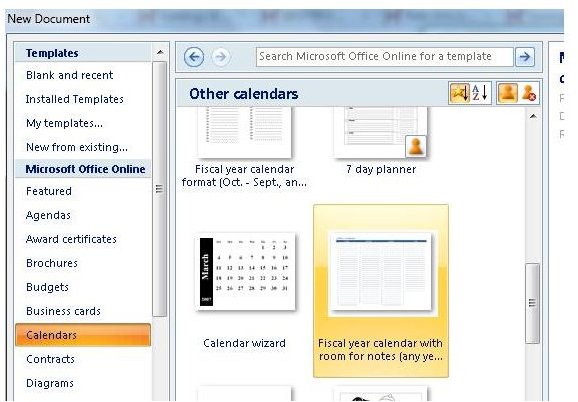
Double click on Calendar Wizard. You will see the opening screen of the Calendar Wizard display.
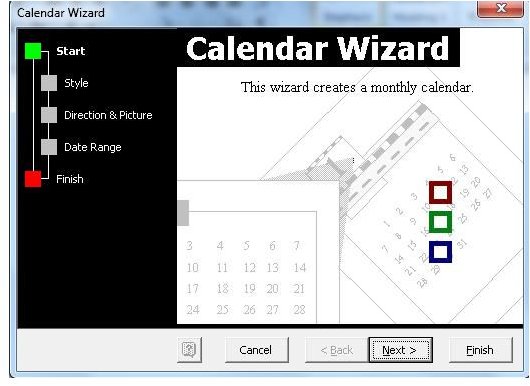
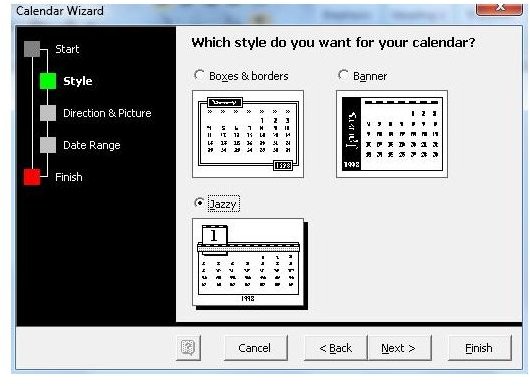
Click the Next button and then choose the style of calendar you wish to create. For this Microsoft Word Tutorial, we’ll use “Jazzy.”
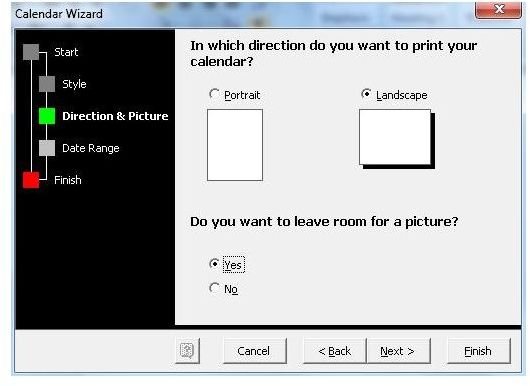
Click Next. Now you will be asked to choose between a portrait or landscape layout. You will also have to decide whether you want to leave space for a picture. We’ll choose Landscape and Yes.
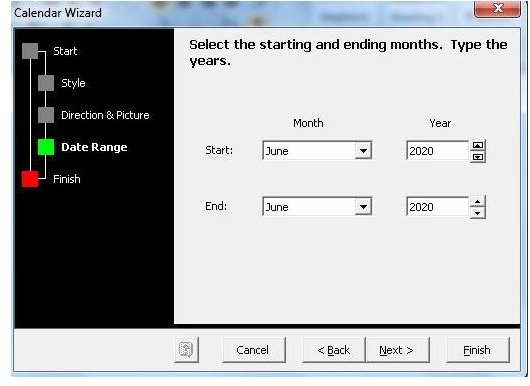
Click Next and then enter the ranges for your calendar. We’ll choose just one month, June 2020. Click the Next button when you are ready to move on.
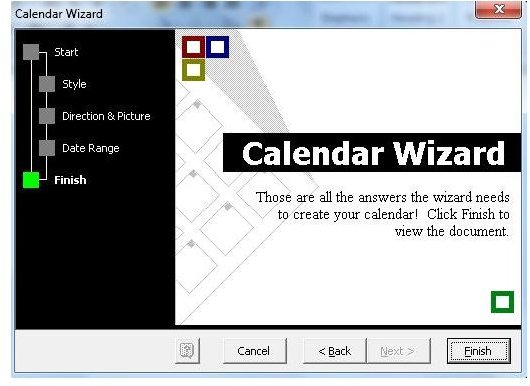
You now see the final screen of the Microsoft Word Calendar Wizard. You have the chance to cancel or go back to change your answers. If you are happy with how things have gone so far, click the Finish button.
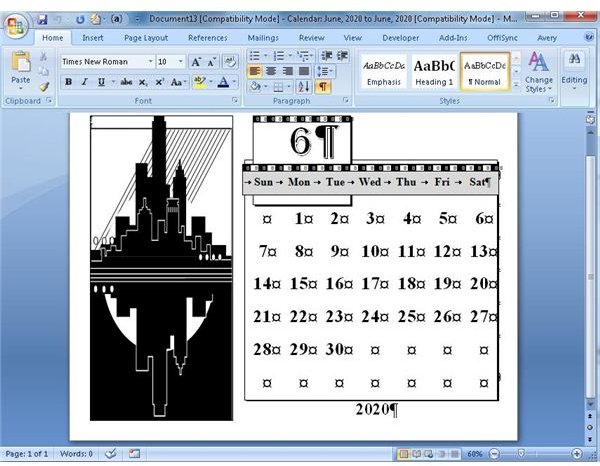
You now will see a Microsoft Word calendar that was created by the Microsoft Calendar Wizard. You can now make changes to your calendar or add special events and notes to it.
What to Do Next
Now that you have used the Microsoft Word Calendar Wizard to create a fantastic calendar, you can use it to create custom calendars for school years, summer months or for special organizations and events. You can modify the calendars as you see fit to make them suitable for your organization. Using Microsoft’s built-in functions, you can save your calendars to html. You can then post them on your website for public viewing and download. You can even embed the calendars you make into newsletters, magazines and information packets.
In this Microsoft Word tutorial, you have seen the calendar wizard Microsoft Word uses to generate calendars spanning one month to many months with just a few easy clicks. There are endless ways you can use these calendars to improve your life, save money, and make the time you spend in Microsoft Word more productive.


