Internet Explorer 8 Folder Locations in XP and Vista

Article by Ryan Tetzlaff (4,940 pts ) , published Sep 28, 2009

Internet Explorer is notorious for storing files in numerous places that aren’t exactly easy to find. This article will show you where Internet Explorer stores files in Windows XP and Vista.

Overview

Internet Explorer stores its usage files such as cache, cookies, history and favorites in numerous areas within the file system. What makes this even more confusing is that there is a noticeable difference between where these files are stored within Windows XP and Windows Vista. I will walk you through the locations used by Internet Explorer 8 in both operating systems starting with Windows XP.

Before we get started, let’s cover the types of files we will be looking at – cache, cookies, history and favorites.

  • Internet Explorer's Cache is used to store graphic files and snapshots of frequently visited websites in order to speed up subsequent loads of those pages. Note that this folder can contain a large number of graphic files and can take up a large amount of space on your hard drive.
  • Cookies are used to keep metadata on sites that you visit in order to retain any site-specific customizations that you make – such as desired font or organization of site widgets.
  • History is used to keep a journal of all web sites you visit.
  • Favorites are just that – favorite web sites that you bookmark for future reference.

Make sure you turn on the option to view hidden and system files. To do this, open My Computer and go to Tools, Folder Options. Under the View tab, select the option to Show hidden files and folder and make sure the Hide protected operating system files option is unchecked. Click OK and you should be able to browse to the locations listed below. The other option to get to these locations is to paste the paths below directly into the Explorer window.

IE Files and Folders in XP

For Internet Explorer 8 in Windows XP, the following types of files are kept in the designated folders.

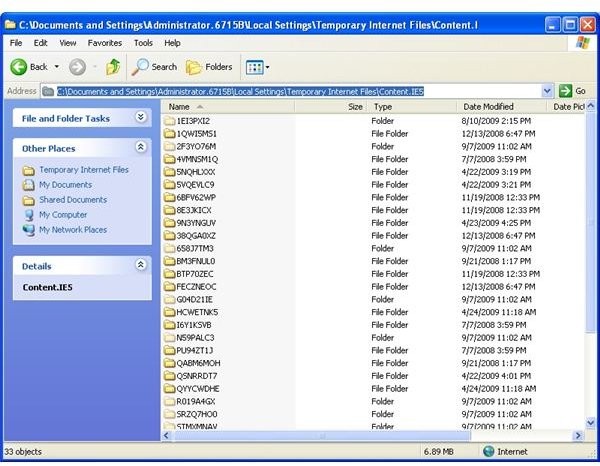
  • Cache - C:\Documents and Settings\<username>\Local Settings\Temporary Internet Files\Content.ie5 (Note that this is a Hidden System Folder) See Figure 1
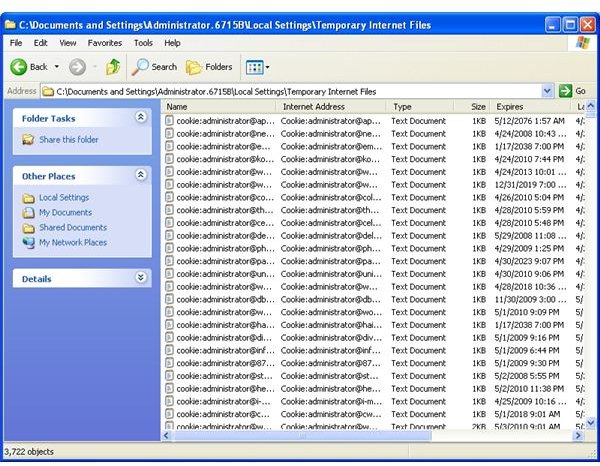
  • Cookies - C:\Documents and Settings\<username>\Local Settings\Temporary Internet Files. See Figure 2
  • History - C:\Documents and Settings\<username>\Local Settings\History
  • Favorites - C:\Documents and Settings\<username>
Figure 1

Figure 2

IE Files and Folders in Vista

For Internet Explorer 8 in Windows XP, the following types of files are kept in the designated folders.

  • Cache – c:\users\<username>\AppData\Local\Microsoft\Windows\Temporary Internet Files\Content.IE5
  • Cookies - C:\Users\<username>\AppData\Roaming\Microsoft\Windows\Cookies
  • History - C:\Users\<username>\AppData\Local\Microsoft\Windows\History
  • Favorites - c:\users\<username>\favorites

Want more Internet Explorer tips and tutorials? Check out the ever-expanding collection of Bright Hub articles, such as How To Password Protect Internet Explorer, How to Restore Lost Favorites in Internet Explorer and How to Repair Internet Explorer 8 – What to do When IE 8 Hangs.

Comments

Oct 24, 2009 8:53 PM
jollymoon
Win 7 IE8 and Temp Internet Files
I too have a need to access the Temporary Internet Files folders...to view versions of prototype, scriptalicious, mootools, etc.

I am using Windows 7 with IE 8 and would like to view my cached files, graphics, javascript files, etc.

All of the places I have been able to search out suggest that the folder resides in:

C:/users/USERname/appData/local/microsoft/windows/TemporaryInternetFiles/ BUT mine is blank...as well as all of the other permutations of "temporary internet files" that can be seen with windows explorer.

I could not get :
c:\users\<username>\AppData\Local\Microsoft\Windows\Temporary Internet Files\Low\Content.IE5 to work in Windows 7

Where are the temp internet files located and why make it so hard to see them? In winxp with IE8 you could move the folder to a location of your choice...Win7 allows this but there are only icon files.

I have administrator permissions with only one account on my system and all hidden files, extentions are unchecked in the TOOLS/InternetOptions/Advanced/

Does anyone have the exact path of all of the temporary internet files?
Oct 14, 2009 12:00 AM
Thiyagu
To view Temporary Internet Files that are kept hidden
Under XP :
1. The temporary internet files are usually stored in the folder C:\Documents and Settings\<username>\Local Settings\Temporary Internet Files, where <username> is your user registered on your computer.

2.Usually this folder is kept hidden as this is a system folder. To view this open Explorer, select Tools > Folder Options Menu. On the popup screen select View tab, under Advanced settings list, uncheck 'Hide Protected Operating system Files" option. Now you will be able to view the Temporary internet files, in the location mentioned above.

3. To change this Temporary Internet Files folder location : Open internet Explorer 8.8, Open Tools, Internet Options Menu. On the Popup screen, click on 'Settings' Button against 'Browsing History'. On the next Popup screen, click 'Move Folder' button and select the new location.
Sep 29, 2009 4:40 AM
Zaneta
IE8 and Vista - Cache
Hi Ryan, thanks very much for your article - it was very handy for helping me find where the IE8 cache has been well and truly hidden on Vista!! One final trick to know about is that there is also a Low folder within the Temporary Internet files folder, in which some webpages images get placed, making the full path for these files: c:\users\<username>\AppData\Local\Microsoft\Windows\Temporary Internet Files\Low\Content.IE5 - several folders can now be seen here, each of which contain images from various sites one has visited. A useful thread is: http://social.answers.microsoft.com/Forums/en-US/InternetExplorer/thread/8411722c-a149-467a-8618-bc7f43fc8ad5 But whew - finally found what I was looking for! :)
 
Sponsors
 
Camtasia: record, save, share!
Record onscreen activity, your voice, and webcam video. See how great your presentation videos can look with Camtasia screen recording software!
Subscribe to Windows
RSS
Get free weekly updates, directly to your inbox.
Browse Windows Platform