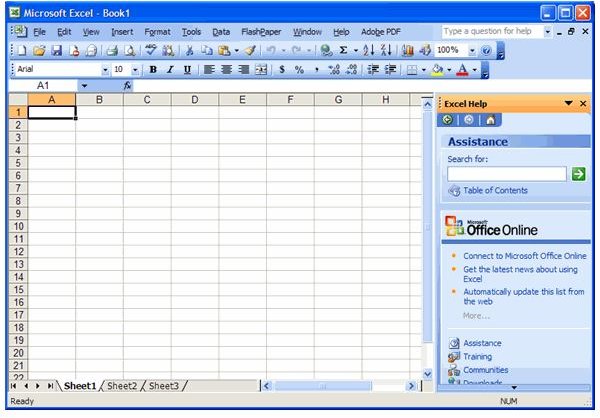
There are some basic keyboard shortcuts, functions, and formulas that every Microsoft Excel user needs to know. This Microsoft Excel Cheatsheet is a reference for learning shortcuts and basic functions of Excel, to make it more convenient and make you more efficient.
Most Commonly Used Excel Keyboard Shortcuts
Microsoft Excel Cheatsheet reference guide…
Selecting
Ctrl + Spacebar - Selects the entire column in a worksheet.
Shift + Spacebar - Selects the entire row in a worksheet.
Copy and Paste
Ctrl + C - Copy selected text.
Ctrl + V - Paste copied text.
Ctrl + Alt + V - Opens Paste Special dialogue box.
Ctrl + D - Uses Fill Down function to copy contents and formatting of top cell to selected cells below.
General
Ctrl + 1 - Format Cells dialogue box.
Ctrl + Z - Undo
Ctrl + Y - Redo
Ctrl + F2 - Print Preview
Ctrl + F - Find and Replace dialogue box
Alt + Shift + F1 - Inserts new worksheet.
Navigation
Ctrl + Home - Returns to cell A-1
Ctrl + End - Moves to the last used cell in the worksheet.
Function Keys
F1 - Help
F2 - Edits active cell, puts insertion cursor at end of cell contents.
F4 - Repeat last command or action.
F7 - Spellcheck
F11 - Creates a chart of data in the current selected range.
F12 - Save As…
Formula Components Explained
Cell Expressions
Name of a Cell - Examples: A10 (Column A, Row 10), or F36 (Column F, Row 36)
Multiple Individual Cells - Examples: A9,G22 (Cell A9 and G22), or B12, Z24,AA13 (Cells B12, Z24, and AA13)
Cell Ranges - Examples: C11:C95 (Cells in column C and rows 11-95), or D14:H22 (cells in columns D through H, and cells 14-22)
Formula Writing - All formulas begin with “=”, include a function like SUM, and a range of cells. Example: =SUM(A12:A27) will display the sum of all numbers in rows 12-27 in column A.
More Excel Formula tips and tricks .
Common Excel Math Functions
Average - Finds the average value of the selected range. Example: =Average(A2:C14)
Count - Returns the number of cells that contain numbers. Example: If you had numbers in cells A1, A2, and A6 and words in cells A3, A4, and A5, you could use the formula =Count(A1:A6) and it would return 3, since three of the cells in the range are number contents.
Max - Finds the largest value in the selected range. Example: =Max(B2:B88) would find the highest number in that range and display it.
Min - Finds the smallest value in the selected range. Example: =Min(B2:B88) would find the lowest number in that range and display it.
Product - Multiplies numbers in the selected range and returns the answer. Example: =Product(B4,B5) would multiply the values in cells B4 and B5 and display the product.
Sum - Adds the values in the selected range and returns the answer: Example: =Sum(B4,B5) would add the values of B4 and B5 and return the sum.
Trunc - Truncates the number in the selected cell to the designated number of decimal spaces. Example =Trunc(B7, 2) where B7=36.251 would return the value 36.25. =Trunc(B7, -1) would return the value 30.


