How to Reinstall Internet Explorer
Troubleshooting Internet Explorer to Avoid Reinstallation
If Internet Explorer is not functioning properly, chances are that the Internet Explorer settings are incorrect. This problem may also be attributed to missing or damaged files that support the browser. These also include the add-ons for Internet Explorer. Before you go for a total reinstallation of your browser, it is recommended that you try to troubleshoot Internet Explorer first to fix the problem.
If the Internet Explorer settings are incorrect or add-ins go corrupt, the problem of Internet Explorer crashing or freezing can be fixed through the following steps:
- Close all open windows of Internet Explorer.
- Open a fresh window of Internet Explorer, and click on the Tools menu.
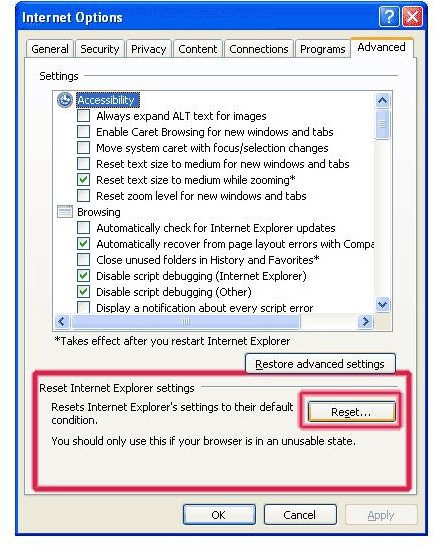
- In the dialog box that appears, select the last tab named Advanced (see figure).
- The last button in the Advanced page of the Internet Options Dialog is named Reset. Click on the button.
Resetting the IE browser settings restores your Internet Explorer to the state when you installed it. This means that it removes all additional add-ons that were added to the Internet Explorer either intentionally or unintentionally. Most applications add their own plug-ins, such as the Adobe Suite, which adds a PDF Convertor.
Please note that the Reset operation resets every user setting in Internet Explorer except the Favorites folder. After completing the Reset operation, check to see if your Internet Explorer is functioning properly. If yes, then there is no need for reinstallation of Internet Explorer.
If the above step does not solve the problem, you will have to reinstall Internet Explorer. It is recommended that you install the latest version of Internet Explorer as it offers much more stability and more security. The current best versions of Internet Explorer are Internet Explorer 7 and Internet Explorer 8. The default version installed with the installation of Windows XP is Internet Explorer 6.
Note: Sometimes installation of Windows XP service pack 3 helps to fix Internet Explorer problems. You may want to give it a try before opting for reinstallation of Internet Explorer.
Reinstalling Internet Explorer 6
Although it is best to go for the latest version of the Internet Explorer browser, sometimes people may not want to upgrade. They want the default version of Internet Explorer installed with Windows XP. To reinstall Internet Explorer 6, you need to locate the “Ie.inf” file associated with Internet Explorer 6:
- Open the Start menu, and click on Run.
- In the text box of Run dialog, type “%systemroot%\inf” without quotes, and press Enter.
- This will open the Inf folder located in the Windows Installation folder.
- Look for the Ie.inf file.
- Once you get the file, right click on the file, and select Install from the context menu.
- This will initiate a file copy process. Once the process is completed, restart the computer.
The above procedure will reinstall a fresh copy of Windows XP’s default version of Internet Explorer: IE6. There may be cases where the file “Ie.inf” is not present or the file copy process is interrupted due to missing or corrupt installation files. Under such circumstances, you will have to download Internet Explorer 6 Service Pack 1, and run the installer to reinstall Internet Explorer 6.
NOTE: This download of the IE6 Service Pack 1 is not exactly meant for Windows XP. It has been designed for previous versions such as Windows ME, 2000, and 98. However, it can still be used on Windows XP without any problems.
Reinstalling Internet Explorer 7 and Internet Explorer 8
If you have been using Internet Explorer version 7 or 8, you need to uninstall the browser before you can reinstall it again. To uninstall it, open the Control Panel, click open Add/Remove Programs, select Internet Explorer, and click Remove/Uninstall.
To reinstall Internet Explorer 7 or Internet Explorer 8, all you have to do is to double click the relevant installation package after the uninstallation process. If you do not have the installation packages for these versions, you can download Internet Explorer 7 or Internet Explorer 8 from the Microsoft website.
However, you may encounter a problem while reinstalling IE7 or IE8. If you had installed these versions before installing the Windows XP Service Pack 3, you will not find Internet Explorer in Add/Remove Programs. You will have to uninstall the Service Pack 3 so that they are visible in the Add/Remove Programs for uninstallation.
Hence, it is recommended that you install the Windows XP Service Pack 3 before installing Internet Explorer 7 or 8. You can reinstall Internet Explorer in Windows XP without having to uninstall Windows XP Service Pack 3 if you follow the recommendation.
Important: The method to uninstall IE is different in Windows 7. If you are using Windows 7, please refer to my blog on how to reinstall IE8 in Windows 7
This post is part of the series: Troubleshooting IE - More on Internet Explorer Problems
This series is a follow up to How to Repair Internet Explorer 8 When it Hangs. It includes articles containing general information on Internet Explorer and troubleshooting IE for certain problems.