Internet Explorer offers new features, such as add-ons known as “Accelerators” and an integrated “Find on Page” tool. However, if you are having browser problems or simply prefer IE 7 (or even 6) learn how you can go about getting rid of Internet Explorer 8.
Getting Rid of Internet Explorer 8 from Windows XP or Server 2003
Use the following steps in order to uninstall Internet Explorer 8, depending on which operating system you are using. If you are running Windows XP or Server 2003, follow these steps to get rid of Internet Explorer 8 and go back to IE 6 or 7.
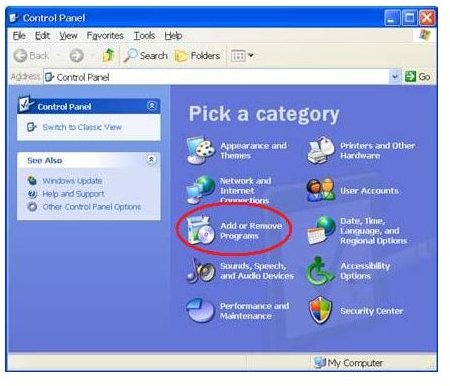
Close any open programs. Go to the Control Panel through the Start Menu, and click on Add or Remove Programs. Wait for the list of currently removed programs to appear. Once the list is updated, find Windows Internet Explorer 8, and click Remove. Follow the prompts to uninstall Internet Explorer 8, and then restart the computer.
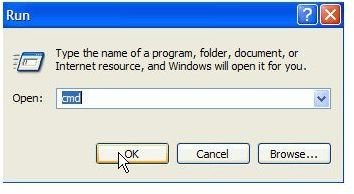
If Windows Internet Explorer 8 is not in the list of currently installed programs, there are other steps you can take to get rid of IE 8. Click on Run from the Start Menu, type cmd into the “Open” box and click OK. The Windows Command Prompt will open. Type (or copy and paste) %windir%\ie8\spuninst\spuninst.exe into the Command Prompt window and press Enter. Windows will uninstall Internet Explorer 8. Restart the computer when it is finished.
Getting Rid of Internet Explorer 8 from Windows Vista or Windows Server 2008
If you are using Internet Explorer 8 on Windows Vista or Windows Server 2008, the steps to getting rid of it are slightly different.
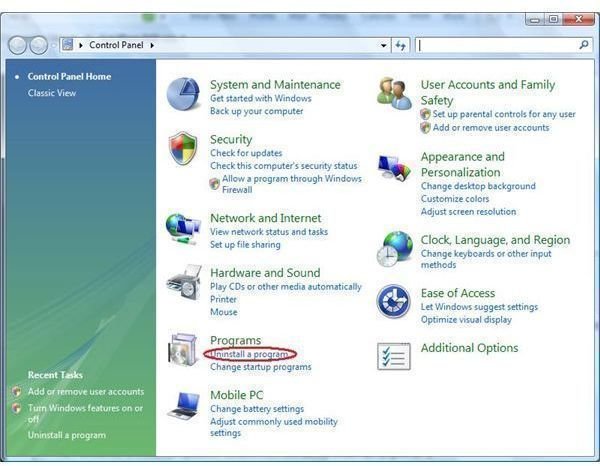
Close any open programs. Go to the Control Panel from the Start Menu. Select Programs and Features if the Control Panel is in Classic View, or click on Uninstall a Program under Programs from Control Panel Home.
On the other hand, you can skip the Control Panel altogether and simply type Programs and Features into the Start Search box of the Start Menu. The Programs and Features dialog will open. Click View Installed Updates in the left pane of the window, and wait for the program list to update.
Click on Windows Internet Explorer 8 under Microsoft Windows in the programs list, and then click Uninstall. Follow the prompts provided to uninstall Internet Explorer 8 and then restart the computer.
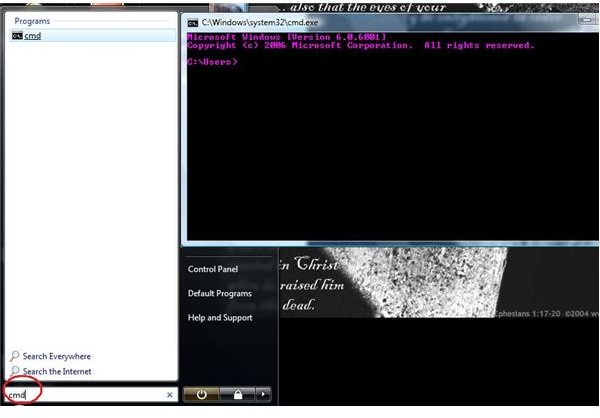
If you are unable to find Windows Internet Explorer 8 in the list of installed programs, you can use the Command Prompt to get rid of it instead. Click the Start button, type cmd into the Start Search box and press Enter. The Command Prompt window will open.
Type or copy and paste the command FORFILES /P %WINDIR%\servicing\Packages /M Microsoft-Windows-InternetExplorer-8*.mum /c “cmd /c echo Uninstalling package @fname && start /w pkgmgr /up:@fname /norestart” into the Command Prompt window and press Enter. You may be prompted for Administrator Confirmation or a password. If so, click Yes or enter the proper password.
Windows will uninstall Internet Explorer 8. When it is finished getting rid of the browser, restart the computer.
For more help with Internet Explorer 8, check out Internet Explorer 8 Won’t Open or Can’t be Installed and How to Block Ads in IE8 .


