There are many ways to block Ads while you browse using Internet Explorer 8 and this article will describe the steps in using InPrivate and Hosts file to block ads.
Overview
Blocking advertisements using IE8’s InPrivate Filtering and a Hosts file is quite easy but before we go to the guide, let us describe the two:
- InPrivate Filtering is a new privacy feature in Internet Explorer 8 that you can use block tracking contents or ads in getting information from you or your computer.
- A Hosts file is a list of websites that is not allowed to communicate in your computer. By default, the internet Hosts file in Windows do not have list of websites to block. There are many free Hosts file providers (example: MVPS Hosts File, hpHOSTS ) that you can choose to replace the default Hosts file.
Note that many ads can cause infection because rogue and malware creators or their affiliates can inject bad content to it. This is called hijacked ads and malvertisements.
Blocking Ads in IE8 using InPrivate Filtering
To block tracking ads or web contents while using Internet Explorer 8, you will need to enable InPrivate
Filtering. Next are you have to decide if IE8 will automatically block ads in collecting information from you or you will manually block them.
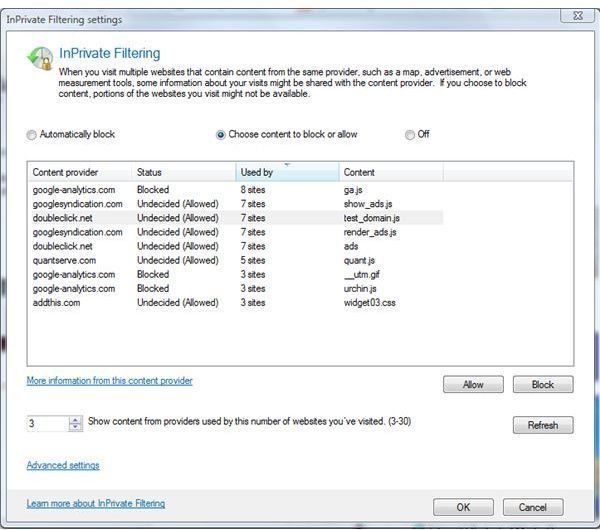
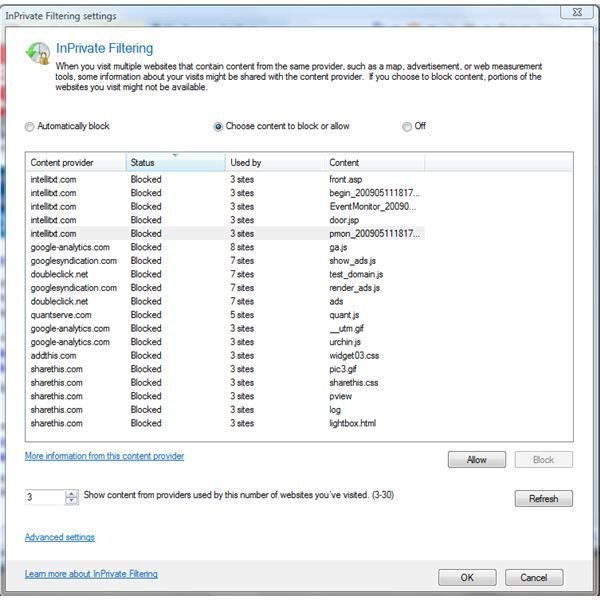
Note that the default setting of InPrivate is to display blocked or list of tracking ads or content is set to 10 sites. You can change this to 3 up to 30, which means at least 3 or 30 websites must share the same content before it is listed in the InPrivate Filtering feature of IE8 and you can allow or block it.
An example of InPrivate Filtering that IE8 have added is the screenshot at the left. Notice that there is option for you to block or allow. At the right, I browse many other websites and you will see that InPrivate Filtering has more to display.
If you want to store a copy of blocked contents or ads, click “
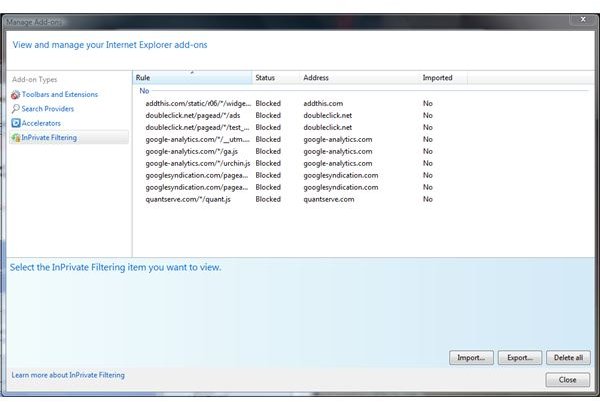
” button which will be saved in .xml format. If you have more than one computer or if you will need to restore this blocked contents (ads, scripts), you can use the “Import” option in InPrivate Filtering so the next time you’ll use IE8’s InPrivate Filtering, IE8 will automatically block these ads or contents.
Using Hosts file will block ads and malware links
Another easy way to block ads so that IE8 will not display ads and block malicious or rogue websites is by using a Hosts file.
A Host file is either configured to connect to 127.0.0.1 or 0.0.0.0 which is computer’s local host - in other words, your computer. If you will download and replace the existing internet Hosts file in Windows, Mac or Linux systems, any malicious or websites that is known serving ads will fail to load in IE8 or any other browsers. The location of the internet Hosts file in Windows is in:
Windows XP, Vista and Windows 7: C:\WINDOWS\SYSTEM32\DRIVERS\ETC
Windows 2000: C:\WINNT\SYSTEM32\DRIVERS\ETC
Examples of HOSTS file entries:
127.0.0.1 track.acclaimnetwork.com
127.0.0.1 ads.active.com
127.0.0.1 ads.digitalpoint.com
When you visit a website that is included in your Hosts file, IE8 will block it. IE8 will only display the content of the site you visited but not the ads.
Browsing using IE8 InPrivate Filtering and HOSTS file will not only prevent ads or malicious sites but will also make IE8 to load the webpage quickly which means you will not be distracted by any third party ads which can be malicious or will track your surfing habits!
More Web Security Tips!
For more web security tips, see our articles Top Two Free Hosts File Managers , How to Control Cookies in Internet Explorer , How to Block Third Party Cookies in Internet Explorer 7 , Using ZonedOut to Manage Internet Explorer Security Zones and Securing Your Web Browser’s Homepage .


