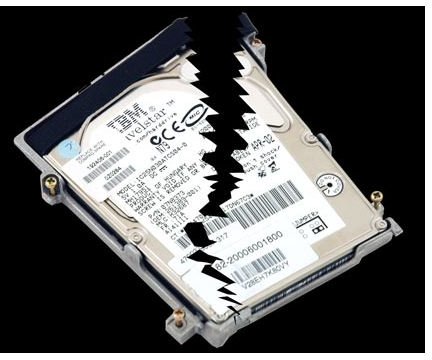
Every week, thousands of PCs, laptops, and servers are affected by viruses, worms, and hardware failure, leading to thousands of gigabytes in lost data. Make sure you are protected and prepared for the worst with this guide on how to backup your most vital data.
One of the worst things you could ask to fail in your PC, laptop, or server is the hard disk drive (HDD), as it is truly the meat and storage master of your computer. It contains all your favorite music and games, your important business work and documents, and even your memories as digital photos. Unfortunately, the hard drive is the most common hardware device that fails, and it does not matter how many you have or how old they are. There is always a risk
Hard Drive Failure: The Statistics.
Recently, Google wrote a statistical essay about the rate and occurrence of hard drive failures they observed in their data centers, and some interesting information has come from this research. According to Google, the rate of hard drive failure (for the most part) depends on:
- The age of the drive. Hard Drives under 3 months of age and over 1 year in age are at higher chance of failing then those between 3 months and a year.
- The temperature of the drive. The hotter the drive, the better the chance of it breaking down. However, the cooler the drive, the better also is the chance of a failure. A fair temperature range is thought be between 20 and 30 degrees C (68 and 86 F).
- Drives that contain errors. Drives that are older and contain more sector errors are more likely to have a hard drive failure then drives that are error-free or defragmented.
If all data is put together, drives that are three years or more in age, that run at temperatures over 30 degrees C, and that are not regularly defragmented are apparent “ticking time bombs” for a failure. If any of these apply to your hard drive, it’s important that you get some backups done immediately and often. Remember that a defragmentation of the contents can also mean the difference between a drive failure and a working one.
Want to know how to get some backups done? Read on.
Hard Drive Failure: Backups
So are your ready to get your drive ready for the worst that can occur? I hope you are, because there is a wide world of ways to backup your drives, and it depends on what you are used to.
PCs and laptops. You guys are the majority, and you guys use your computers a lot. You need the best, fastest, and cheapest ways to keep your drives backed up and safe. Depending on what suits you, a simple data backup can be satisfactory, or you can go as far as a total “Windows Backup,” where you not only backup the partition, but also the registry, and other data that allows you start your computer off as if nothing ever happened prior to the failure. If you want to stick to cheap and easy backups, head over to Newegg and order an external drive (such as Western Digital, Seagate, or an enclosure you can put your own drive in. Laptop users, consider the “Agent” by Seagate, a more portable version of the typical external disk) at the highest size you can afford for the investment. You will need the space! Once you have a drive set up, you can do a straight backup, or pick up a copy of Retrospect. Retrospect is a complex, but useful application for those who need a full computer backup, so you can pretend nothing ever happened! It’s worth every penny, and useful when you like to experiment knowing you have an excellent fall back plan for the PC. (We also like Acronis True Image Home . It can provide whole-disk image backups as well as hard drive cloning for laptops in the event of a failure.)
Servers. Often your server provider will offer a backup service. If not, setup your own with a second provider, as backups are important to keep your clients (or your own) data safe from hackers and failure!
Hard Drive Failure: Final Notes
Are you ready for the worst? Only if you have your fallback plan ready and prepared! Remember that hard drive failure can be instant, or an onset through days of warning signs. Those warning signs can include strange sounds emitting from the hard drive, or unusual vibrations, or fleeting data errors. Be sure to follow the warning signs at the earliest moment and to backup!
And one last thing - keep your warranty information handy for all your products, just in case.


