If you really want to get the most out of your commonly used macros in Microsoft Word 2007, you can assign buttons or keyboard shortcuts to them so that the process of running these macros is even more efficient.
Making Macros Even More Efficient
The whole point of creating a macro in Microsoft Word 2007 is to make it quicker and easier to execute commonly performed tasks. For this reason, sometimes it’s simply not enough just to make a new macro. Most users will also want some form of clickable or keyboard shortcut assigned to the macro so that the process of running the macro is even faster. Assigning such shortcuts can be done either during or after macro creation.
Assigning a Shortcut during Macro Creation
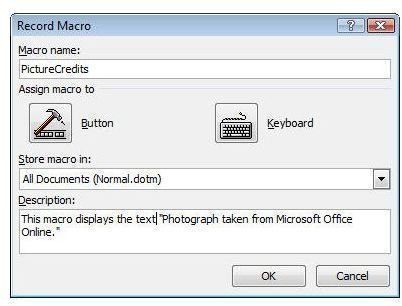
While still in the Record Macro dialog box, but after you’ve entered the name and description for the macro (see Part 1 of this series for more details on creating a macro ), you can click on either the Button or Keyboard button to assign a shortcut to the macro. (Click the image below for a larger view.)
Selecting the Button option will add a shortcut button to the Quick Access toolbar in Microsoft Word 2007 . When choosing this option, the Word Options window will appear on your screen. Select the macro for which you want to create a shortcut, and click the Add button.
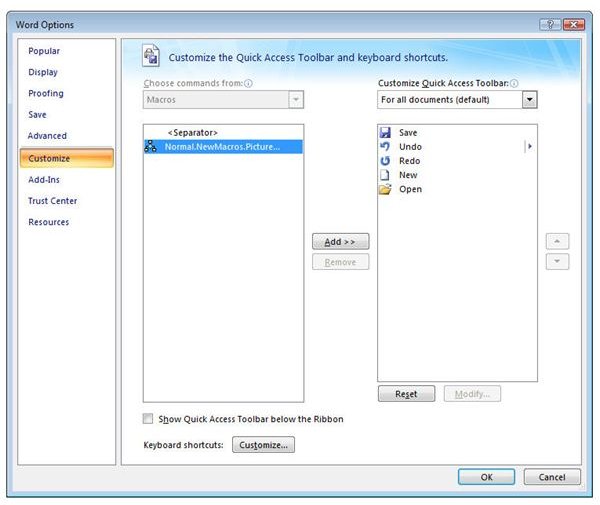
Click OK to exit the Word Options window and you’ll immediately be returned to your Word document to begin recording the macro. (This is why you want to make sure that this is the last action you perform in the Record Macro dialog box.) Once you’ve finished recording the macro, the shortcut button can be accessed from the Quick Access toolbar.

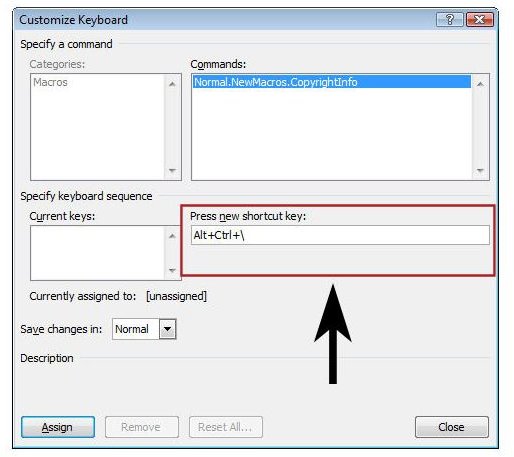
If you would prefer to use a keyboard shortcut, instead click on the Keyboard icon in the Record Macro dialog box. This will bring up the Customize Keyboard window on your screen. Make sure that the cursor is in the Press new shortcut key field, and then press the key combination that you want to use as a shortcut for this macro.
Next, click the Assign button and the key combination will be moved to the Current keys field.
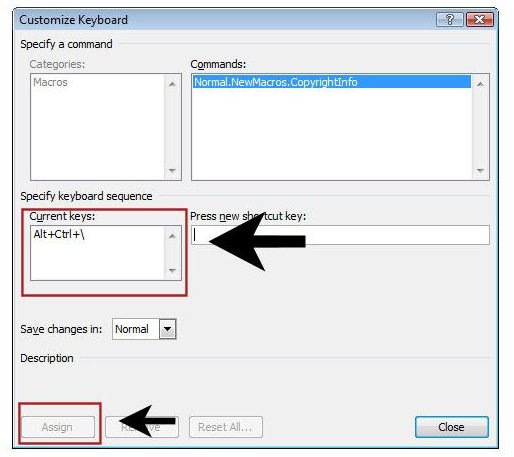
When finished, click the Close button to start recording your macro. After the macro has been recorded, the entered keyboard sequence can be used to run it.
Assigning a Shortcut after Macro Creation
While I’m sure there are quite a few people out there who are able to plan far enough in advance to assign a shortcut to a macro while it is being created, I’m not in that club. I don’t usually think about creating a shortcut until I’ve used the macro several times and then decided that I wanted an easier way to execute it.
Fortunately, this isn’t a problem since Word 2007 allows you to go back and assign a shortcut to a macro after it’s been created. To do this, click on the Office button and select Word Options.
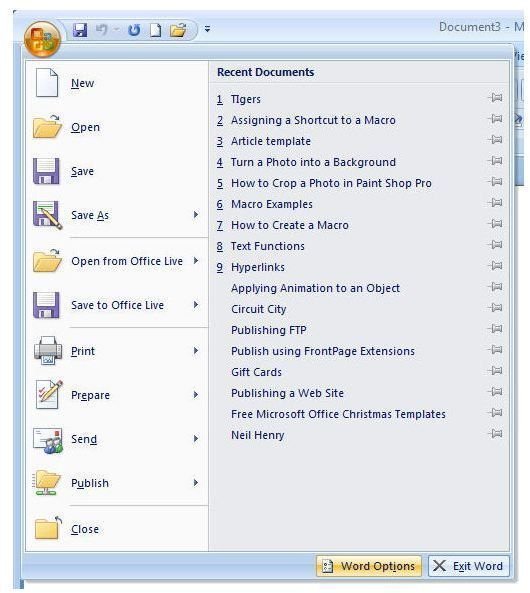
Once the Word Options window opens, click on Customize. If you want to add a button shortcut to the Quick Access toolbar, select Macros from the Choose commands from drop down list, and perform the same steps as described in the preceding section for adding a button.
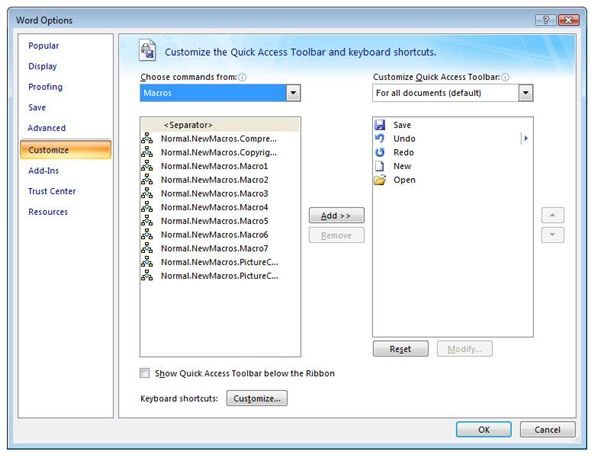
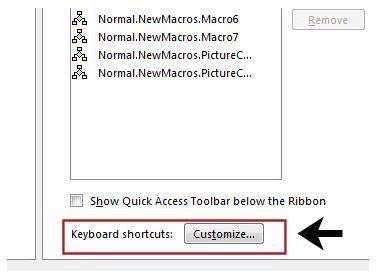
If you would rather add a keyboard shortcut, click on the Customize button next to Keyboard shortcuts in this window.
In the Customize Keyboard dialog box that appears, choose Macros from the Categories listing. Next, select the macro for which you would like to create a keyboard shortcut from the list of Macros.
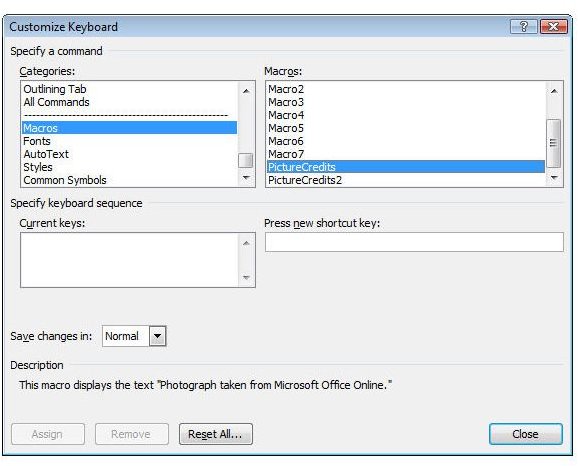
From here, the process of assigning a shortcut is the same as that described in the previous section.
For more user guides and tutorials, be sure to browse through the other items in Bright Hub’s collection of Microsoft Word tips and tricks . New and updated articles are being added all the time, so bookmark us and check back often.
This post is part of the series: Macros in MS Word 2007
One way to improve efficiency and increase productivity in Microsoft Word 2007 is to utilize custom macros. This set of articles will give several tips and tricks for creating and using these powerful tools.


