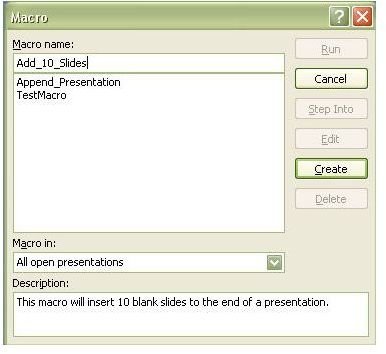
Adding slides to a PowerPoint presentation, one by one, can quickly become tedious. As we continue this series on using macros in Microsoft PowerPoint 2007, we show how a macro can be created to add multiple blank slides to the end of any presentation.
In Part 2 of this series on Using Macros in PowerPoint 2007 , we described how to create a macro in Microsoft PowerPoint 2007 and gave a very basic example of this process. In this article, we’d like to take a look at how to create a more useful macro that will add multiple slides to the end of a PowerPoint presentation.
Suppose that you have several PowerPoint presentations that need updating, and the first thing you need to do is add ten blank slides to the end of each one. You can do this in PowerPoint by navigating to the last slide in the presentation, opening the Home tab on the PowerPoint ribbon, and then clicking Insert Slide ten times.
This task isn’t that complex, but it can easily become repetitive and boring if you have to go through this process on a regular basis. Instead, let’s write a macro to perform these actions for us.
Inserting Multiple Slides into a PowerPoint 2007 Presentation
We’ll begin by creating a macro called Add_10_Slides in PowerPoint. For basic instructions on how to create a macro, refer to Part 2 of this series.
When the Visual Basic Editor window opens, the cursor prompt will be positioned between the Sub Add_10_Slides( ) and End Sub statements. We will want all the code for the macro to be contained between these two lines.
The VBA statement used to add a single blank slide to a presentation is of this form:
ActivePresentation.Slides.Add X, ppLayoutBlank
In this statement, X represents an integer value and denotes the position where you want the additional slide inserted. For example, if you wanted the inserted slide to be the second one in your presentation, appearing immediately after the title slide, the X would be replaced by 2.
In our macro, we want the inserted slides to appear at the end of the presentation, and that numeric position is likely to be different in every one. So, we will need to use a value for X that takes this into consideration. We can do this using the Count property.
More specifically, the statement ActivePresentation.Slides.Count can be used to tell us the number of slides that currently exist in our active presentation. Thus, if we want to insert a new slide that will appear at the end of the presentation, it would be at position ActivePresentation.Slides.Count + 1. This changes our full VBA statement to add a blank slide to the end of a presentation, to the following.
ActivePresentation.Slides.Add (ActivePresentation.Slides.Count + 1), ppLayoutBlank
The ppLayoutBlank portion of this statement indicates that we are adding a blank slide rather than one of another layout type. You can substitute this for any other layout type in PowerPoint. For instance, if you would rather insert a slide that includes a text box, you can change ppLayoutBlank to ppLayoutText. In Part 5 of this series, we’ll go into more detail about these different formats.
As this code will only add a single blank slide to the end of a presentation, we need to add a loop so that ten slides of this type will be added. This would change our macro code to the following.
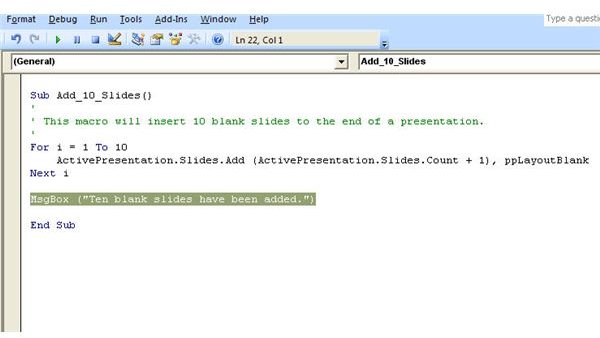
For i = 1 To 10
ActivePresentation.Slides.Add (ActivePresentation.Slides.Count + 1), ppLayoutBlank
Next i
If we wanted to, we could stop here and have a fully functional macro to accomplish our intended goal of adding ten blank slides to the end of a presentation. However, sometimes it is nice to add a message box to the end of a macro to confirm that the task was completed.
MsgBox (“Ten blank slides have been added.”)
This would produce the following message box after the macro has been run.
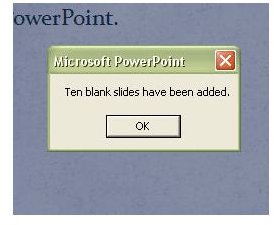
Including this statement to create a message box in the macro is entirely optional. If message boxes annoy you or slow you down, you can decide not to add this last statement. This final screenshot shows how the entire macro code for inserting ten blank slides into a PowerPoint 2007 presentation would appear in the Visual Basic Editor.
For more user guides and tutorials, be sure to check out the other items in Bright Hub’s collection of Microsoft PowerPoint tips and tricks .
This post is part of the series: Using Macros in Microsoft PowerPoint 2007
If you constantly find yourself performing the same tasks over and over again in PowerPoint 2007, break free from the monotony by learning to create and use macros. In this series we will cover how to use macros in PowerPoint 2007 and how they have changed from previous versions of the application.
- Microsoft PowerPoint 2007 Macro Basics
- Creating New Macros in Microsoft PowerPoint 2007
- Executing Macros in Microsoft PowerPoint 2007
- Inserting Multiple Slides in Microsoft PowerPoint 2007 Presentations
- Slide Layout Values in Microsoft PowerPoint 2007
- Best Add-Ins for Microsoft PowerPoint 2007
- Microsoft PowerPoint 2007: Installing Third-Party Add-Ins
- Using OfficeOne Shortcut Manager in Microsoft PowerPoint 2007


