Macro Basics and How to Enable Macros in Microsoft PowerPoint 2007
What is a Macro?
Have you ever found yourself performing the same set of tasks over and over and over again when creating a PowerPoint presentation? Even if the tasks are simple and straightforward, repeating them continuously is both boring and time consuming. One way to simplify the performance of these tasks, and save a lot of time in the process, is to use macros.
A macro is basically a custom command, or shortcut, that performs a series of actions. For instance, suppose you have 50 PowerPoint presentations that all contain your company’s logo on the title slide. The only problem is that your company has decided to change its logo and now wants all of the presentations updated. Rather than going through each presentation and manually replacing the logo 50 times, you can create a macro that will update all of the presentations for you.
Accessing the Developer Tab
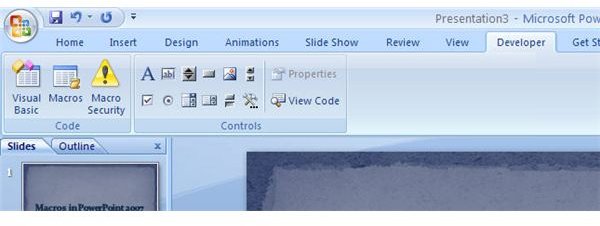
To work with macros in PowerPoint 2007, you will need to be able to access the Developer tab on the PowerPoint ribbon. If that tab is not currently visible on your PowerPoint screen, it can be added in a couple of easy steps.
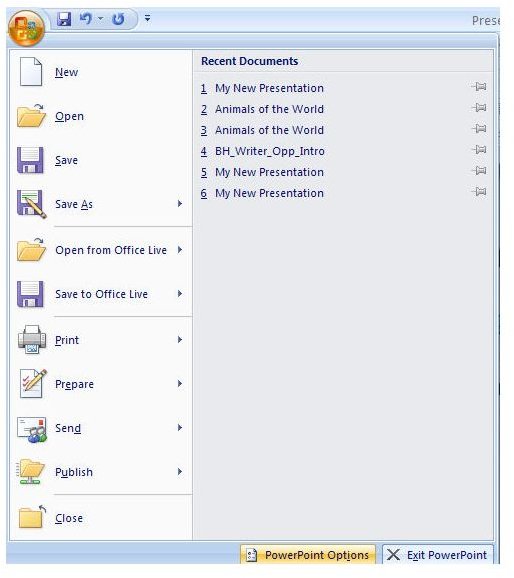
First, click on the Office button in the upper left-hand corner of the application. When this window options, click on the PowerPoint Options button that is located at the bottom of the window as seen in the screenshot below.
This will open up the PowerPoint Options window where you can customize many different types of features. Select the Popular category, and then place a check in the box next to Show Developer tab in the Ribbon.
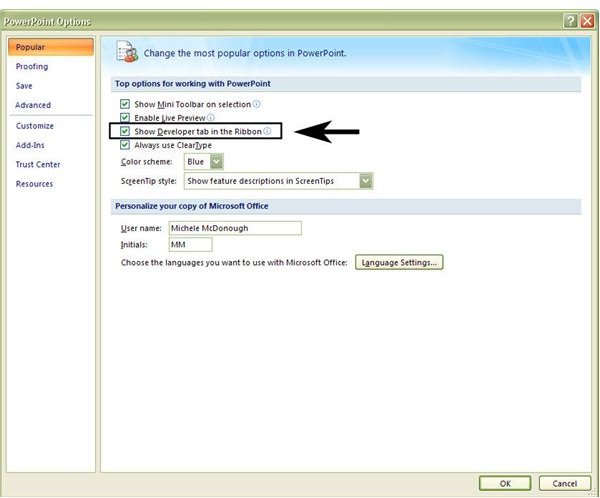
Click OK to close the PowerPoint Options window and continue. You should now have access to the Developer tab and be able to see the extra tools, including the ones associated with macros, available in that grouping.
Adjusting Macro Security Settings
By default, PowerPoint 2007 will be configured to disable all macros. The justification for this is that macros from unknown sources may contain viruses or other material that could potentially harm your computer. However, this is no reason to shy away from using macros from trusted sources. Just remember to take precaution and only open PowerPoint presentations from known parties or use an antivirus program to scan the files before using them.
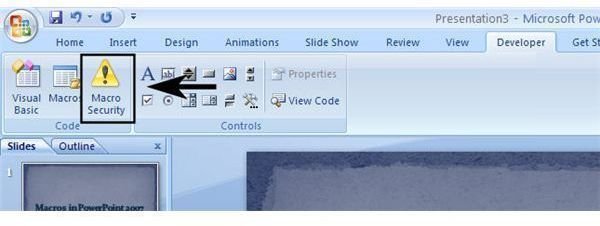
To enable macros, first click on the Macro Security button in the Developer tab.
When the Trust Center window opens, make sure the Macro Settings category has been selected. Check the boxes next to the options Enable all macros and Trust access to the VBA project object model. Click OK when finished to exit this window.
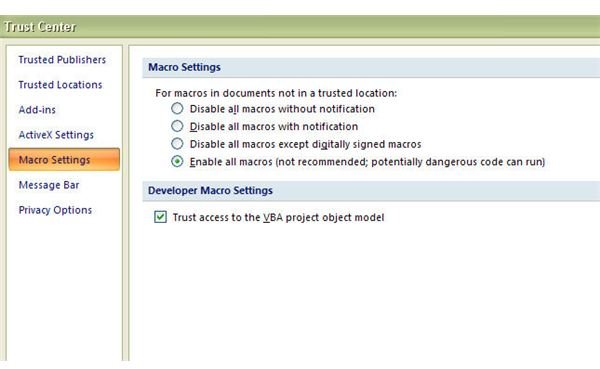
If you’re still worried about contracting a virus, and you plan on viewing several third-party presentations that contain macros, you can narrow down which macros will run by selecting Disable all macros except digitally signed macros instead of Enable all macros. (For more information about digital signatures, see this article.) This will offer some added security when dealing with third-party macros, but it’s still not a total safety net. This option should never be used as a complete replacement for scanning macro files for viruses, but as an additional tool to help you judge the validity of the file.
For more tips and tricks, be sure to browse through the other items in Bright Hub’s collection of Microsoft PowerPoint tutorials and user guides. New and updated articles are added on a regular basis, so bookmark us and check back often.
This post is part of the series: Using Macros in Microsoft PowerPoint 2007
If you constantly find yourself performing the same tasks over and over again in PowerPoint 2007, break free from the monotony by learning to create and use macros. In this series we will cover how to use macros in PowerPoint 2007 and how they have changed from previous versions of the application.
- Microsoft PowerPoint 2007 Macro Basics
- Creating New Macros in Microsoft PowerPoint 2007
- Executing Macros in Microsoft PowerPoint 2007
- Inserting Multiple Slides in Microsoft PowerPoint 2007 Presentations
- Slide Layout Values in Microsoft PowerPoint 2007
- Best Add-Ins for Microsoft PowerPoint 2007
- Microsoft PowerPoint 2007: Installing Third-Party Add-Ins
- Using OfficeOne Shortcut Manager in Microsoft PowerPoint 2007