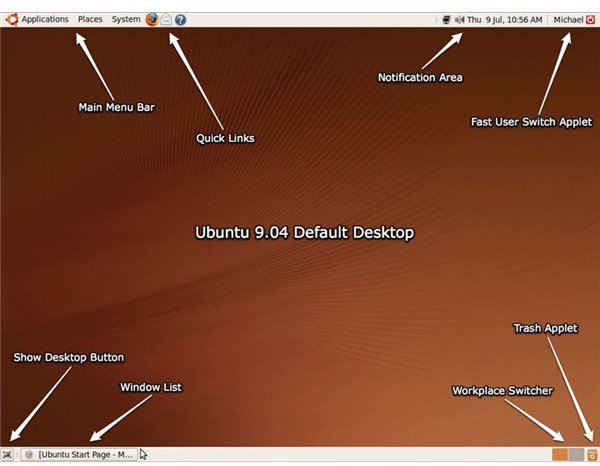
In this second part of The Ultimate Ubuntu Linux Beginners Guide we will take an in-depth look at the Ubuntu Linux default desktop.
Ubuntu Default Desktop
Ubuntu Linux uses the GNOME desktop environment by default. This being the case the default Ubuntu Linux desktop is a slightly modified GNOME desktop. You will notice that there are two panels- a top panel and a bottom panel. These two panels are where all the action takes place in Ubuntu, so let’s take a closer look at each.
Top Panel: From left to right you will find your main menu bar, quick links, notification area, and fast user switch applet.
- Main Menu Bar: Similar to the start menu for the Windows OS (operating system), the Main Menu Bar is where you will find all your programs, folders, and system options.
- Quick Links: The Quick Links area of the panel is used for easy access to frequently used applications. By default Ubuntu places your web browser, e-mail client and the Ubuntu help system in this location. You can customize this area by using the right click menu of your applications. For example, if you decided to remove the Ubuntu help system from this area, simply right click its icon and select Remove From Panel. To add applications to the quick links area of the panel browse to the application using the Applications menu, right click the application shortcut, and Add this launcher to panel.
- Notification Area: This area is used for application icons and system notifications. Many applications will place icons in this area, for example the pidgin IM client, allowing quick access when the application is minimized to the notification area as opposed to the window list. This helps keep the number of applications in the window list to a minimum reducing clutter. The Notification Area is also used by Ubuntu to notify you of some system events including but not limited to Ubuntu updates and available wireless networks. You will also find your volume control and clock to the right of the Notification Area. We will talk more about adding applets to the panel near the end of this section.
- Fast User Switch Applet: The Fast User Switching Applet is a simple but useful applet should you share your Ubuntu desktop with more than one person. This applet allows you to switch users, lock the screen, logout, suspend, hibernate, reboot or shutdown your Ubuntu desktop.
Bottom Panel: From left to right you will find the show desktop button, window list, workplace switcher, and trash applet.
- Show Desktop Button: will minimize all windows allowing you access to your desktop.
- Window List: is where running programs are displayed allowing you to easily switch between them.
- Workplace Switcher: allows you to switch between multiple workplaces. Hover over the switcher and use the scroll wheel on your mouse or select them manually.
- Trash Applet: similar to the Recycle Bin in windows, this is where your deleted files go.
These are the default applets included on the Ubuntu Linux panels but you can add any number of applets by right clicking the panel and selecting Add to Panel. There are many applets to choose from, and I encourage you to try out each and decide which are right for you.
Now that we understand the different parts of the default Ubuntu Linux desktop lets take a look at the default file manager, Nautilus.
Nautilus File Manager
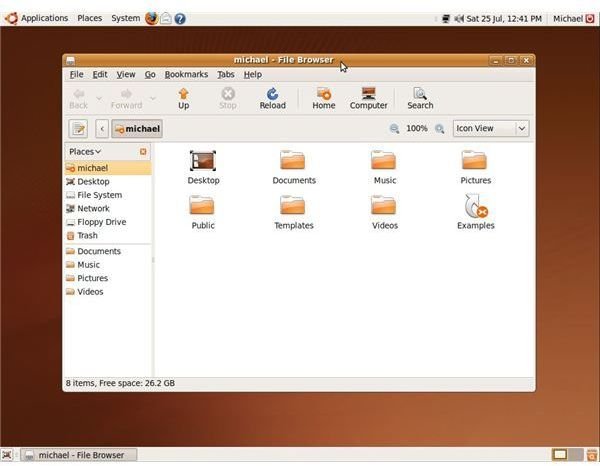
Nautilus is the default file manager for Ubuntu Linux and is where you will access all your files and folders. As a regular user you will rarely need to leave your home directory. Along the top you will see File, Edit, View, Go, Bookmarks, Tabs and Help. These are your Nautilus specific menu items and are similar to the menu items of the most common file managers in Linux, Windows, and Mac OS X. That being said, you are probably familiar with each of these options so I won’t go into too much detail here. One thing to note is that Nautilus has the ability to open directories and files in a new tab. Pay close attention to the Tabs menu item when exploring the Nautilus interface, as I find tabs to be a great way to maximize my efficiency while working with files and directories.
At this point it is a good idea if we take a look at one of the more important system maintenance tasks, installing software and security updates. We will cover this and more in the third part of this series.
This post is part of the series: The Ultimate Beginners Guide to Ubuntu Linux
If you’ve decided to make the switch to one of the world’s most popular Linux distributions (Ubuntu), but are unsure where to start, you’ve come to the right place! In this guide I will introduce you to the basics of the Ubuntu Linux OS (operating system).


