Have a large spreadsheet with hidden columns and want to change the width of all columns without unhiding any of them? Try this trick.
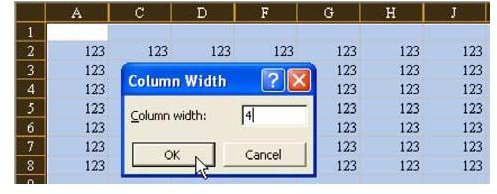
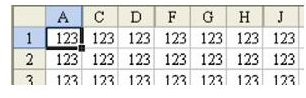
Problem: You have a large model set up in Excel. Some of the columns are hidden. You want to globally change the width of all unhidden columns to a width of 4. As shown in Fig. 1210, if you choose all columns in the worksheet and use Format – Column Width, the hidden columns will unhide.
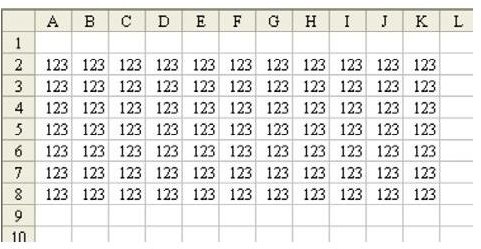
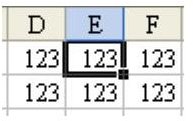
When you change the column width globally, using Format – Column Width, the hidden columns will unhide, as shown in Fig. 1211.
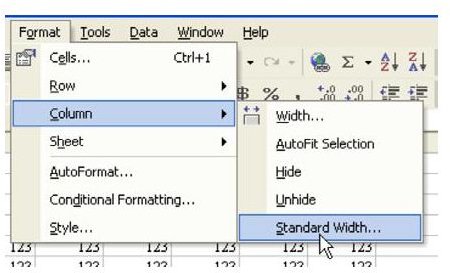
Strategy: Use Format – Column – Standard Width, as shown in Fig. 1212.
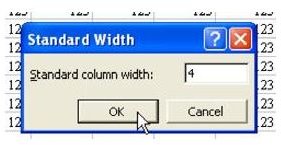
The Standard Width dialog allows you to enter one global column width. Changing the column Standard Width will change the default width of all columns without unhiding the hidden columns. See Fig. 1213.
Result: All of the columns will have a width of 4, as shown in Fig. 1214.
Additional Information: Changing the standard width will change the width of hidden columns. When they are later unhidden, they will have the correct width, as shown in Fig. 1215.
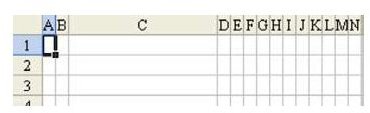
Gotcha: The Standard Width does not change the widths of columns that have previously been changed. For example, open a new workbook. Manually change column C to be 20 wide. Use Format Column Standard Width to be 1 wide. All of the columns except C will be changed, as shown in Fig. 1216.
Summary: Use Standard Width to globally adjust the width of all columns without unhiding hidden columns.
Commands Discussed: Format – Column – Standard Width
Images
References and Additional Resources
If you’re looking for more tips and tutorials, check out 91 Tips for Calculating With Microsoft Excel . This collection of easy-to-follow guides shows how to customize charts and graphs, different ways to make complex spreadsheets easier to update, and even how to play games like Craps in Excel.
Other Resources:
Microsoft Excel Official Site, https://office.microsoft.com/en-us/excel/
Bill Jelen, Microsoft Excel 2010 In Depth, Available from Amazon.com .


