Skype is a popular VoIP phone service and instant messaging program. By default, the program keeps a record of all calls, messages and file transfers that you make or receive. You can clear your Skype history or set the program to delete its contents automatically if you know where to look.
Finding the Delete Feature
Skype is a multi-featured program , allowing users to make and receive calls as well as send instant messages and transfer files over the Internet.
By default, the program keeps a history of these calls, messages, and received files for as long as it is installed on your computer. For those who share a computer or who have concerns about the privacy of their call and message history, this setting can be an inconvenience at best.
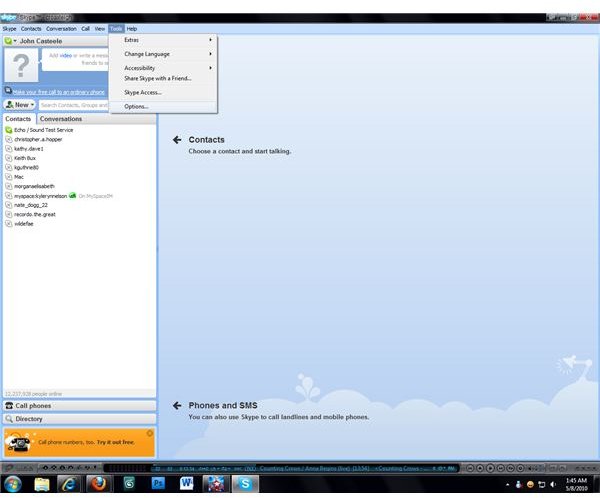
Skype does have a feature that allows you to delete your history, but unfortunately it is not conveniently located. In order to delete your Skype history you will need to access the “Options” window. To do this, open the “Tools” menu and select the entry named “Options…” at the bottom of the menu. A new window will open containing all of the options that you can adjust in Skype, including the options concerning your message and call history. (Click any image in this article for a larger view.)
Privacy Options
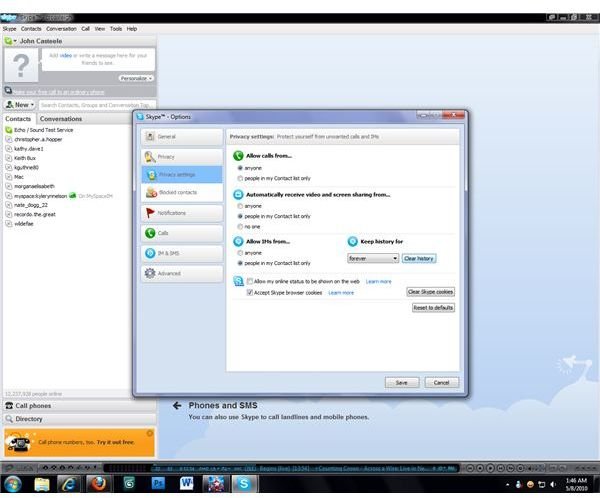
Once you have opened the Skype options window, click on the “Privacy Settings” button from the menu on the right. This will open up a new section of the Skype options window, listing all of the privacy-related settings that the program allows users to change.
In the third section from the top, locate the listing titled “Keep History For”; you’ll find a drop-down menu and a button labeled “Clear History” underneath. You can use the drop-down menu to adjust the length of time that Skype keeps your message and call history, with the program automatically deleting all of the calls, messages, and transferred files in your history once the set amount of time passes (or with the program turning off the history feature completely).
If you want to delete your Skype history on a one-time basis, however, use the “Clear History” button.
Deleting Your History
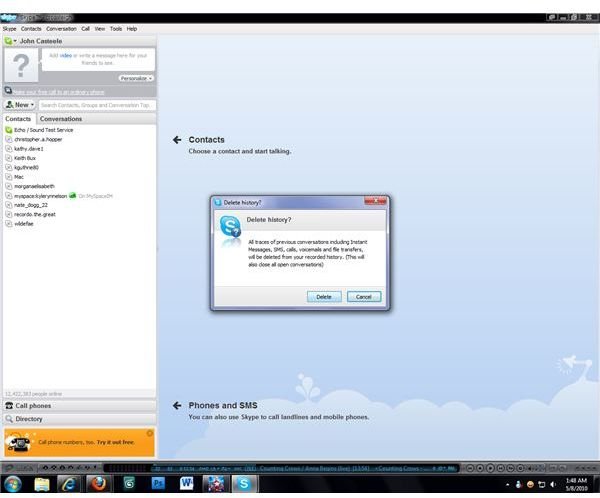
When you click “Clear History”, a message will appear on the screen asking you to confirm your action. If you click “Cancel”, the action will be stopped and your full Skype history will remain intact. If you click “Delete”, the program will purge the call records, messages, and transferred files that it had recorded in your history. Be sure that you want to delete everything in your Skype history before clicking the “Delete” button, because once the history has been purged you won’t be able to recover it. After the purge is complete you will be returned to your standard Skype screen so that you can send messages or make calls as you wish.