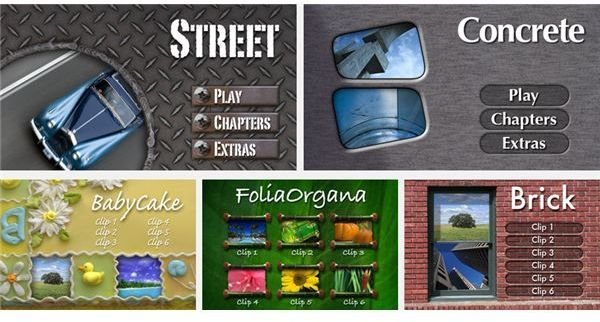
Here is a look at how to download and implement iDVD templates and themes.
Template Time
iDVD is successful in that it allows for a very complete DVD authoring process without too much practical work from the person orchestrating the project. Most people who are using iDVD would like nice looking DVD menus without needing a background in graphic design, and this usually means using iDVD templates. There are a number of iDVD templates that are built right in to the software, but after these iDVD templates get used by a large enough group of people they begin to feel a little tired and familiar. Here is a look at how to download and use iDVD templates from the internet.
Downloading iDVD Templates and Themes
iDVD templates, often called iDVD themes, are offered in packs on internet locations both in the form of free iDVD templates downloads as well as those that cost money. DVDThemePak.com has been known as one of the best locations to get both free iDVD templates downloads and other paid iDVD themes, both of which can be integrated back into your iDVD software.
MacShareWare.com has also offered these iDVD theme packages and both free iDVD template downloads and those for a moderate amount of money, usually running under $30. Many of these iDVD themes are based around maintaining the theme of the video that you are using into the menu process. Once you send over a video from a program like iMovie , you may want to see that your overall iDVD theme reflects the elements of the movie that you are placing on them.
Installing iDVD Templates and Themes
Once you have found an iDVD template download that you want and have downloaded the file go through the process of installing it with the
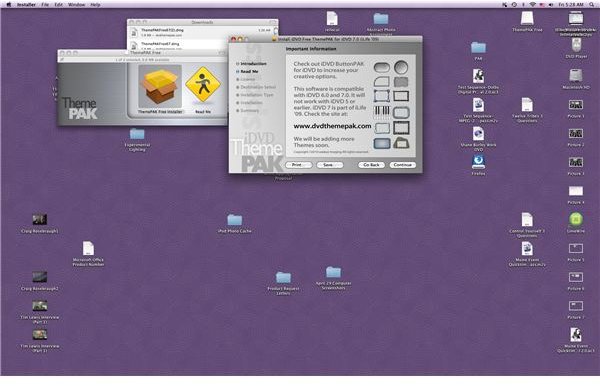
installing program that comes with it, which will usually be standard to most Mac software installation. This will essentially install these iDVD templates as independent programs.
Once the standard installation process has completed then you should open up iDVD. Select to Create a New Project , which will start a new DVD authoring project. Once you set a name for the project, where you want to save the project, and what aspect ratio you want you can hit the Create button and start this new project. Now you will be able to select your iDVD theme, and the default will be the iDVD 7 themes that come standard with the software. You can then go to the pull down selection menu and you will see the iDVD theme package that you had just downloaded and installed. Go ahead and select this one and you will see these new iDVD themes and templates as given options, and you can choose from them to use in your project. You can also choose All instead of just the new package specifically and you will then be able to look at all themes and templates that you have available to you.


