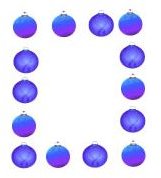
If you want to create your own Christmas borders, you can do so in Adobe Illustrator. These Christmas borders are easy to create when you use free brushes and symbols. This guide will show you how to create your own designs.
DIY Illustrator Borders
Creating your own borders is pretty easy in Adobe Illustrator with brushes and symbols. There are many free brushes and symbols you can use that will make this task pretty easy. You can use these borders for invitations, scrapbooks, photos, and more. In this guide, you will find basic instructions on how to create these borders, links to some Illustrator brushes and symbols, and instructions on how to download and install the files.
Free Adobe Illustrator Brushes and Symbols
In this section, you will find some free Christmas brushes and symbols for Illustrator. If you can’t find a brush or symbol that you want to use, try doing a search on your favorite search engine and see if you can find some you are looking for. Click the links below to see the brushes and download them.
Snowman and Gingerbread Man Illustrator Brushes
Christmas Presents Illustrator Brushes
Christmas Tree Decoration Illustrator Symbols
Christmas Lights Illustrator Symbols
Downloading and Installing Adobe Illustrator Christmas Brushes and Symbols
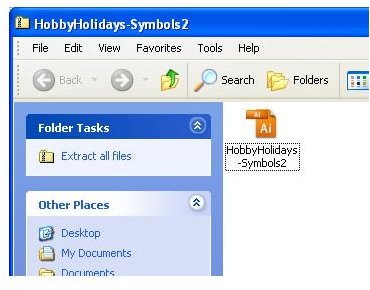
Next, I will show you how to download and install the Illustrator brushes and symbols. To download the brushes,
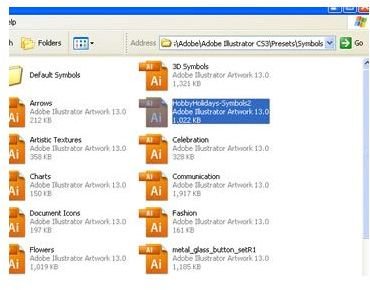
you will need to click the download link for the brush you want to save and save it to your computer. Once the download has finished, you will need to open the download and copy the ai file. Right click on the file and click copy.
Next, you will need to make your way to your hard drive, double click it, double click Program Files, double click Adobe, double click Illustrator, double click Presets, and then double click either brushes or symbols depending on which one you downloaded. Once you are inside the correct folder, right click and click Paste. This is what you will need to do for all of your brushes and symbols.
Using Your Adobe Illustrator Christmas Brushes to Create Christmas Borders
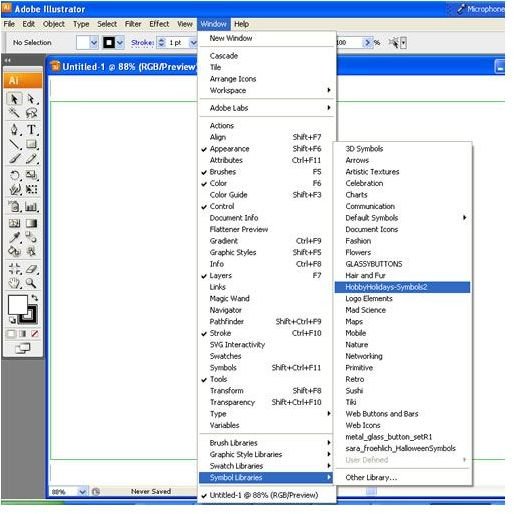
After you have installed your brushes or symbols you want to use for your border, you can get started. Your first step is to decide what you want to use the border for. Then proceed with that. If it is a photo, you will need
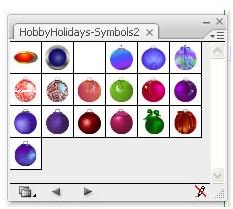
to open the photo. If it is an invitation border, or something along those lines, you will need to create a blank canvas the size you want to the invitation or whatever to be. Then open the brush or symbol panel you installed. Go to Windows at the top of Illustrator and place your mouse on Brushes or Symbols and look in the menu for the panel you want to open.
If you are using a brush for your border, you can select the brush you want to use, select the brush tool from the toolbar and start creating your border by clicking your mouse. If you are using symbols, you will need to click the symbol and drag it to where you want it on the canvas. You can continue to click and drag to build your border. This method wil take a little while, but will make some really nice borders. When you are finished, you can export your borders.