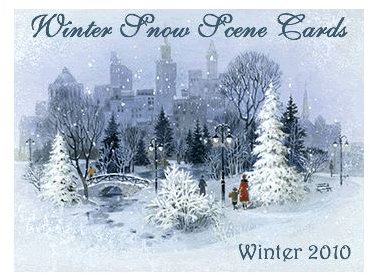
Do you want to make your own winter snow scene card in Photoshop? This guide will show you how. There are so many brushes and symbols you can download for Photoshop, that it is very simple to create your own cards. You will find ideas on how to do these cards in this guide.
Winter Snow Scene Cards
To make your own winter snow scene cards, there are some basic things you will need. For starters, you will need Photoshop to follow along with this guide. Then you will need some Photoshop brushes and Photoshop symbols. These are all free to download. Also, you may want to find a free background to use for the background part of the card. Continue with this guide to see some free brushes and symbols. If you can’t find anything you want to use in this guide, please feel free to do your own search. There are tons of free Photoshop brushes and symbols available on the web.
Free Photoshop Brushes and Symbols You Can Download
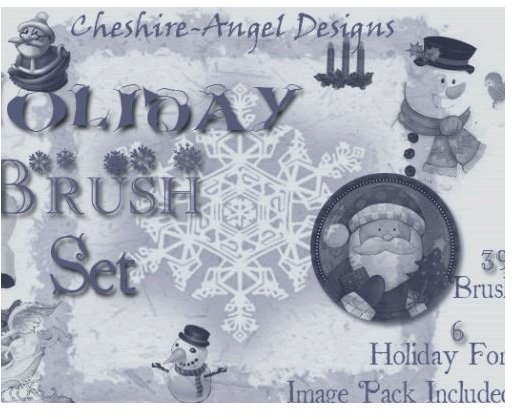
Here is a list of Photoshop Christmas brushes and symbols you can download and install to create your winter snow scene cards.
Snowflakes, Angels, and More Photoshop Brushes
For more Photoshop brushes and symbols, check out some of the other guides here on Bright Hub’s Desktop Publishing Channel.
Getting Started with Your Winter Snow Scene Card in Photoshop
After you have collected your brushes and installed them, you can begin putting your card together. You will need to begin with opening Photoshop and creating a new canvas to work on. Create the canvas the size you want it. Then click OK to load it. Next, you
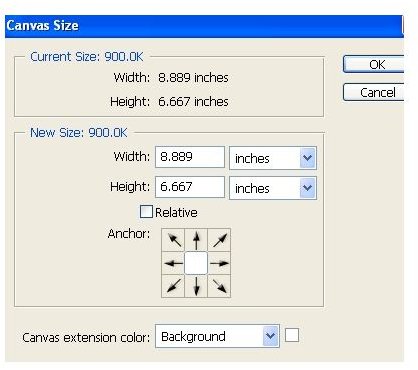
will want to create your background. You can use a free background from the internet or you can create the background with the brushes. If you want to create a background with the brushes, change the canvas color to what you want. If you want to use a background from the internet, you will need to import the background.
Once you have your background, you can grab your brush tool from the toolbar, open your brush panel,
and select the brush you want to use. Then click your canvas to start using your brush. You can click your mouse once for the brush or multiple times. If you make a click and don’t like what appears, use the CTRL Z option to undo it.
To use your Christmas symbols, you will need to open your Symbols box, find the symbol you want to use and click it. Once you click it, you will see it appear on the card you are making. You will probably have to click it and move it around the card to where you want it.
Saving Your Card
After you have finished you card, you can save it and export it out of your Photoshop program. You can export the winter snow scene card as a jpeg, gif, or any other file type. You can then email the card, or print it. The export option is located in your File menu. Select Export As and select your option for exporting and follow through.


