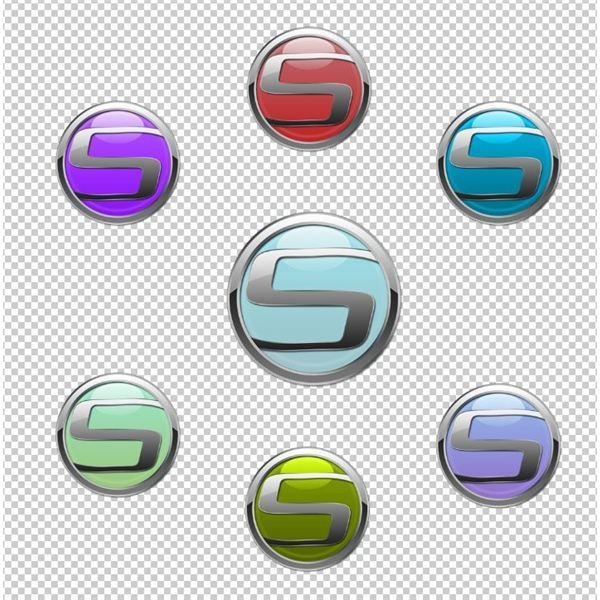
Looking to learn how to crop an image in Photoshop? What about resizing? Have you ever even heard of the trim feature? If you haven’t, don’t sweat it! This article is here to walk you through the three processes quickly and easily, so you can show off your skills in your next project.
Getting the Perfect Image Size
One of the first things you learn how to do in Photoshop, save for placing simple shapes and moving objects, is almost always how to crop an image in Photoshop, and its frequently paired with the trim and resize features. However, you might not be using these features to their full potential. This article will walk you through the process of cropping, trimming, and resizing your images. This tutorial uses Adobe Photoshop CS4 , but should work with just about any version of Photoshop from 6.0 and up.
Cropping
Cropping is when you remove a portion of your image to help bring the focus onto a certain part. It’s particularly useful for bring the focus into certain areas in photographs - or if you’re like me - trimming away excess parts of the canvas when you do a project. There are two different ways you can go about cropping, and both will yield the same effect.
Open your document in Photoshop. This is a portfolio piece I’d created earlier this year.
Grab your square marquee and draw a box around the area you wish to keep.
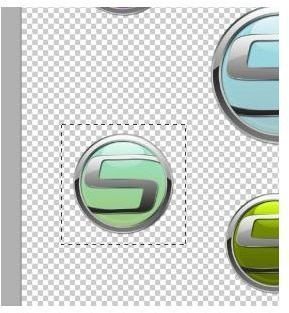
In “Image” in your top menu, select “Crop.”
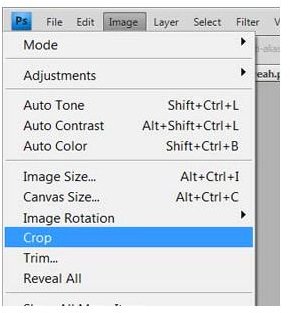
You’ll get a quick and easy result this way!

Alternatively, in the menu to the left of the screen, you can select the crop tool, pictured here:

Draw a box around the area you wish to keep. The area outside will be darkened, and you will be able to adjust the box with the provided handles at the top, bottom, left and right of the box.
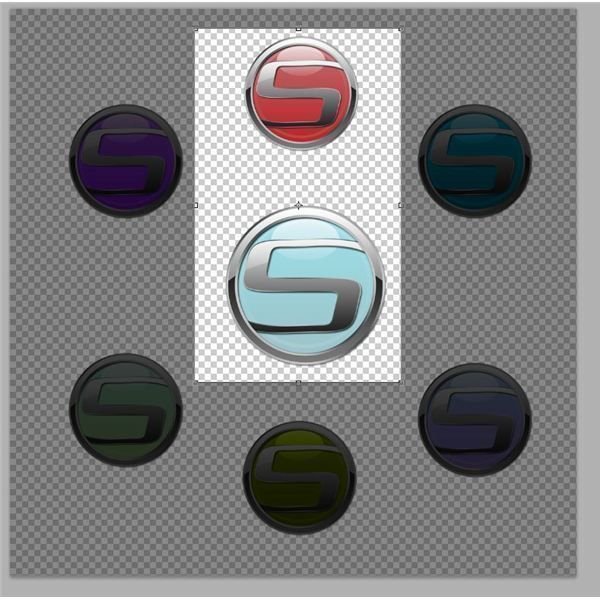
Double click within your selection to crop your image:

Trimming
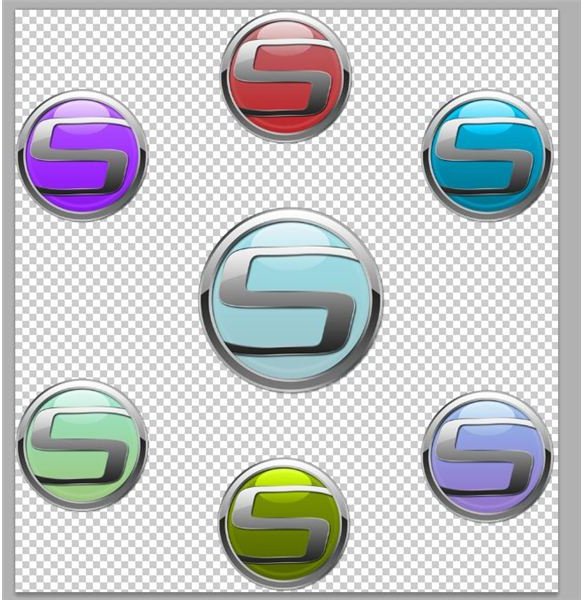
The trim feature works to crop out unwanted parts of your images, but has more advanced options then just the crop tool alone. This works incredibly well for those of us who prefer to work on large canvases and size down later on. The most notable thing about the trim tool is that it has the option of trimming out transparent pixels, great for making projects, such as buttons for websites, more compact.
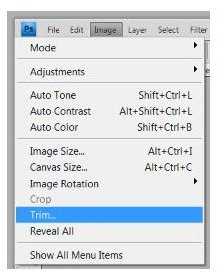
After you open your image in Photoshop, in your top menu select “Trim.”
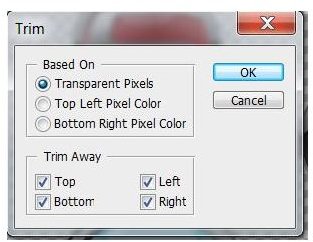
Here I’m selecting “Based On: Transparent Pixels”, and make sure I trim away the top, bottom, left and right.
The finished effect:
Resizing:
Resizing is exactly what it sounds like - changing the size of your images. Using Photoshop’s Image Size feature, you’ve got a few different ways to resize your images.
Open your document. Here I’ll be using just the center graphic from the images I used above:

Select “Image Size” from the “Image” menu at the top of your screen.
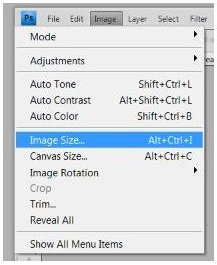
In the menu, you can see that there are a variety of options next to the boxes. By default, it’s pixels, but you can change it to percent as well. In the box, simply type in what new size you would like your image to be, and click OK when finished.
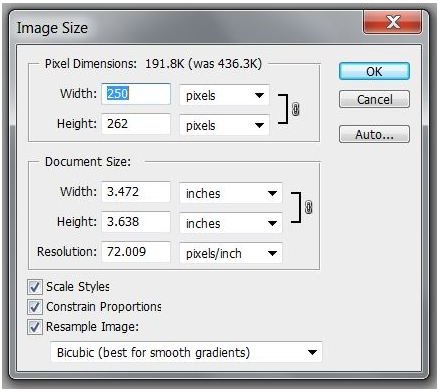
Finished! Quick, simple, useful!