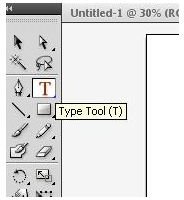
Text boxes are a powerful feature in Adobe Illustrator, giving users the ability to create complex documents in combination with graphics. Text boxes in Illustrator can be resized and otherwise manipulated to give it the desired look. Here is how to resize a text box in Illustrator.
Creating a Text Box
To get started with this Adobe Illustrator tutorial, let’s create a text box in Adobe Illustrator. It doesn’t have to be fancy.
1. First, grab the “Type” tool from the Adobe Illustrator toolbox.
2. On the canvas, left click with the “Type” tool and then drag down and to the right to create the text box. Press
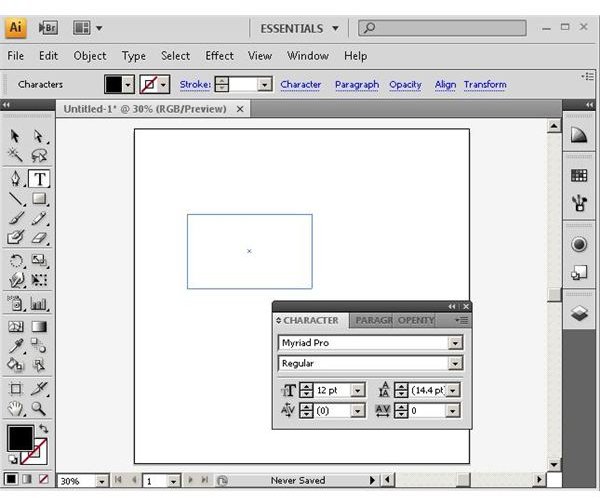
3. Create text! In this example, we type in an excerpt from the Declaration of Independence .
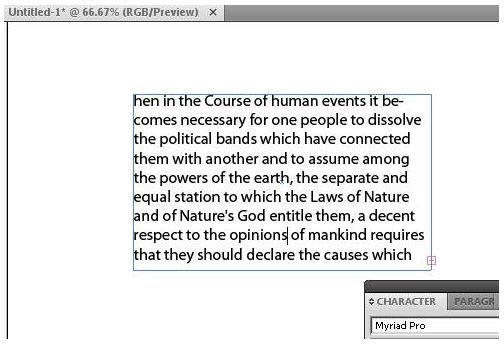
Unfortunately, the type in the text box is too big for the box. This is why you need to know how to resize text box in Illustrator.
How to Resize a Text Box in Illustrator using the Bounding Box and Selection Tools
Text boxes in Adobe Illustrator can be resized using their bounding boxes. The size and the shape of the box can be altered to include all the text that has been entered and to create the best visual appeal.
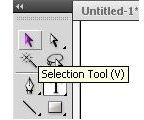
1. To do this, grab the “Selection” tool from the Adobe Illustrator toolbox.
2. Click on the text box with the selection cursor to select it.
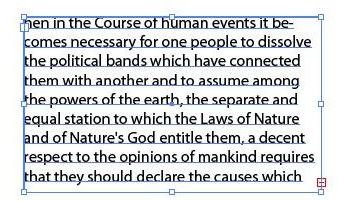
3. Grab a handle on the box by clicking on it and then dragging to resize (Click “View” and then “Zoom Out” or press
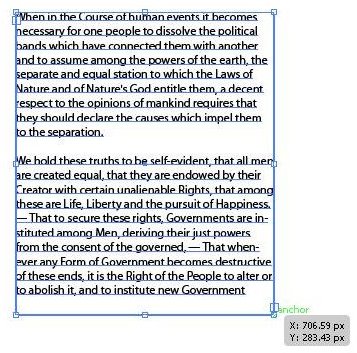
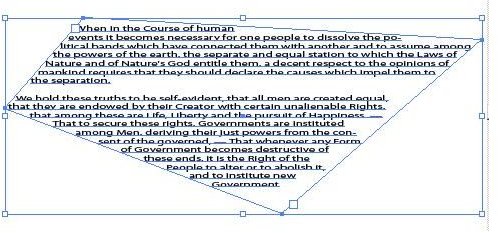
4. You can make other changes to the shape of your text box by using the “Direct Selection” tool. To start, grab the “Direct Selection” tool from the Adobe Illustrator toolbox.
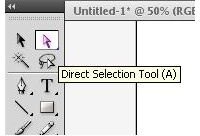
5. With the Direct Selection Tool, click on one of the corner handles of the Text Bounding Box and drag the handle to alter the shape of the Text Box.

How to Resize a Text Box in Illustrator Using the Transformation Menu
Using the handles on the text box to resize the text box is not the only way to resize it. Text boxes in Adobe Illustrator can also be resized by using the transformation menu.
1. Select the text box with the “Selection Tool” and then click “Object” on the menu bar and then select “Transform,” then “Scale.”
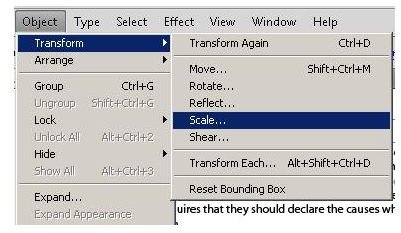
2. When the “Scale” window appears, you can resize the text box according to uniform or non-uniform percentages. Enter the percentages you want to use and then click the “OK” button.
3. You can also scale text boxes in Illustrator by using the “Scale” tool in the tool box. To do this, grab the tool.
4. Click and drag the box to scale the text in real time. You will notice that you are even able to flip the box on its axes, producing an interesting effect.