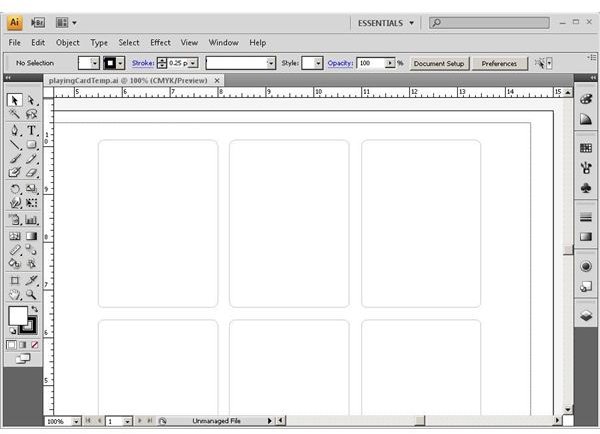
Adobe Illustrator lets you create professional graphics right on your desktop. You can create products to sell, create marketing collateral, or just create something fun. Here we’ll look at how to create playing cards in illustrator, something that incorporates all three purposes.
Things You Will Need
In order to create playing cards in Adobe Illustrator, you will need a computer, Adobe Illustrator software, a creative mind. You will also need to decide whether you will be printing the cards yourself (in which case you will need card stock) or if you will be using an online printing service that will print and cut your cards for you.
Overview
1. Draw your template. Because playing cards are so small, you can easily fit six on a page. Draw a rounded rectangle with the dimensions of a standard playing card (3.5" x 2.5") or any custom size you want. If you are going to use a service that will print and cut your cards for you, you should check with them to see what sizes they can handle. If you are going to print them yourself, you have more flexibility.
2. Now that your template is in place, you can work on your design. You can create your own artwork, use clip art, or you can use a combination of the two. Don’t forget that you need to decide what the back of your cards will look like too. You can get some ideas from Google Images. Here, we will use some vector playing cards that are downloadable for free from https://david.bellot.free.fr/svg-cards/ . This is just a sample. Be sure to consult the Lesser GNU Public License that applies to these images before you distribute them.
Sample Card Setup
1. Set up the top half of your card. Use the Pathfinder and other tools to align the objects.
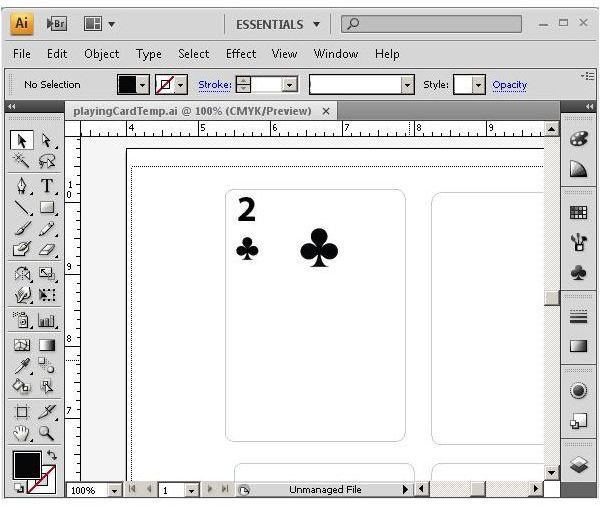
2. To make the bottom half of your card, select the objects from the top of your card and make a copy of them. Reflect the copy horizontally and then reflect it vertically. Align the bottom half using the Pathfinder palette.
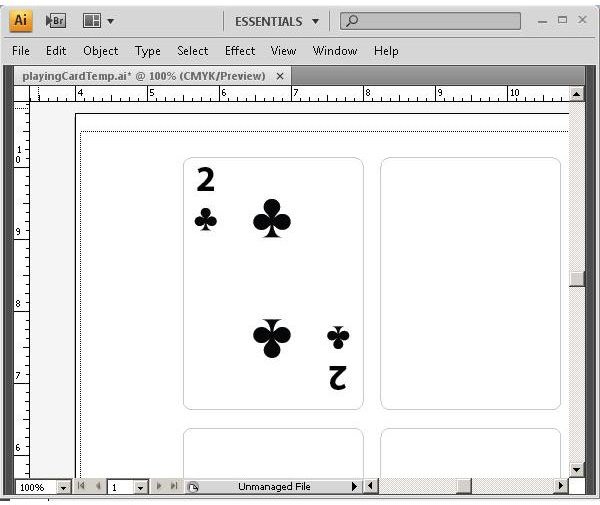
3. You can add things to the front of your playing cards such as images of the products you sell, facts about your business. The Army used to print playing cards that had drawings of airplanes and tanks to help soldiers learn to identify them. The possibilities are endless.
4. After your card faces are done, create the back of the card. You only need to fill one copy of your template with the back of the card.
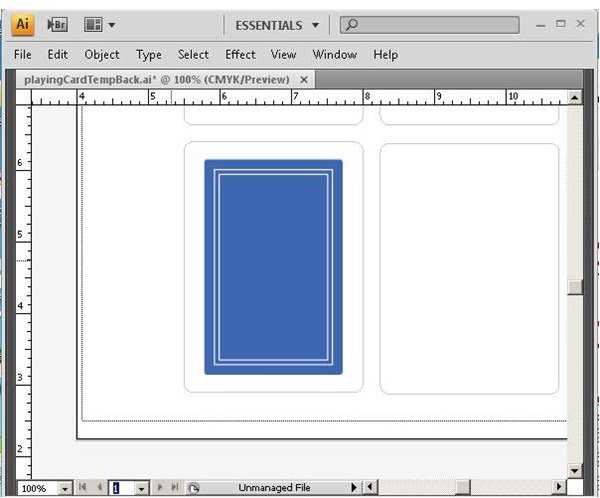
5. If you want, you can use the back of your playing cards for marketing space. You can put your Web site, your phone number, or a short marketing blurb.
6. Face cards present a special opportunity to be creative. You can use family photos, pets, or graphics to represent the kings, queens and jacks. The jokers and the Ace of Spades are other opportunities to use your imagination.
Printing Your Cards
Once your full deck is created, you can decide between uploading the cards to an online print service and printing them yourself. Try 60 pound coated cover stock as good choice of paper to print on. Your choice has a lot to do with the cost of the online printing companies and the capabilities of your printer.


