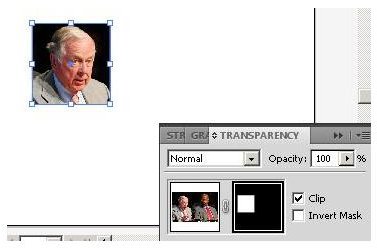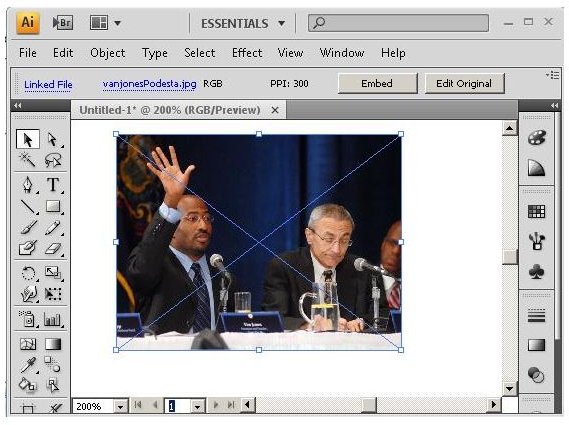
Image editing applications such as Adobe Photoshop include cropping tools that allow users to remove unwanted areas of an image or change its aspect ratio, but Adobe Illustrator does not, being a vector-based graphics program. Here you will learn how to crop in Adobe Illustrator.
Cropping in Illustrator
Adobe Illustrator gives users the ability to hide sections of an image using vector masks to get the same result as cropping the image would produce in Photoshop. This is a powerful, easy to use feature that you will quickly master.
First, we’ll look at how to crop using a clipping mask and then we’ll go over how to do the same thing using an opacity mask. Here is how to crop using a clipping mask.
Cropping with Clipping Masks
-
Place an image onto the Illustrator canvas. To do this, click “File” and then “Place” from the menu bar and find your image in the selection window. You can also copy your image from another application and paste it into Illustrator. Another way you can do this is to drag the image file from Explorer onto the Illustrator canvas.
-
Select a shape tool. Use the rectangle tool for this example, but you can choose any shape you want.
Advertisement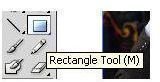
-
Use the mouse to create a rectangle that will be placed over the area you want to have visible in the final result. After the shape is drawn, adjust its dimensions and position over the image.
Advertisement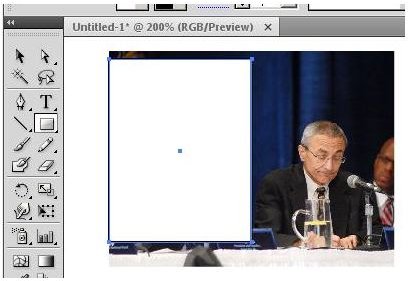
-
With the selection tool (arrow), hold
down and click the image and then the shape. Both objects should now be selected simultaneously. Advertisement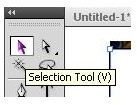
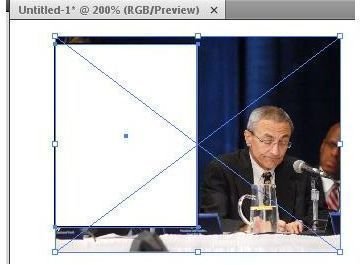 Advertisement
 -
From the menu bar, select “Object” and then “Clipping Mask” and then “Make.” You should now see only the visible area that you defined on the canvass.
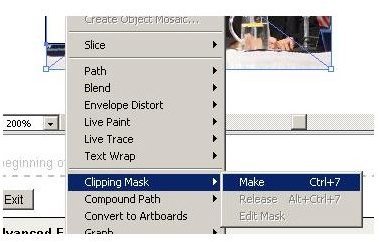 Advertisement
 -
Now you know how to crop in Adobe Illustrator using a clipping mask.
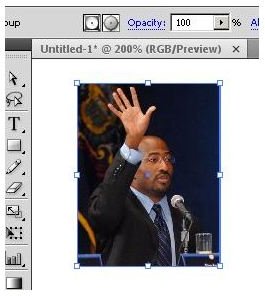 Advertisement
Cropping with an Opacity Mask
Now that we’ve used Adobe Illustrator to crop with a clipping mask, let’s go over how to crop in Adobe Illustrator using an opacity mask.
-
Place the image on the Illustrator canvas. You can do this either from the “File”, “Place” menu item or drag the image to the canvas from Explorer.
Advertisement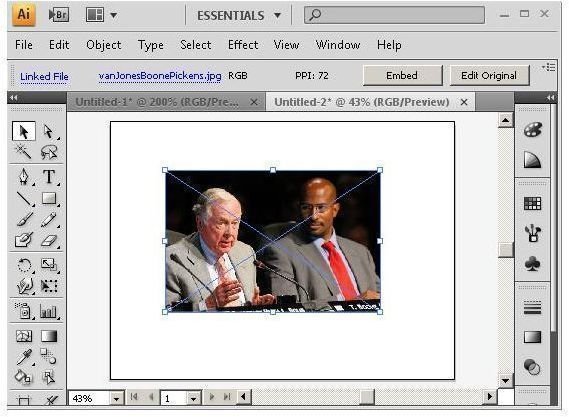
-
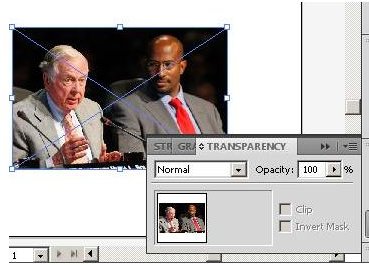
Open the transparency panel either by clicking “Window” and then “Transparency” or by pressing
on the keyboard. Advertisement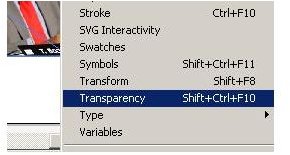
 Advertisement
 -
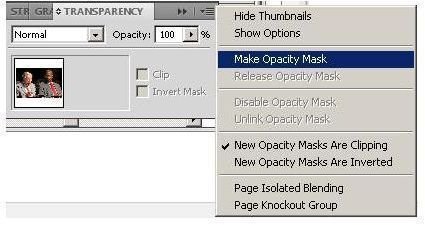
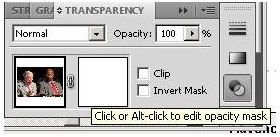
From the transparency panel’s flyout menu, select the “Make Opacity Mask” option.
 Advertisement
 -
Click the opacity mask thumbnail and then draw a shape over the part of the image you want to retain.
 Advertisement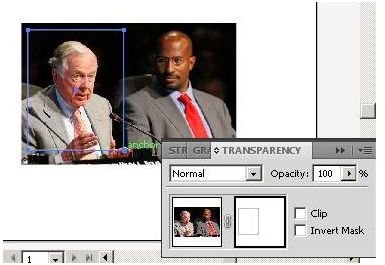
-
Check the “Clip” box in the transparency window.
Advertisement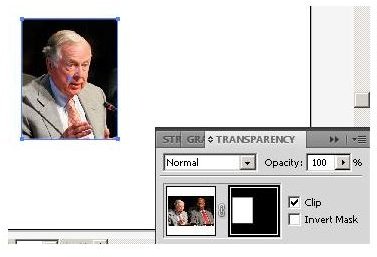
-
If necessary, grab the selection tool and then click the mask thumbnail in the transparency window to resize or adjust the cropped image. As you adjust the shape over the image, the opacity mask will automatically adjust.